Change your email password
If you think your password may have been seen by someone else, or you just want a stronger one, you can change your email password yourself from webmail.
Change your password
-
Open a web browser and go to ax.email. Log in with your full email address and your current email password. (New to webmail? See Check your email anywhere with webmail.)
-
Click the cog icon at the very bottom left of the screen, then click Settings at the bottom of the little menu that pops up. (The Settings window appears dark even in light mode — that’s normal.)
-
On the General tab, find the Password change section and click Change.
-
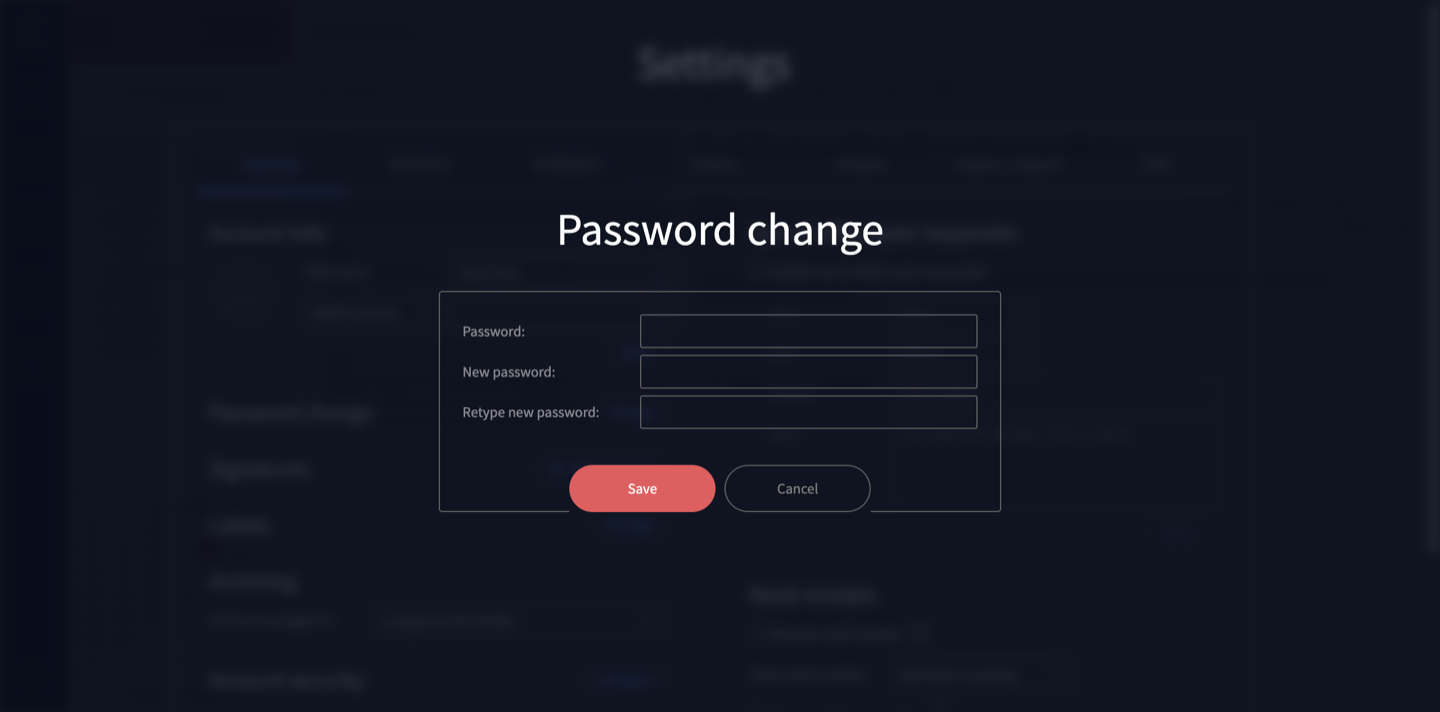
In the dialog, enter your current Password, then your New password, and Retype new password to confirm.
-
Click Save.
Choose a strong password you don’t use anywhere else — longer is better. A password manager makes this easy: it creates a strong password and remembers it for you, so you never have to.
Important: update your password on your devices
Webmail will keep working straight away with the new password. But any mail app already set up on your phone or computer is still using the old password — so it will stop sending or receiving and prompt you to sign in again.
When that happens, enter your new password in the app. If it doesn’t prompt you, open the account settings in your mail app and update the password there. Our device guides show where to find it:
If you use email on more than one device, remember to update the password on each of them.
Can’t find the setting, or forgotten your password?
The exact wording can vary slightly between webmail versions. If you can’t find the Password Change option under Settings — or you can’t log in because you’ve forgotten your password — contact us or call 1300 024 766 and we’ll reset it for you.
Still on the old Rackspace platform? Your email lives in a different webmail, so some of these steps won’t match — get in touch and we’ll help you change your password.
Didn't work, or not sure?
No worries — that's what we're here for. Tell us what step you got up to and what you saw, and we'll sort it with you.