Set up your Jezweb email in Outlook on Windows
The screenshots below are from an earlier software version — buttons may look a little different on your device, but the steps and settings are current.
This guide covers classic Outlook (the desktop app installed from Microsoft 365 or an older Office package). If you’re on the newer Outlook experience, the flow is similar: go to Settings → Accounts → Add account and follow the IMAP prompts from step 6 below.
You’ll need the email address and password we sent you — if you can’t find them, email us and we’ll resend them securely.
Watch the setup
Your settings
| Setting | Value |
|---|---|
| Incoming server (IMAP) | ax.email |
| Incoming port | 993 (SSL/TLS) |
| Outgoing server (SMTP) | ax.email |
| Outgoing port | 465 (SSL/TLS) |
| Username | your full email address |
| Password | your email password |
The steps
-
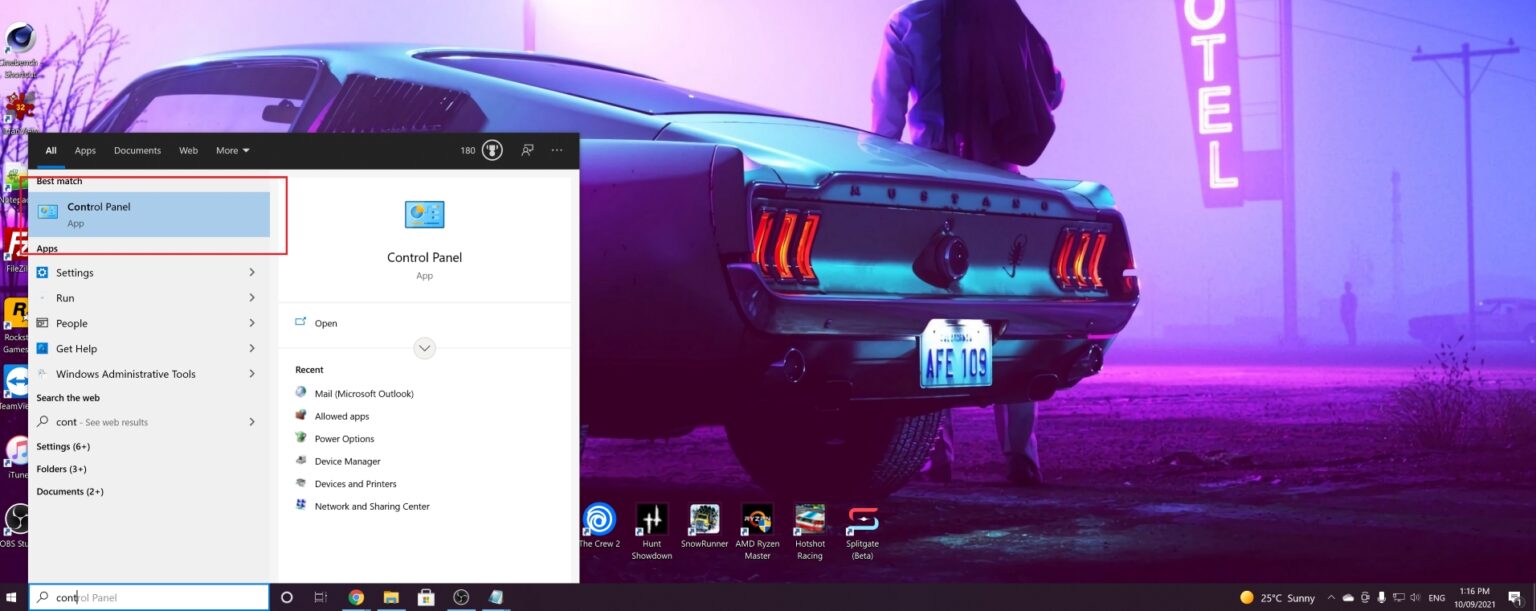
Type Control Panel in the Windows search bar and open it.
-
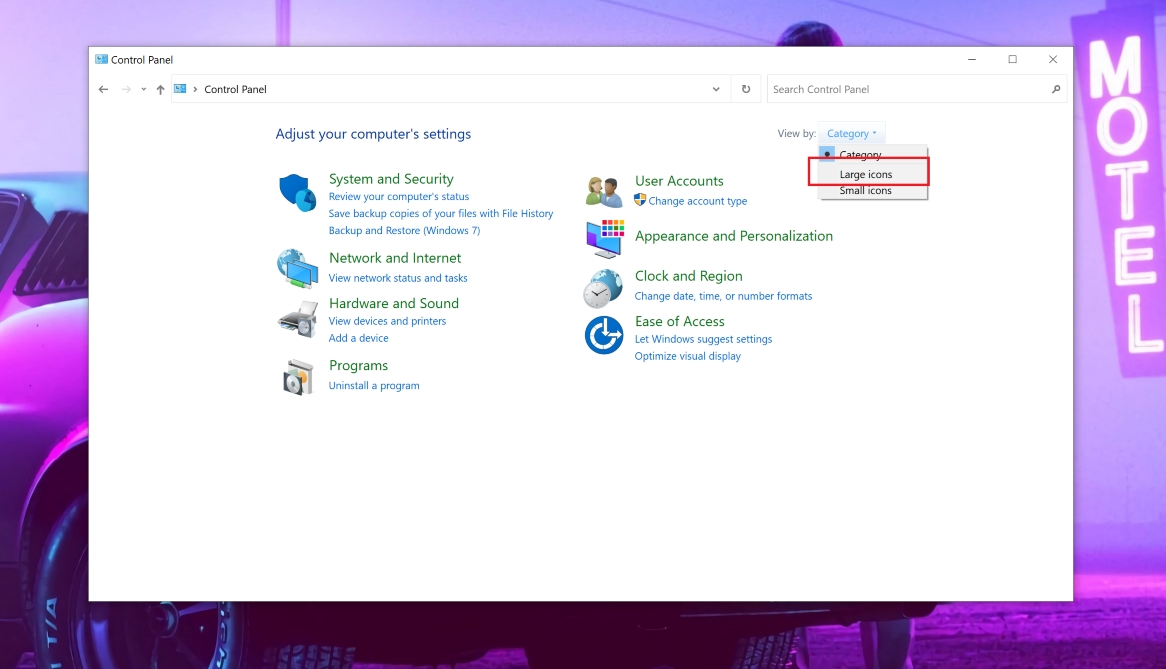
Click View by in the top right and select Large icons.
-
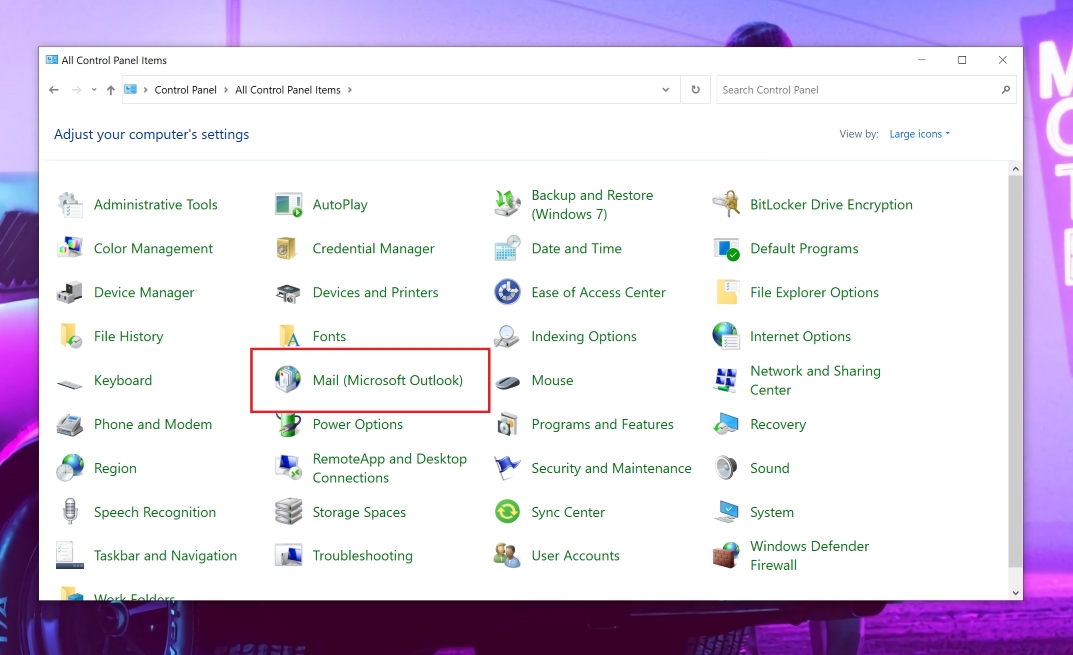
Click the Mail (Microsoft Outlook) icon.
-
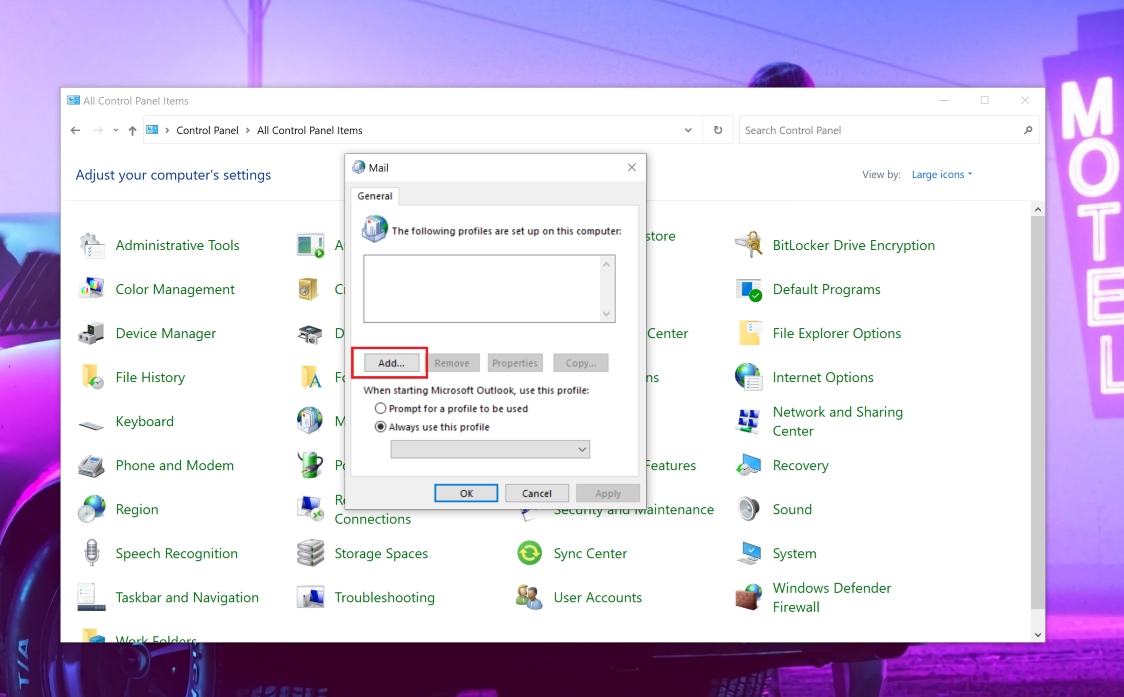
The Mail Setup window opens. Click Show Profiles, then click Add.
-
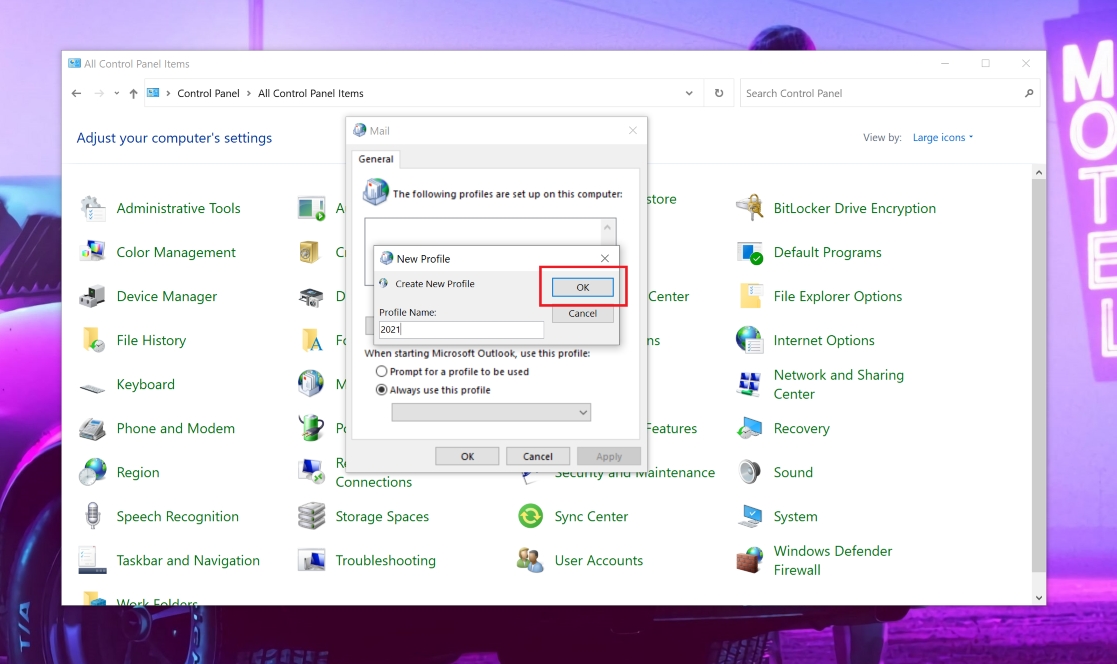
Give the profile a name (anything will do) and click OK.
-
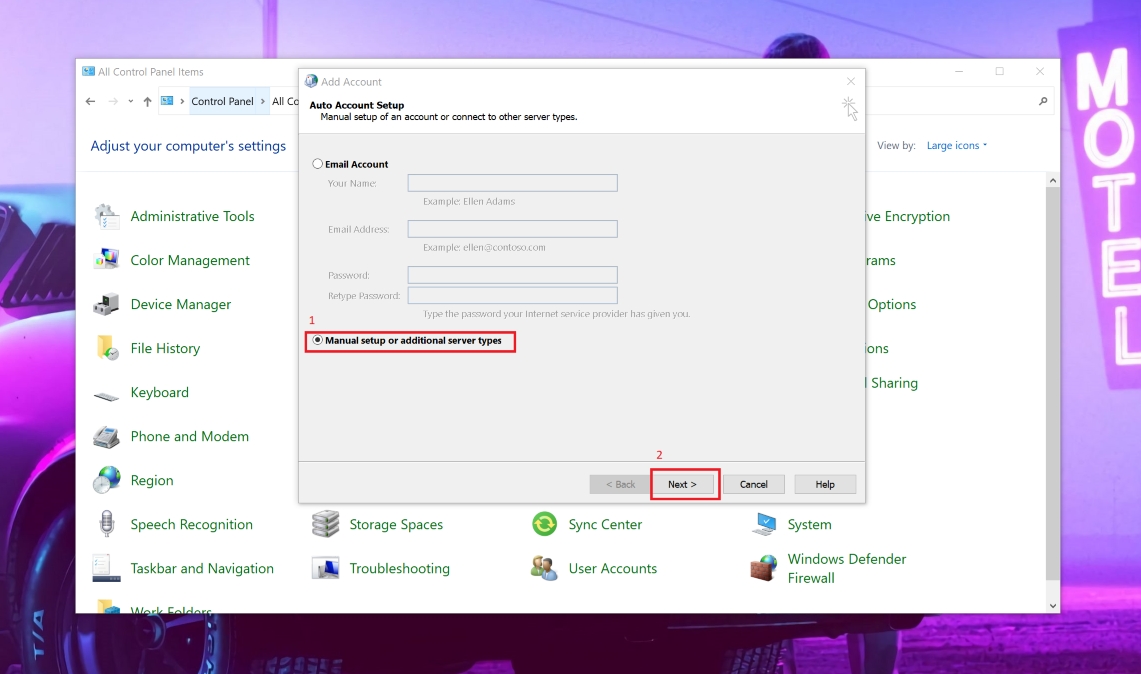
Select Manual setup or additional server types and click Next.
-
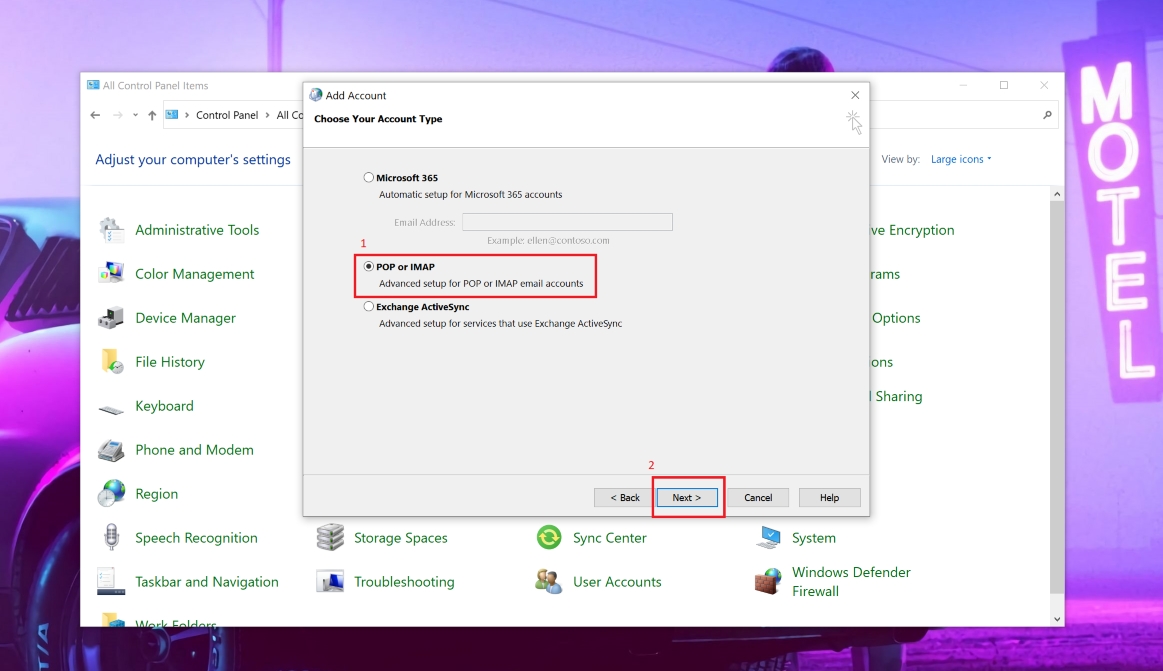
Select POP or IMAP and click Next.
-
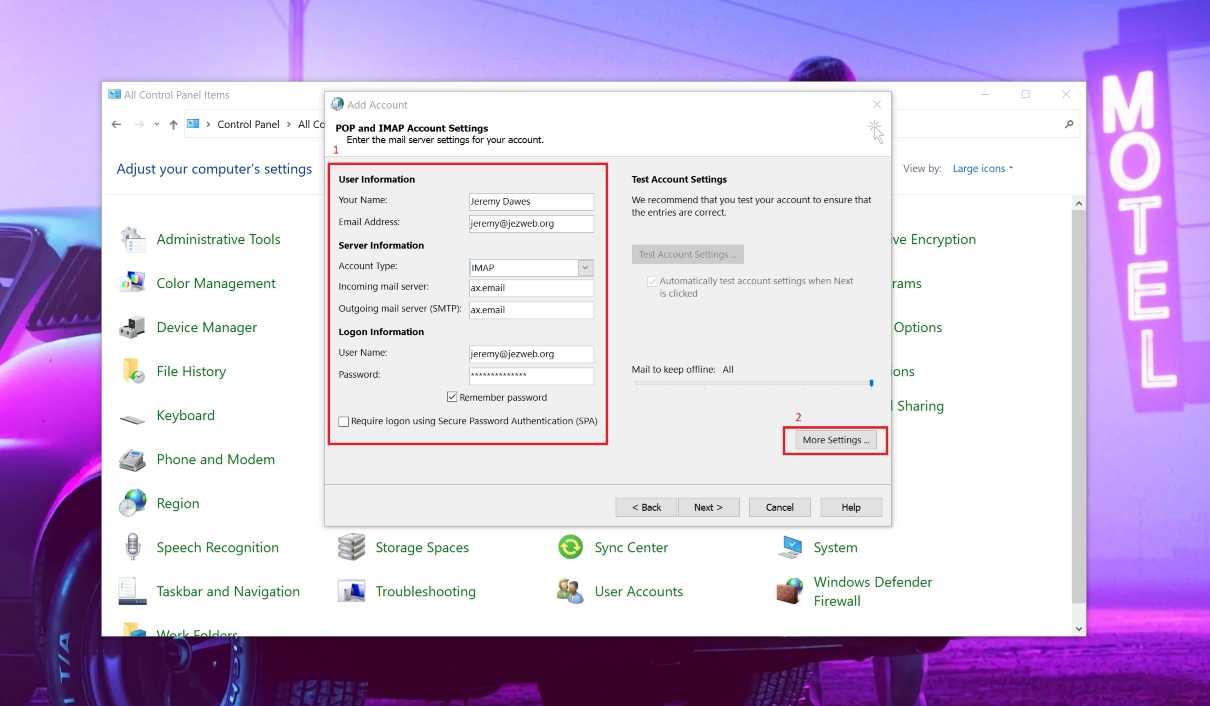
Fill in the account details:
- Your name: the name shown on your outgoing emails
- Email address: your full email address
- Account type: IMAP
- Incoming mail server:
ax.email - Outgoing mail server (SMTP):
ax.email - User name: your full email address
- Password: your email password
-
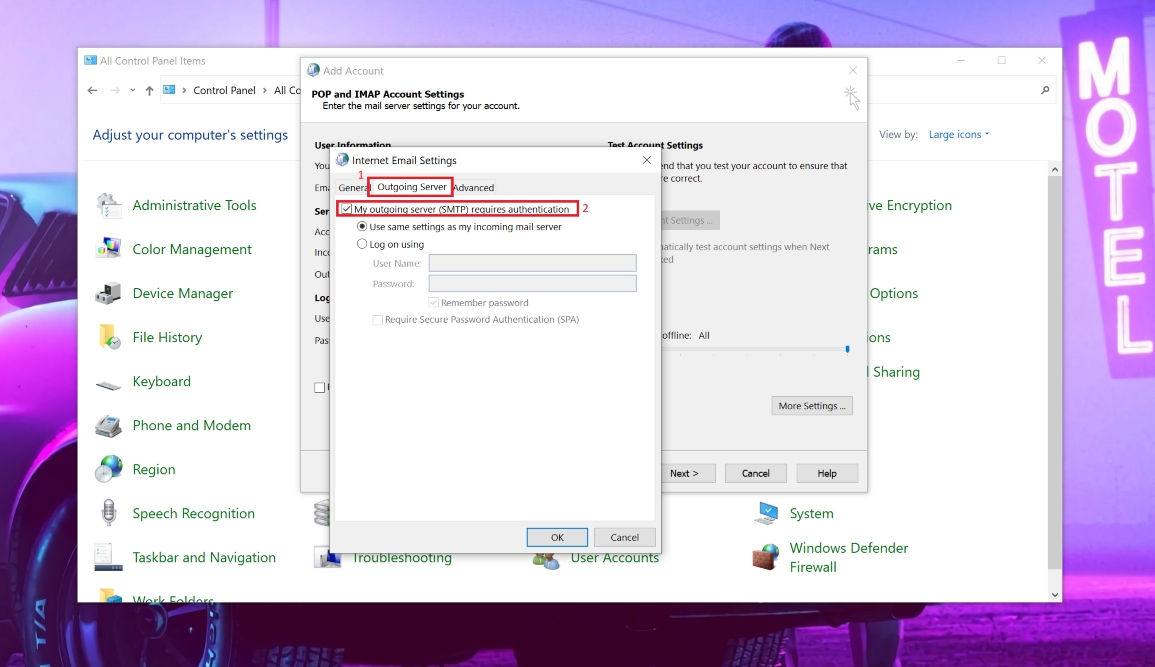
Click More Settings, then go to the Outgoing Server tab and tick My outgoing server (SMTP) requires authentication.
-
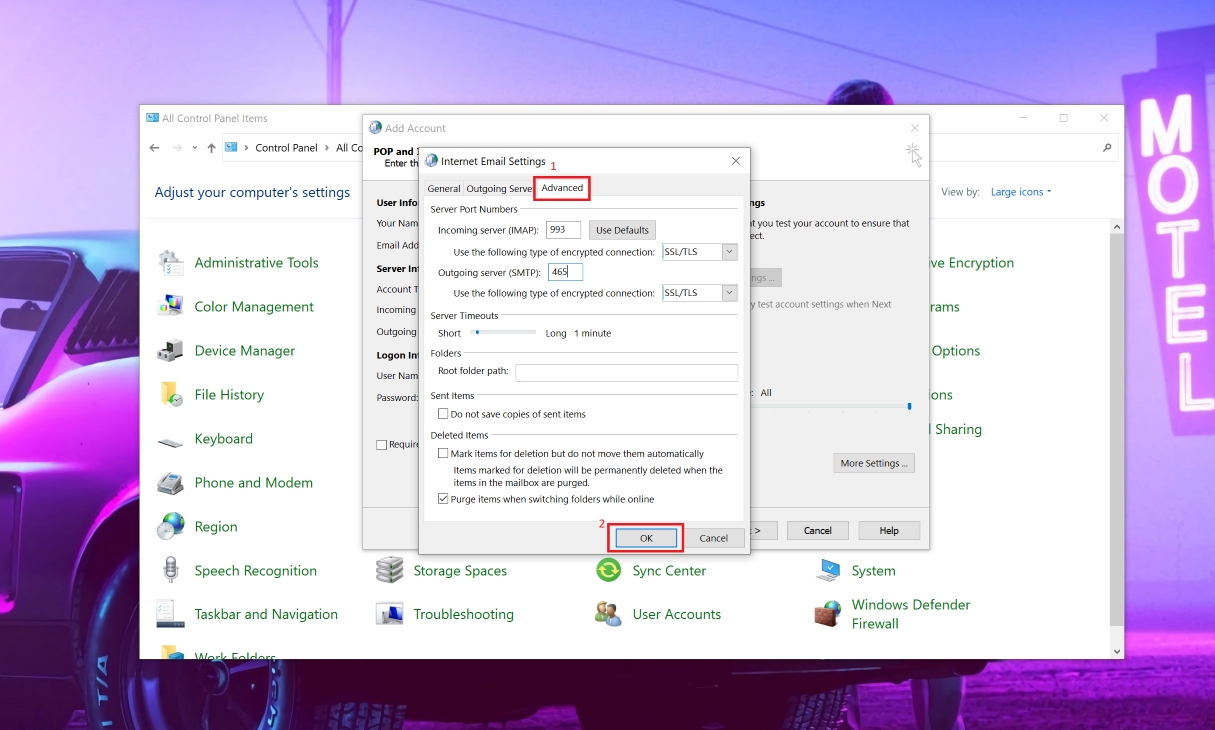
Go to the Advanced tab and enter the port numbers:
- Incoming server (IMAP):
993, encryption: SSL/TLS - Outgoing server (SMTP):
465, encryption: SSL/TLS
Click OK.
- Incoming server (IMAP):
-
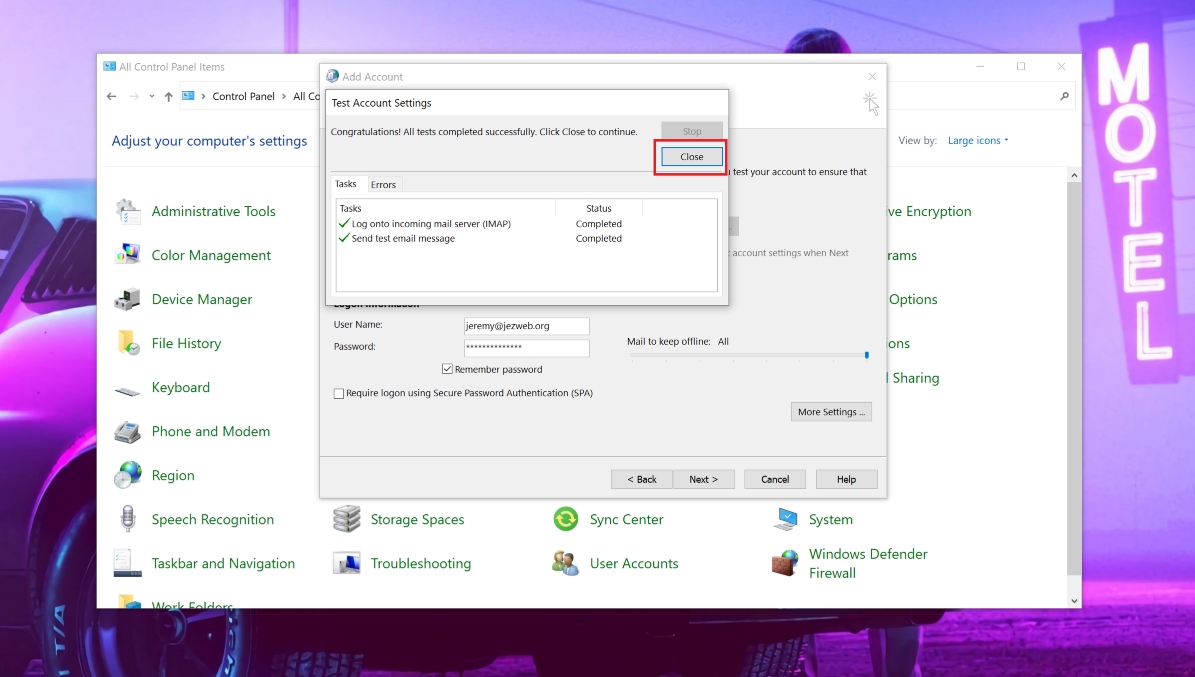
Back on the account form, click Next. Outlook will test the connection — both ticks should turn green. Click Close.
-
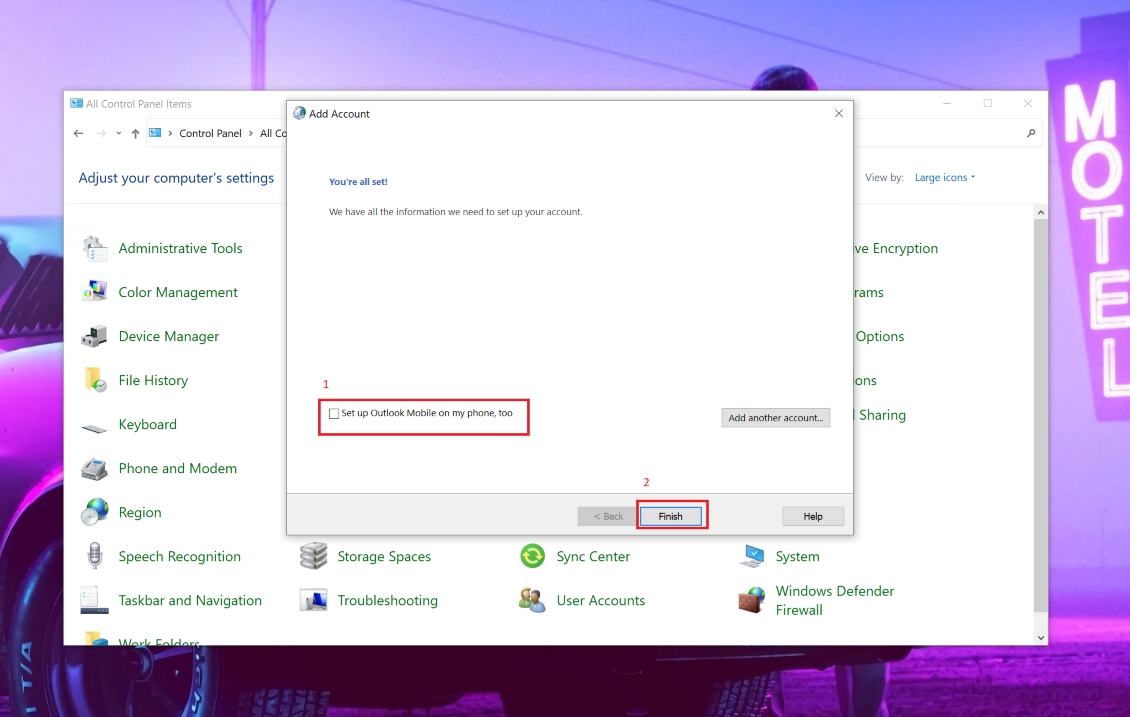
Untick Set up Outlook Mobile on my phone if prompted, then click Finish.
-
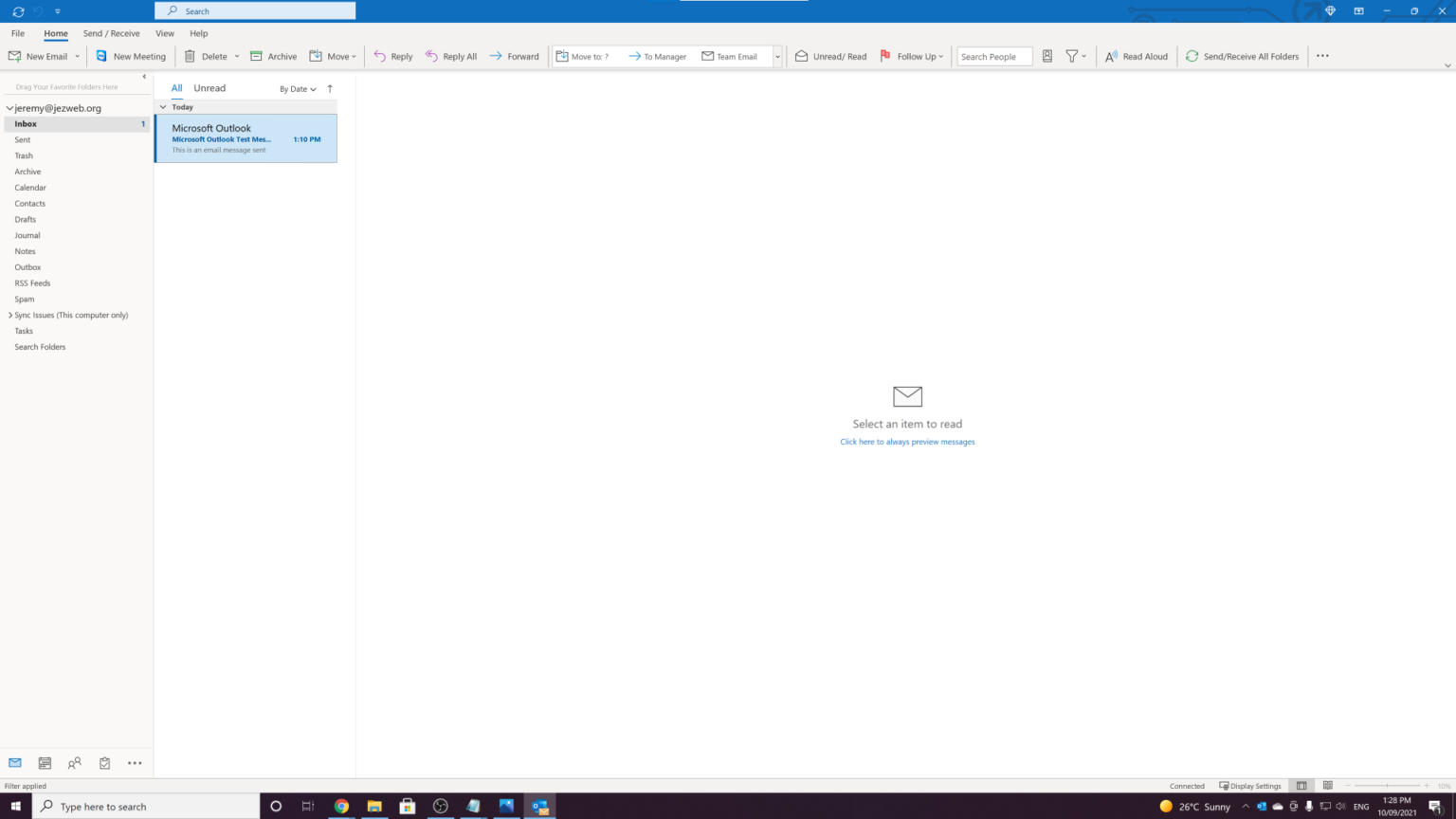
Open Outlook — your inbox will start filling in. Allow a few minutes for the first sync on a large mailbox.
Connection test failed?
Double-check the port numbers and that both boxes are set to SSL/TLS. Also make sure the username on the outgoing server (step 9) matches your full email address — Outlook sometimes leaves it blank.
Didn't work, or not sure?
No worries — that's what we're here for. Tell us what step you got up to and what you saw, and we'll sort it with you.