Set an out-of-office reply
Heading away? You can set up an automatic reply that tells anyone who emails you that you’re out of office. Axigen calls this the out-of-office auto-responder (sometimes called a vacation reply). You set it once, and it does the rest.
Set it up
-
Open a web browser and go to ax.email. Log in with your full email address and your email password. (New to webmail? See Check your email anywhere with webmail.)
-
Click the cog icon at the very bottom left of the screen, then click Settings at the bottom of the little menu that pops up.
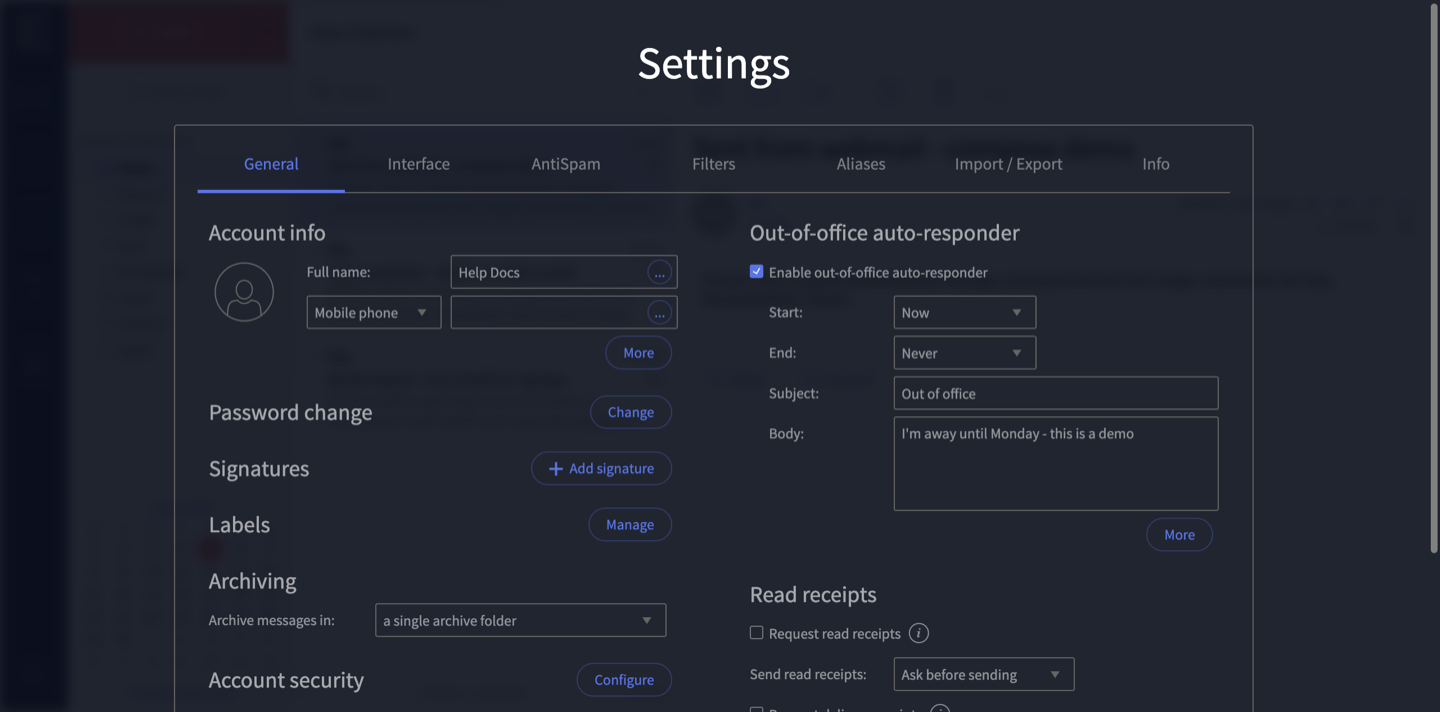
One thing not to be surprised by: the Settings window appears dark, even if your webmail is in light mode. That’s just how it looks — nothing is wrong.
-
On the General tab, look to the right-hand column for Out-of-office auto-responder.
-
Tick Enable out-of-office auto-responder.
-
Set your Start and End dates. They default to “Now” and “Never” — if you choose an end date, the reply switches off by itself and you don’t have to remember to turn it off.
-
Type a Subject (for example “Out of office”) and your message in the Body — for example: “Thanks for your email. I’m away until Monday and will reply when I’m back.”
-
Click Save & close at the bottom of the Settings window.
That’s it. Anyone who emails you while it’s on gets your reply automatically.
Remember to turn it off
If you set an end date in step 5, the reply turns itself off — nothing more to do.
If you left the end as “Never”, turn it off manually when you’re back:
- Open Settings → General again.
- Untick Enable out-of-office auto-responder.
- Click Save & close.
Can’t find the setting?
The exact wording can vary slightly between webmail versions (this guide matches Axigen 10.6). If you can’t spot it, contact us or call 1300 024 766 and we’ll walk you through it.
Still on the old Rackspace platform? Use the separate guide: Set an out-of-office reply in Rackspace webmail.
Didn't work, or not sure?
No worries — that's what we're here for. Tell us what step you got up to and what you saw, and we'll sort it with you.