Forward your email to another address
Forwarding sends your incoming email on to another address automatically — handy if you’d rather read everything in one place, like your Gmail or another work account. In Axigen webmail you set this up with a filter.
Set up forwarding
-
Open a web browser and go to ax.email. Log in with your full email address and your email password. (New to webmail? See Check your email anywhere with webmail.)
-
Click the cog icon at the very bottom left of the screen, then click Settings at the bottom of the little menu that pops up. (The Settings window appears dark even in light mode — that’s normal.)
-
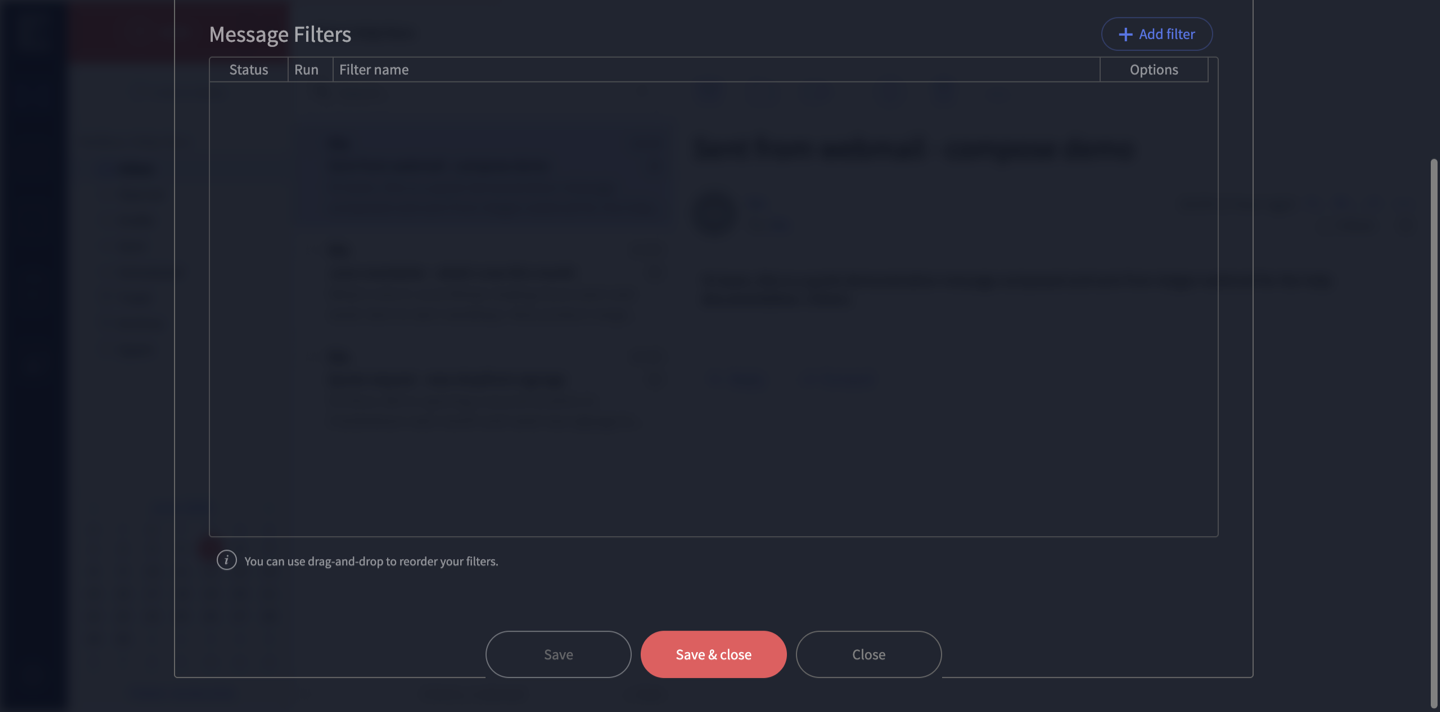
Open the Filters tab and click Add filter.
-
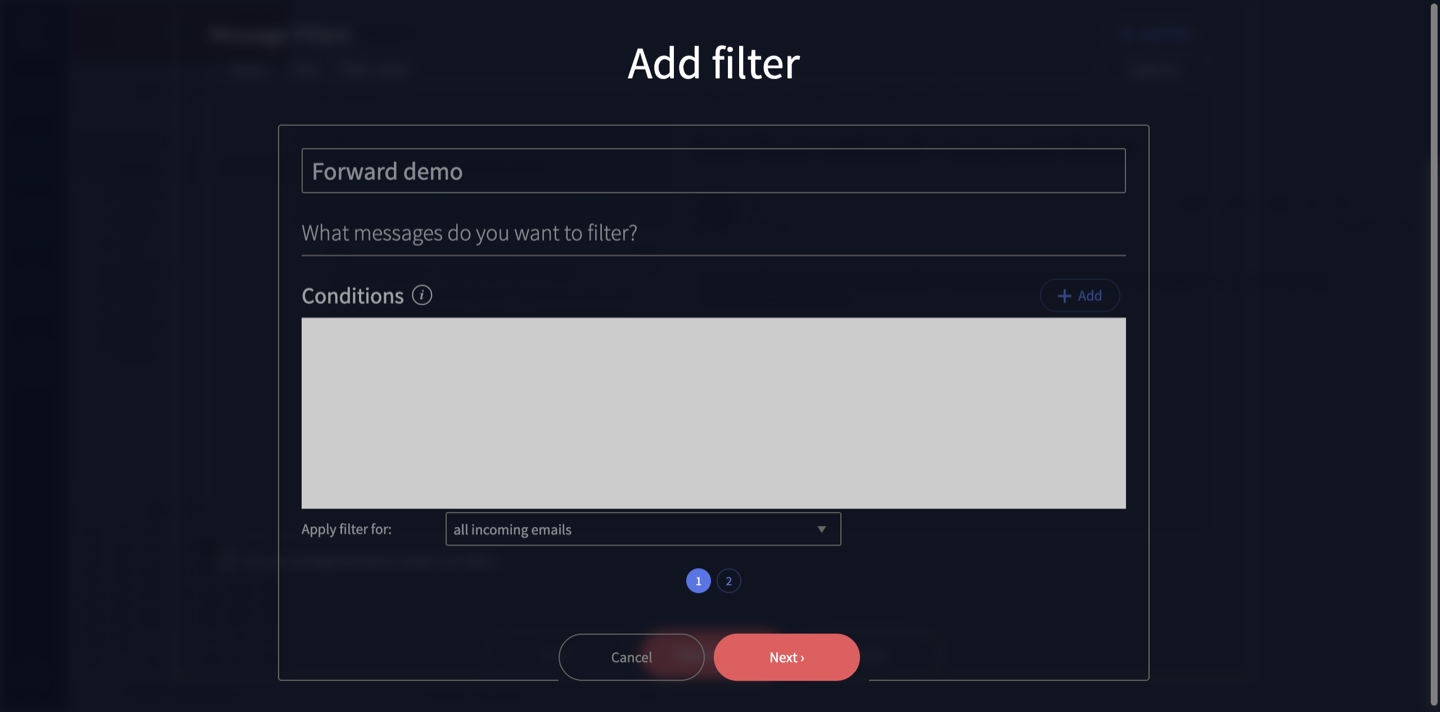
Give the filter a name so you’ll recognise it later (for example, Forward to Gmail), and leave Apply filter for set to all incoming emails (don’t add conditions unless you only want to forward certain messages).
-
Continue to the actions step. Choose Forward to and type the email address you want your mail sent to.
-
Save the filter, then click Save & close on the Settings window.
From now on, new emails that arrive will be forwarded to that address.
Keep a copy in your Jezweb mailbox
A plain Forward to action passes mail along — but you’ll usually want to keep a copy in your own mailbox too, so nothing’s lost if there’s ever an issue at the other end.
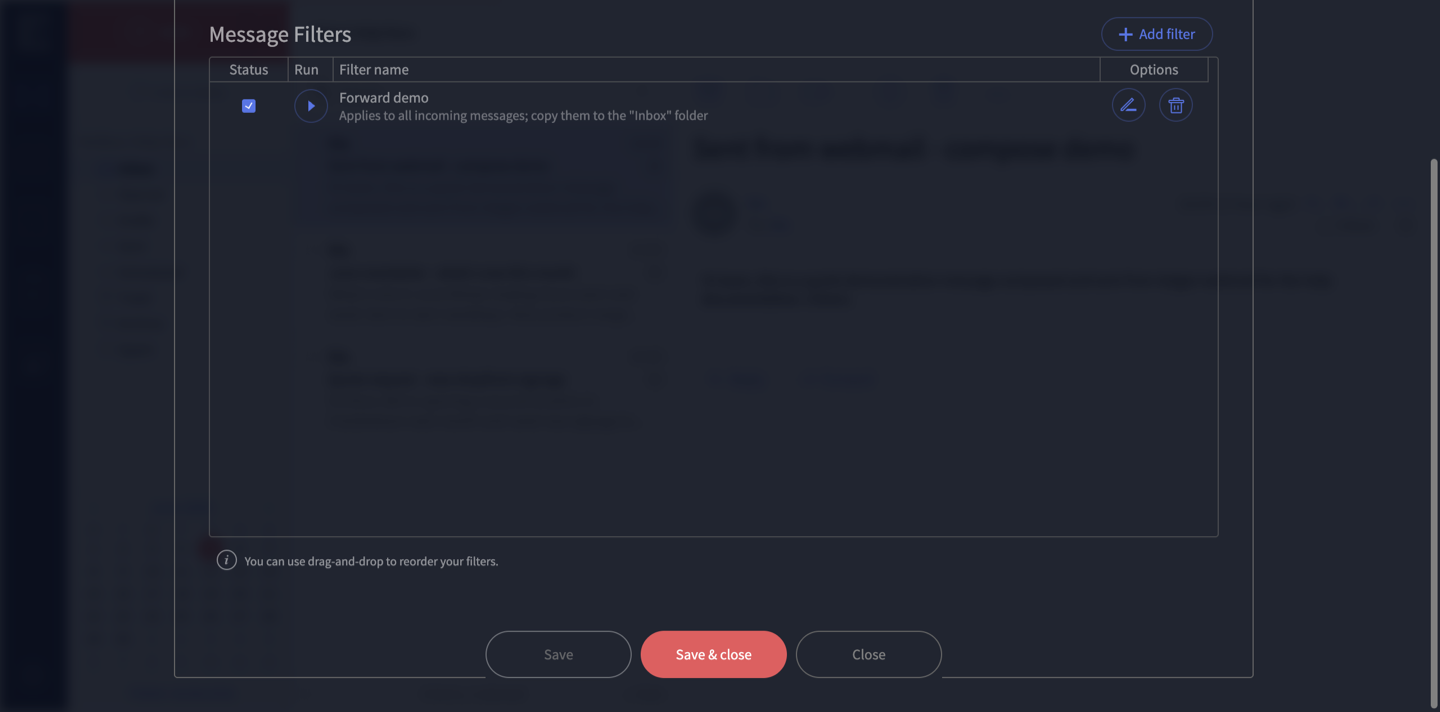
To keep a copy, add a second action in the same filter: choose Copy to and select your Inbox. The filter then reads “copy them to the Inbox folder” as well as forwarding — your copy stays put, and the forward goes out.
Stop forwarding
Go back to Settings → Filters, and either untick the filter’s Status box (turns it off, keeps it for later) or click its bin icon to delete it. Then Save & close.
A note on forwarding to Gmail, Outlook and others
Forwarding to big providers like Gmail or Outlook can occasionally cause your forwarded mail to land in spam, or be slowed down, because of the way those providers check who really sent the message. If you set up forwarding and find mail going missing or landing in junk, contact us or call 1300 024 766 — we can check the settings and help make forwarding more reliable.
Can’t find the setting?
The exact wording can vary slightly between webmail versions. If you can’t find the Filters option under Settings, get in touch and we’ll set the forward up for you.
Still on the old Rackspace platform? Use the separate guide: Set up email forwarding in Rackspace webmail.
Didn't work, or not sure?
No worries — that's what we're here for. Tell us what step you got up to and what you saw, and we'll sort it with you.