Sort incoming email automatically with filters
A filter is a rule that webmail runs on your incoming email for you. The classic example is newsletters: instead of them cluttering your inbox, a filter can drop every newsletter straight into its own folder, so your inbox stays for the mail that actually needs you. Filters can also mark, star, copy or forward messages.
Create a filter (newsletters example)
-
Open a web browser, go to ax.email and log in.
-
Click the cog icon at the very bottom left, then click Settings. (The Settings window appears dark even in light mode — that’s normal.)
-
Open the Filters tab. This is your list of Message Filters. Click Add filter at the top right.
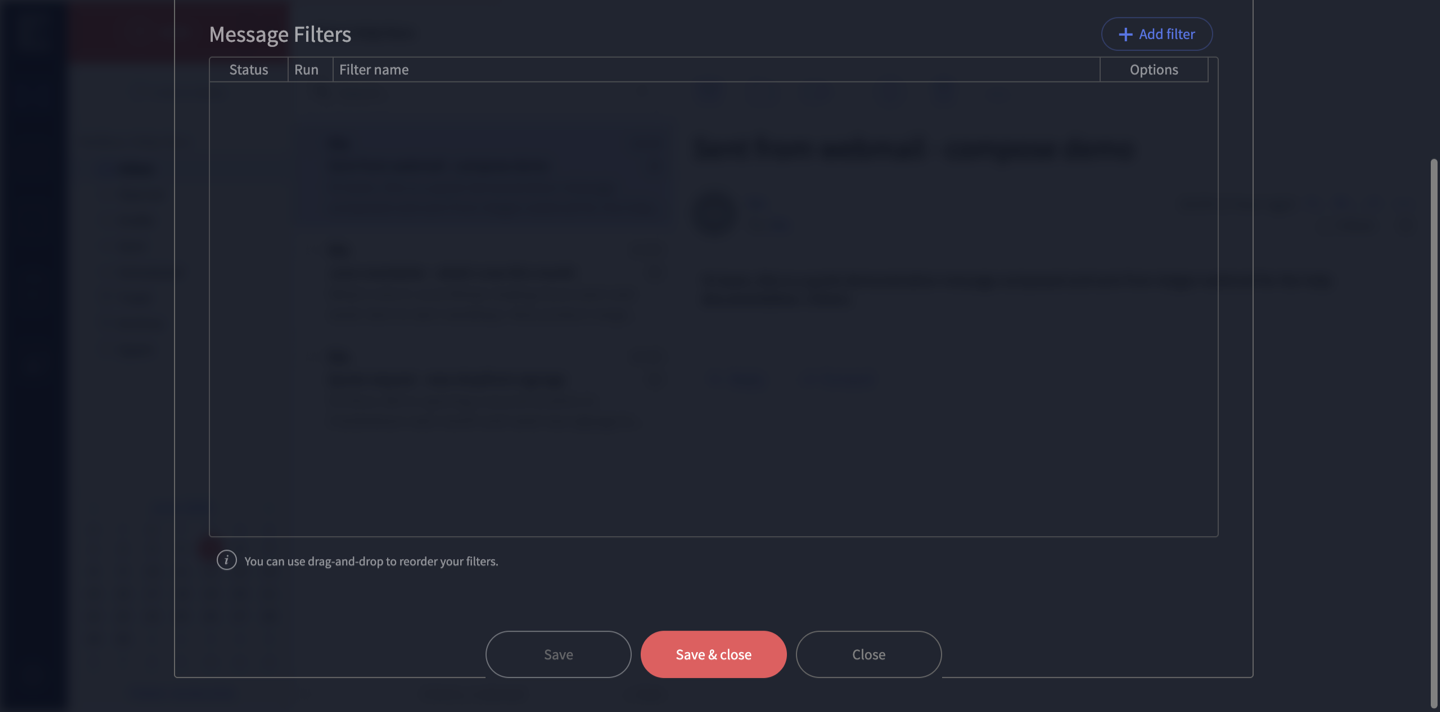
-
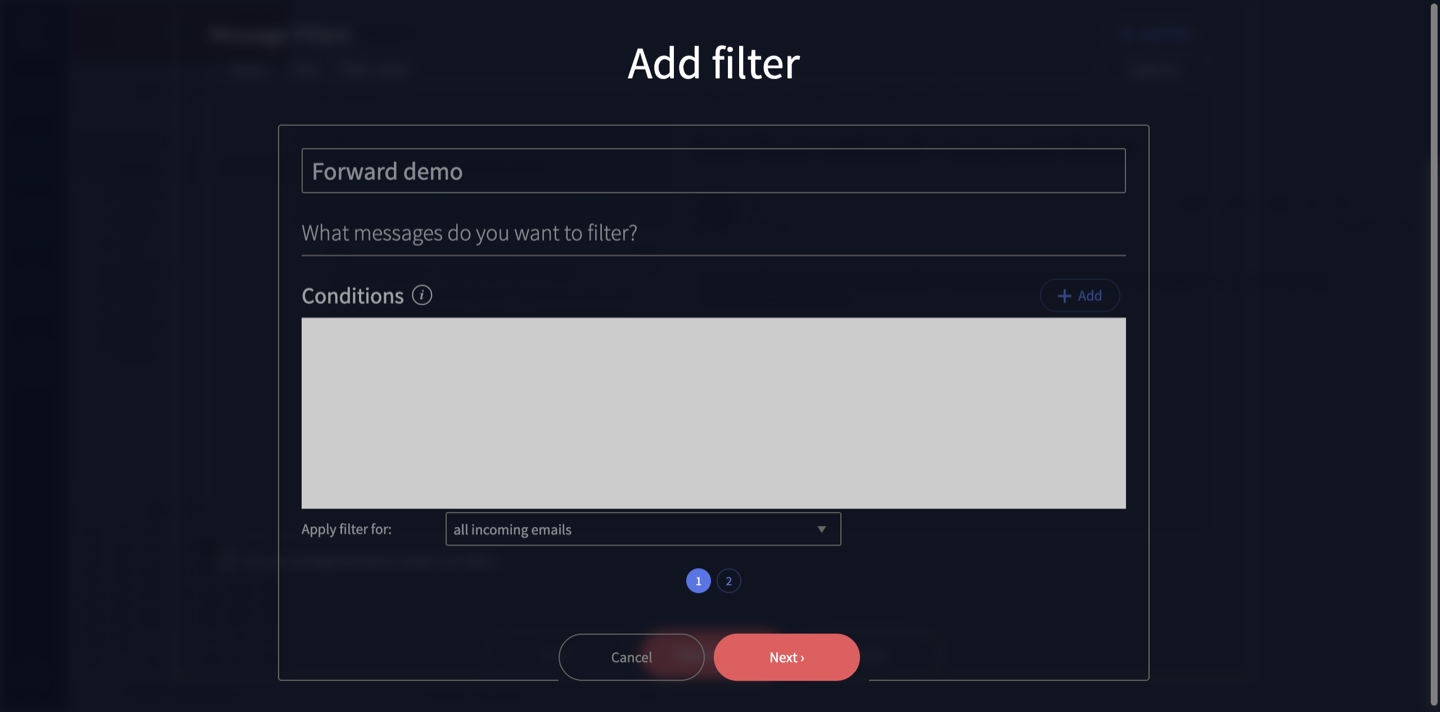
Step 1 — name and conditions. Give the filter a name you’ll recognise later (for example, Newsletters). Under Conditions, click + Add to set what to match — say, the sender’s address or a word in the subject.
The Apply filter for dropdown decides how widely it runs. Leave it on all incoming emails to match everything, or use it together with your conditions to target just certain messages. When you’re ready, click Next.
-
Step 2 — actions. Choose what should happen to matching mail. The actions include:
- Move to — send it to a folder (this is the one for tidying newsletters)
- Copy to — keep it where it is and drop a copy in another folder
- Mark as — mark it read, or similar
- Star — star it so it stands out
- Forward to — send it on to another address
For the newsletter example, pick Move to and choose (or create) a folder like Newsletters.
-
Save the filter, then click Save & close on the Settings window.
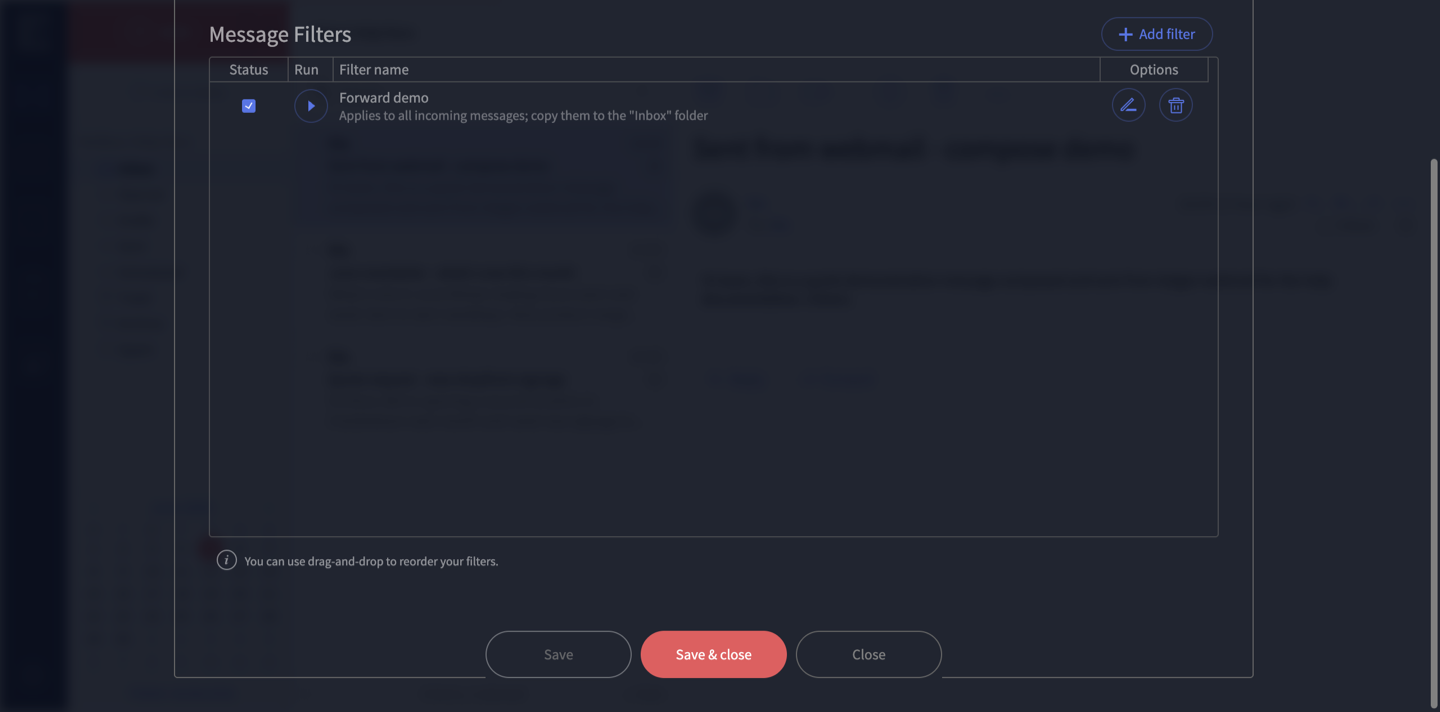
New mail that matches will now be sorted automatically.
Conditions vs all incoming mail
If you set conditions (like “from this sender”), the filter only acts on mail that matches them. If you leave it on all incoming emails with no conditions, it acts on everything that arrives — useful for a blanket rule like forwarding, but be careful with “Move to” so you don’t sweep your whole inbox into a folder.
Turn a filter off (without deleting it)
Each filter has a Status tick in the list. Untick it to switch the filter off while keeping it for later — handy if you only want it running some of the time. To remove a filter for good, use its bin icon instead. Either way, click Save & close afterwards.
Forwarding is just a filter
Want a copy of your mail sent to another address, like a Gmail account? That’s a filter with a Forward to action — see Forward your email to another address for the step-by-step.
Can’t find the setting?
The exact wording can vary slightly between webmail versions. If you’d rather we set a filter up for you, contact us or call 1300 024 766.
Didn't work, or not sure?
No worries — that's what we're here for. Tell us what step you got up to and what you saw, and we'll sort it with you.