Stop good mail going to spam (and block senders)
If a supplier’s or customer’s emails keep landing in your Spam folder, you can tell webmail to always trust them. And if someone keeps bothering you, you can block them so you never see their mail again. Both are done from the AntiSpam settings.
Always trust a sender (whitelist)
The whitelist is your list of “always let these through” addresses — the fix for “my supplier’s emails keep going to junk”.
-
Open a web browser and go to ax.email and log in.
-
Click the cog icon at the very bottom left, then click Settings. (The Settings window appears dark even in light mode — that’s normal.)
-
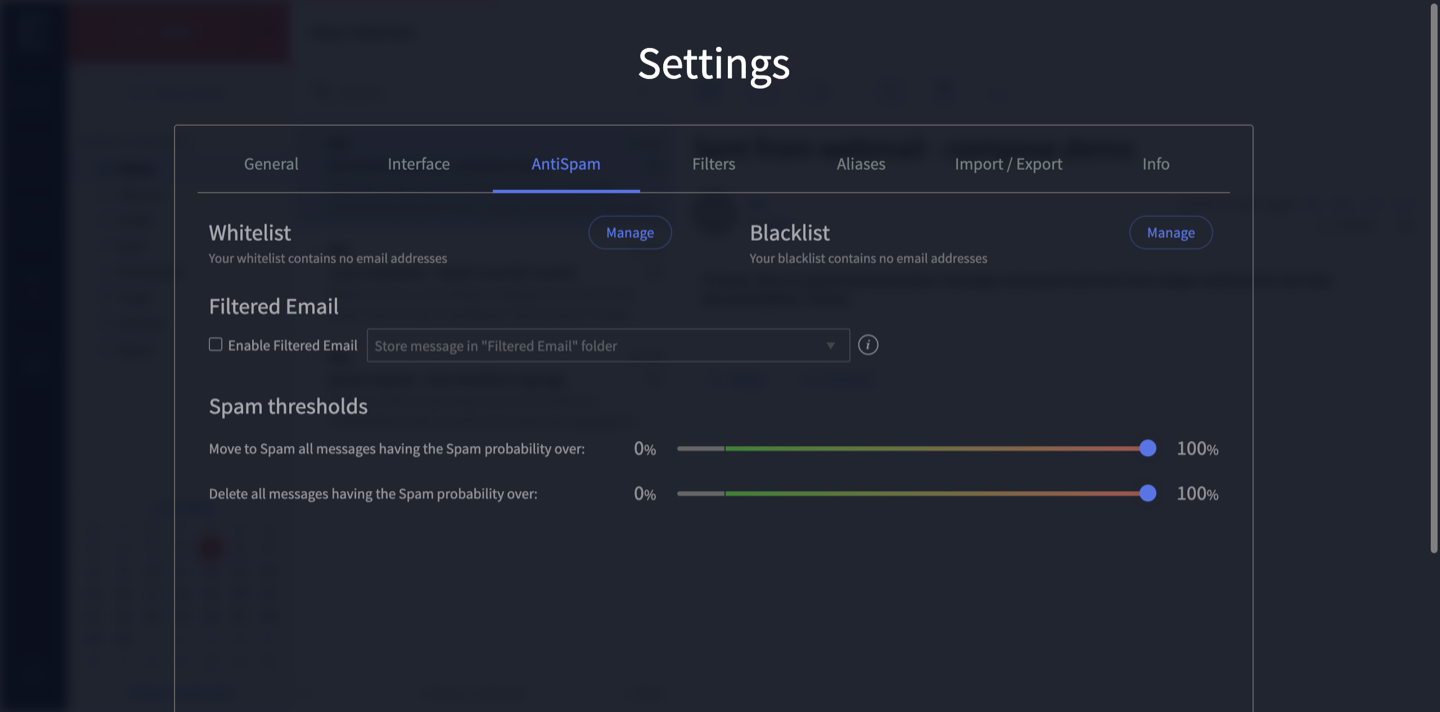
Open the AntiSpam tab.
-
Next to Whitelist, click Manage and add the email address you want to always trust. Save when you’re done.
From then on, mail from that address should arrive in your inbox normally.
Block a sender (blacklist)
The blacklist is the opposite — mail from these addresses is treated as unwanted.
-
On the same AntiSpam tab, click Manage next to Blacklist.
-
Add the email address you want to block, then save.
Check your Spam folder now and then
No spam filter is perfect, so it’s worth glancing in your Spam folder every so often in case a real email landed there by mistake. If you find one, you can move it back to your inbox and add the sender to your whitelist so it doesn’t happen again. For more on this, see Stop spam and protect your inbox.
Please don’t move the spam sliders
The AntiSpam tab also has two Spam threshold sliders (“Move to Spam…” and “Delete all messages…”). These control how aggressive the spam filter is — turning them up can start eating real emails, including ones you wanted. We’d recommend leaving these alone. If you’re getting too much spam, or losing real mail, contact us or call 1300 024 766 and we’ll tune the settings safely for you.
If you’re getting scam or phishing emails, see Report spam and scams.
Didn't work, or not sure?
No worries — that's what we're here for. Tell us what step you got up to and what you saw, and we'll sort it with you.