Webmail keyboard shortcuts
If you spend a lot of time in webmail, a few keyboard shortcuts can speed things up — reply, forward, send and archive without reaching for the mouse. You don’t need to learn them all; even one or two of the common ones saves time every day.
Where to find them in webmail
The full list lives inside webmail itself: open the cog menu → Settings, then go to the Info tab. Underneath the version details you’ll see a Shortcuts table you can scroll through.
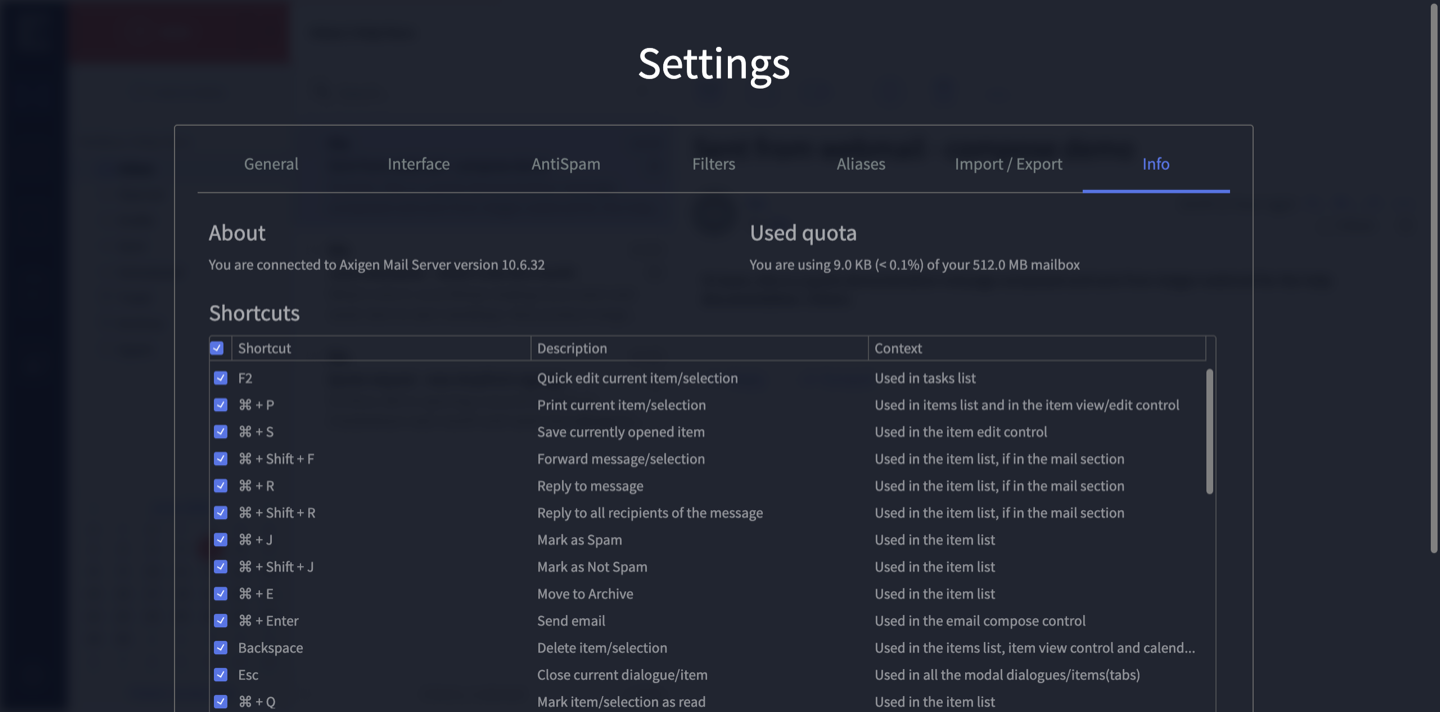
Common shortcuts
These are the ones most people reach for. The shortcuts shown use Cmd (the ⌘ key on a Mac).
| Shortcut | Does this |
|---|---|
| Cmd + R | Reply to message |
| Cmd + Shift + R | Reply to all recipients |
| Cmd + Shift + F | Forward message |
| Cmd + Enter | Send email |
| Cmd + E | Move to Archive |
| Cmd + J | Mark as Spam |
| Cmd + Shift + J | Mark as Not Spam |
| Cmd + Q | Mark as read |
| Cmd + S | Save the item you’re working on |
| Cmd + P | |
| Backspace | Delete the selected item |
| Esc | Close the current dialogue or message |
| F2 | Quick edit (used in the tasks list) |
Reply, forward and the “mark as” shortcuts work from your message list while you’re in the mail section. Send works while you’re writing a message.
Can’t get one to work?
Make sure you’ve clicked into the mail list or the message first — some shortcuts only work in the right spot (the Info tab lists where each one applies). If you’d like a hand, contact us or call 1300 024 766.
Didn't work, or not sure?
No worries — that's what we're here for. Tell us what step you got up to and what you saw, and we'll sort it with you.