Webmail layout, dark mode and display settings
Webmail can be set up to suit how you like to work — where the reading pane sits, light or dark mode, your language and timezone, and more. The two most popular tweaks (reading pane and dark mode) take just a click from the quick menu; the rest live in the full Interface settings.
The fast way: the quick menu
-
Open ax.email and log in.
-
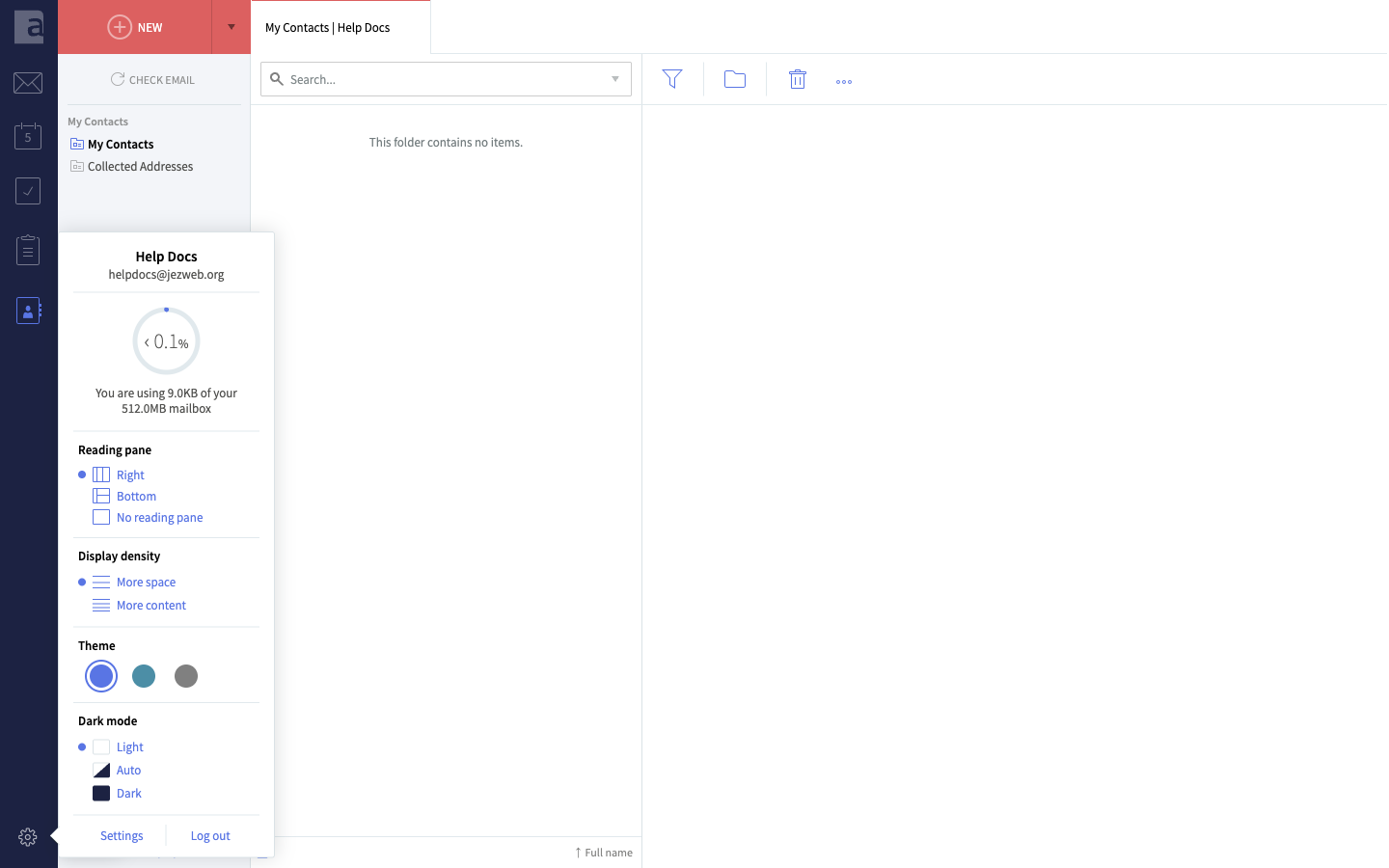
Click the cog icon at the very bottom left of the screen. A small menu pops up — this is the fastest path to the everyday display options, without opening the full Settings window.
-
From here you can change:
- Reading pane — where the open message shows: Right, Bottom, or No reading pane (so messages open on their own instead).
- Display density — More space (roomier) or More content (fits more on screen).
- Theme — pick from the colour dots.
- Dark mode — Light, Auto, or Dark.
The menu also shows how much of your mailbox you’re using, and has Settings and Log out links at the bottom.
Light, dark, or automatic
Under Dark mode you have three choices:
- Light — the bright, normal look.
- Dark — a dark look, easier on the eyes at night.
- Auto — follows your device. If your phone or computer switches to dark mode in the evening, webmail follows along by itself.
One thing not to be surprised by: even when the app is set to Light, the full Settings window opens dark. That’s just how this version of webmail looks — nothing is wrong.
More options in Interface settings
For the rest, open the cog menu → Settings, then go to the Interface tab.
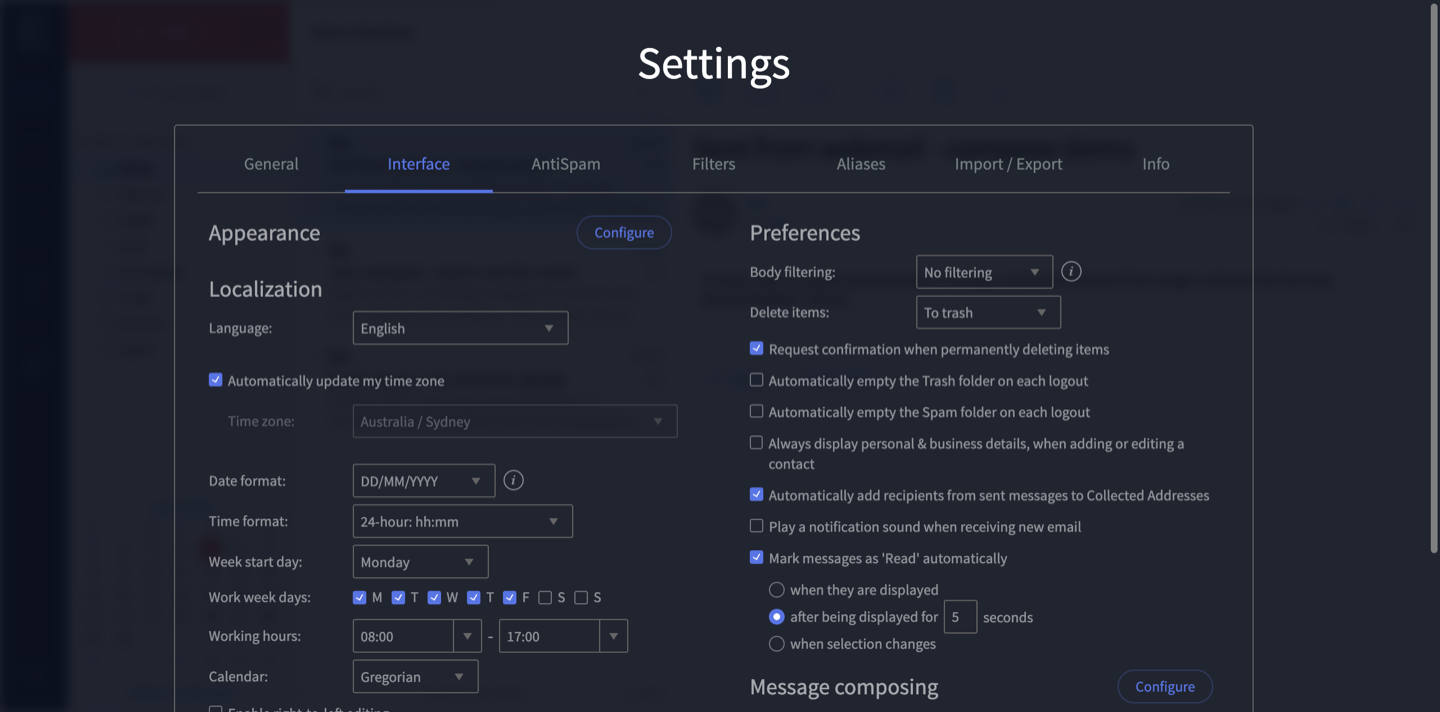
Here you’ll find:
- Appearance — overall look (with a Configure button for more).
- Localization — your Language, Time zone, Date format, Time format, week start day and working hours.
- Preferences — handy on/off options, such as whether deleted items go to Trash and whether messages are marked read automatically.
- Message composing — settings for writing messages (with its own Configure button).
When you’ve made changes, click Save & close on the Settings window.
Wrong times on your emails?
If the times shown on your emails look out, check the Time zone under Localization. There’s an Automatically update my time zone tick that keeps it matched to where you are — or you can set it manually (for most of us that’s Australia/Sydney).
Need a hand?
If you can’t find an option, or want webmail set up a particular way, contact us or call 1300 024 766.
Didn't work, or not sure?
No worries — that's what we're here for. Tell us what step you got up to and what you saw, and we'll sort it with you.