Your WordPress dashboard
When you log in, you land on the Dashboard. Think of it as your site’s control room.
What you see
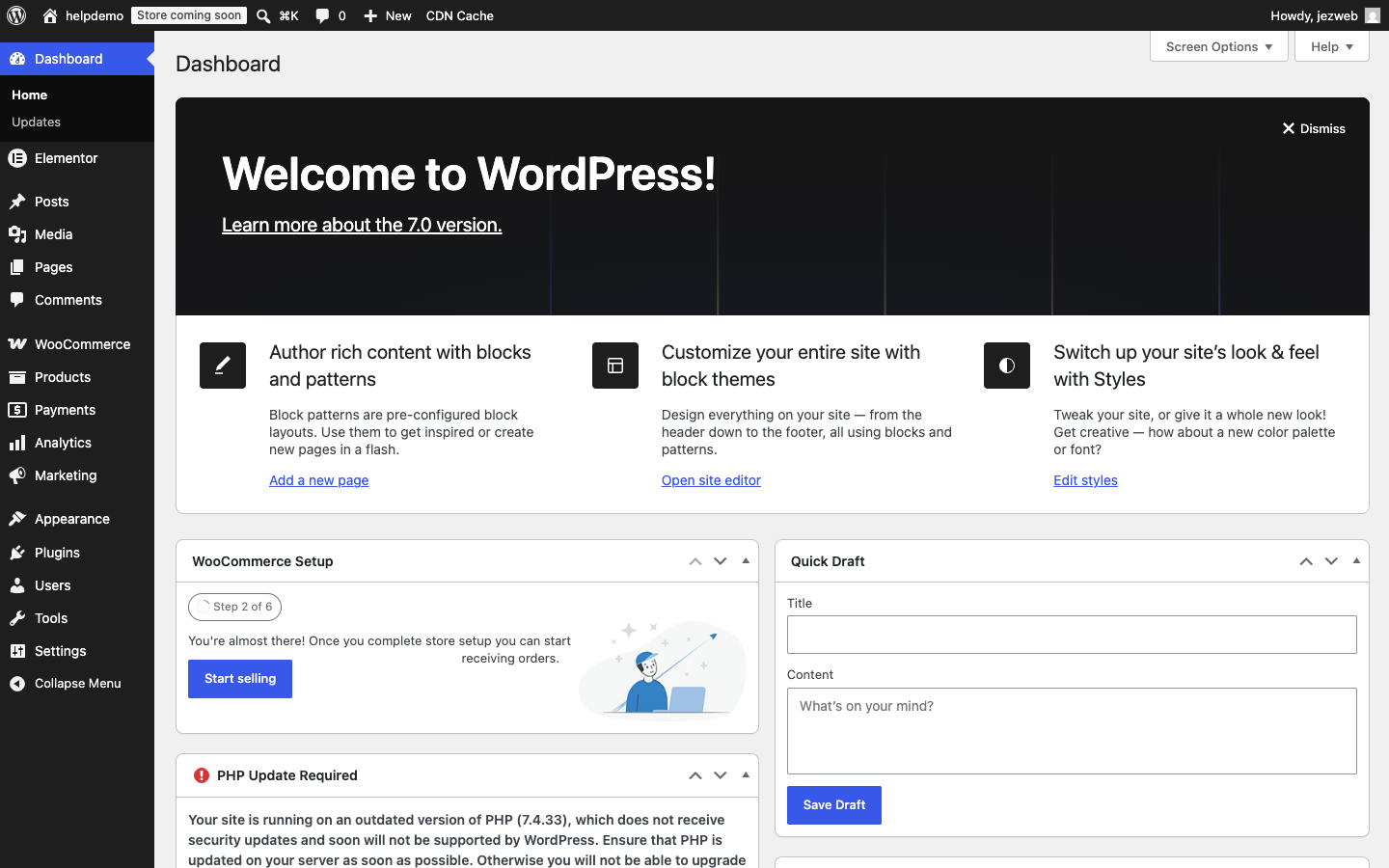
The dark panel on the left is the admin menu — everything you need is in there. The main area shows at-a-glance info: recent comments, quick links to add content, and any plugin notices.
You can dismiss the “Welcome to WordPress” panel by clicking the Dismiss button in its top-right corner. It doesn’t come back.
The admin menu
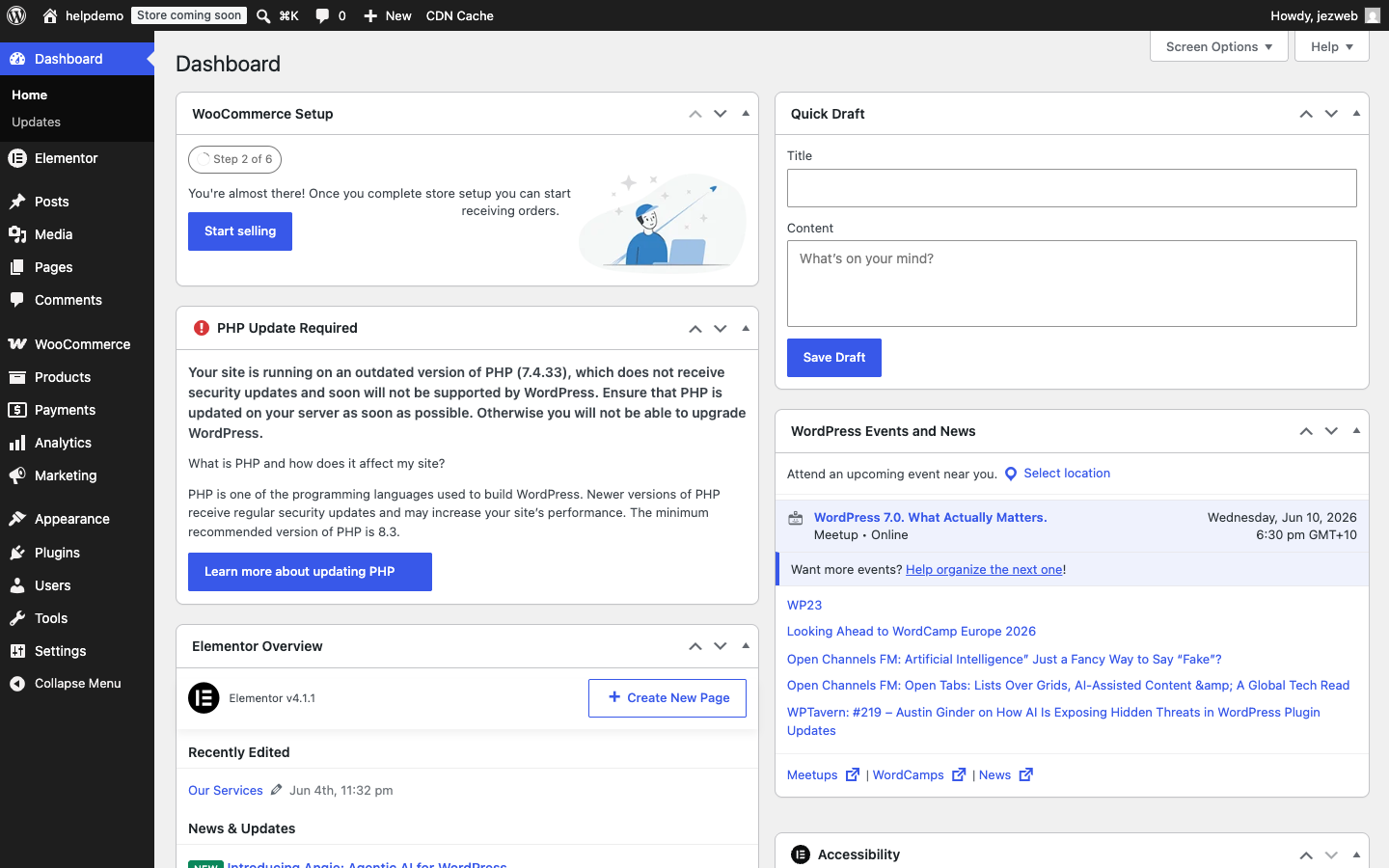
Here’s what each section does:
| Menu item | What it’s for |
|---|---|
| Dashboard | The home screen — news and at-a-glance info |
| Posts | Blog posts (news, articles) |
| Media | Your image and file library |
| Pages | Your website’s main pages (About, Contact, etc.) |
| Comments | Manage visitor comments if you have a blog |
| Appearance | Theme, menus, and site editor |
| Plugins | Installed plugins — we manage these for you |
| Users | Login accounts for staff |
| Settings | Site title, timezone, and other configuration |
What to leave alone
As a day-to-day maintainer, you’ll mostly use Posts, Pages, and Media.
The sections below are managed by Jezweb — changing them without guidance can break your site or affect search-engine rankings:
- Plugins — we handle updates and additions
- Appearance → Theme — your design is set and tested
- Settings → Permalinks — changing this breaks all your URLs
If you need something changed in those areas, get in touch and we’ll do it safely.
Didn't work, or not sure?
No worries — that's what we're here for. Tell us what step you got up to and what you saw, and we'll sort it with you.