Process a WooCommerce order
When a customer places an order your store sends you an email and adds it to the Orders list. Here’s how to work through it.
Find your orders
Go to WooCommerce → Orders in the left menu. Each row shows the order number, customer name, status, and total.
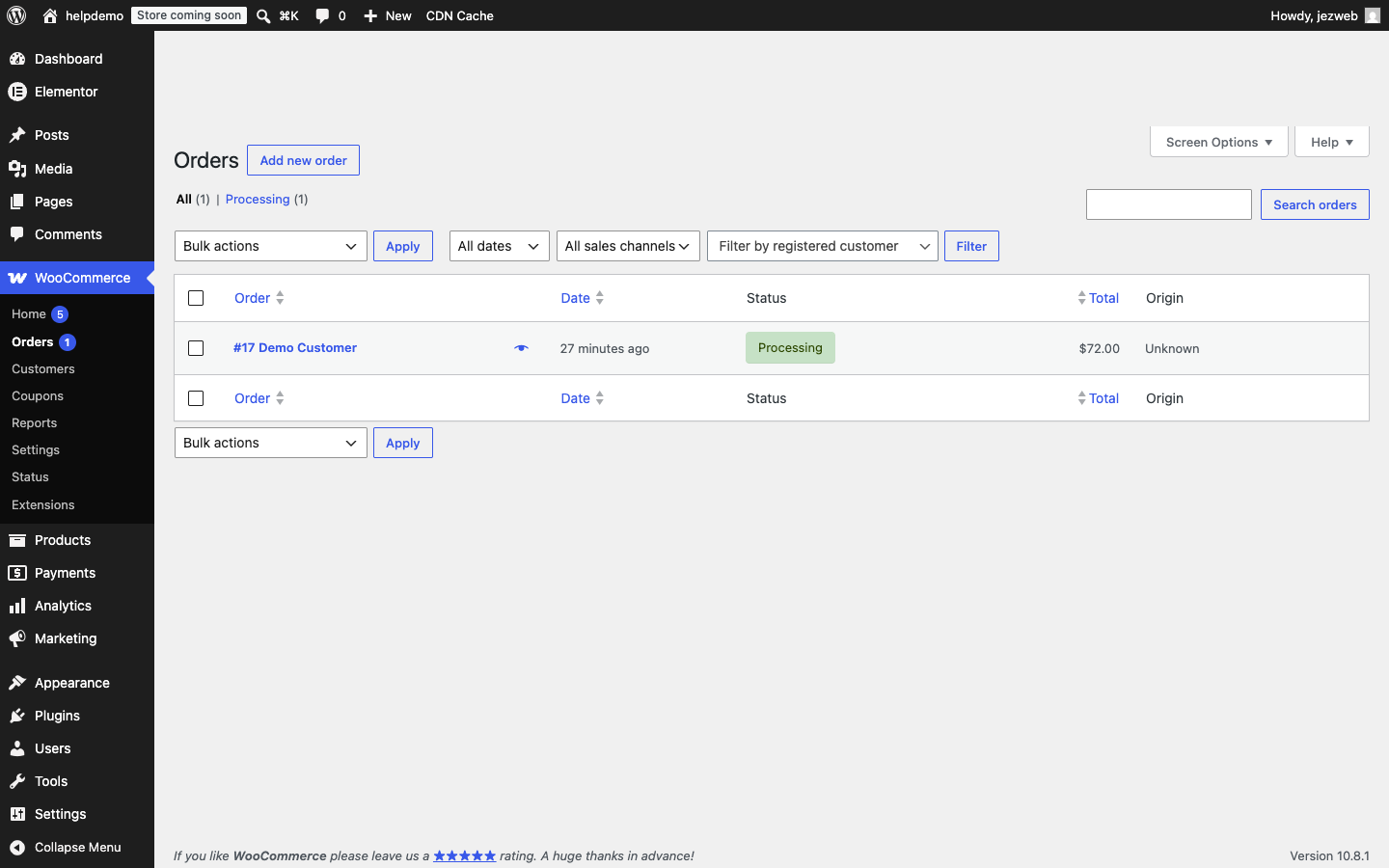
Click the order number or customer name to open it.
Inside an order
The order detail page has everything you need:
- Status dropdown — change from Processing to Completed (or any other status) once you’ve dispatched the goods
- Billing and Shipping panels — customer’s contact and delivery details
- Item list — what they ordered, price, and quantity
- Order notes — add a private note (visible only to you) or a customer note (emailed to them) using the panel on the right
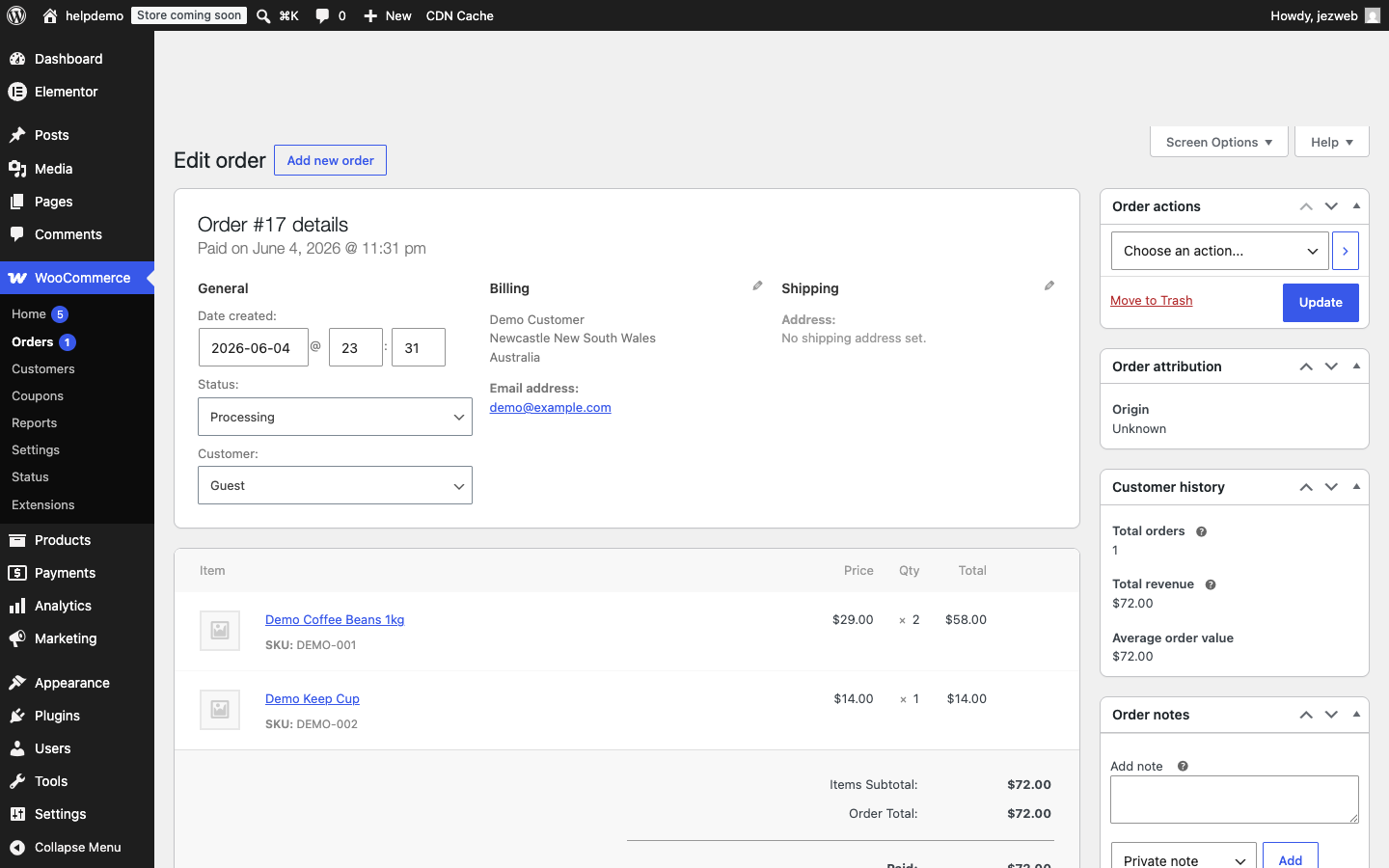
After changing the status, click the blue Update button (top-right) to save it.
Completing an order
- Open the order.
- Change Status to Completed.
- Click Update.
WooCommerce emails the customer automatically when you mark an order Completed.
Refunding an order
Scroll to the bottom of the order — you’ll see a Refund button below the order total. Click it to enter a refund amount. This opens a refund panel but does not process anything automatically — you still need to confirm and (if using an online payment gateway) it will attempt to reverse the charge.
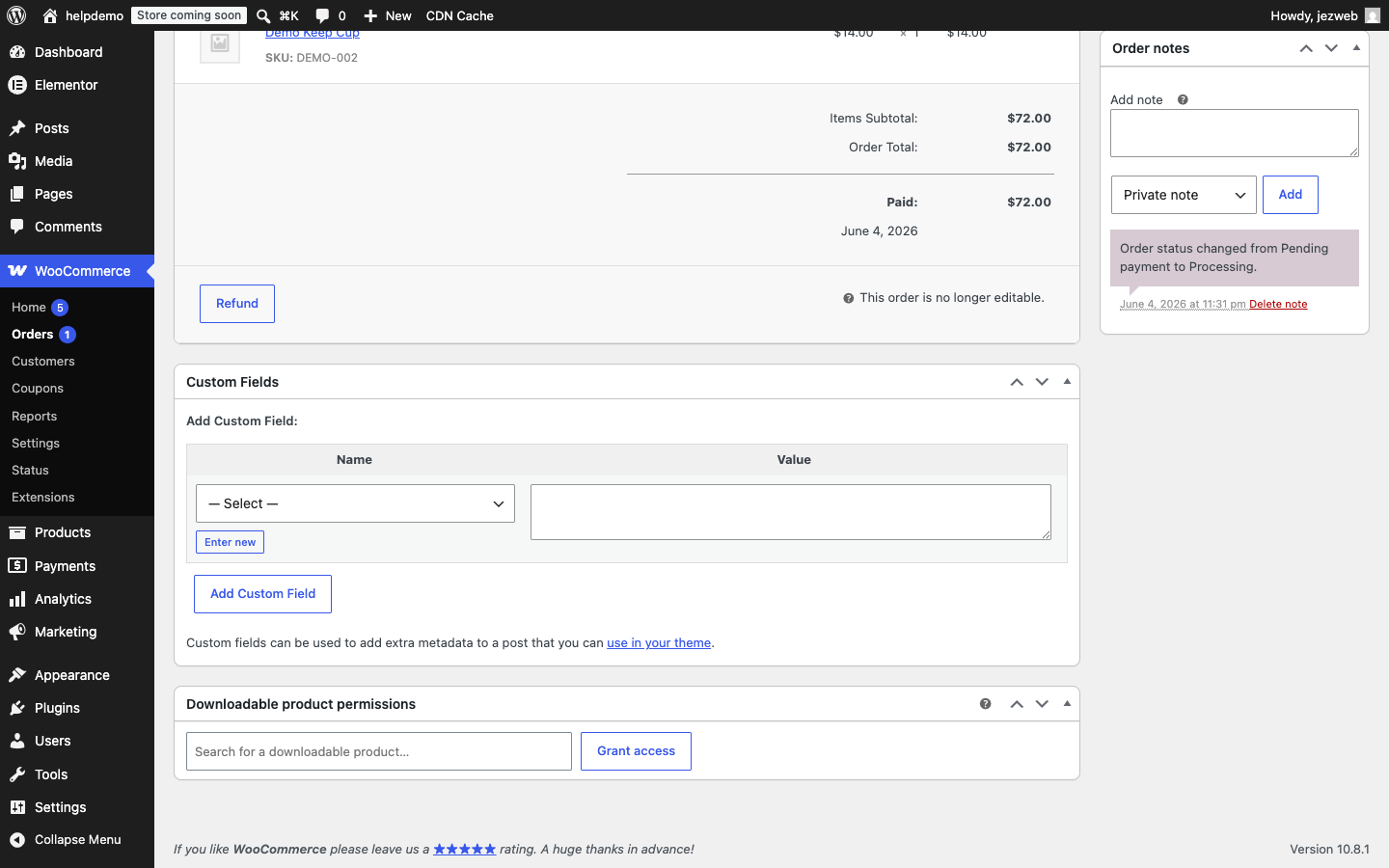
If you’re unsure about refunds or your gateway doesn’t support automatic reversals, contact us and we’ll help you through it.
Didn't work, or not sure?
No worries — that's what we're here for. Tell us what step you got up to and what you saw, and we'll sort it with you.