Edit product prices and stock in WooCommerce
You have two ways to update a price or stock count: Quick Edit (fast, no page reload) and the full product editor (more options).
Quick Edit — change price without opening the product
- Go to Products → All Products.
- Hover over the product name — a row of actions appears beneath it.
- Click Quick Edit.
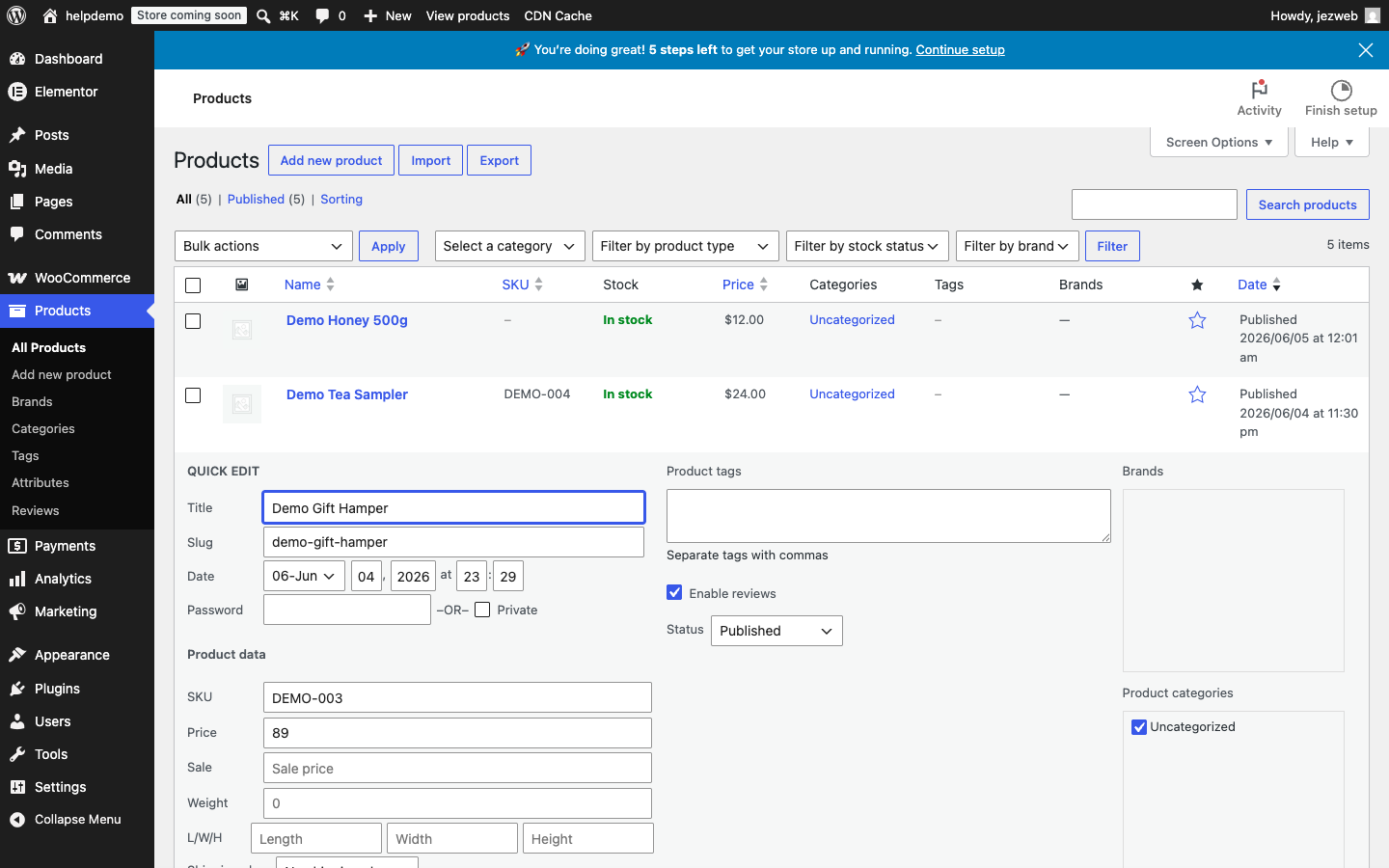
You can update the Price and Sale fields here, then click Update to save without leaving the list.
Full editor — Inventory tab
For stock management settings, open the product itself and click the Inventory tab inside the Product data section.
- Go to Products → All Products.
- Click the product name to open it.
- In the Product data section, click the Inventory tab.
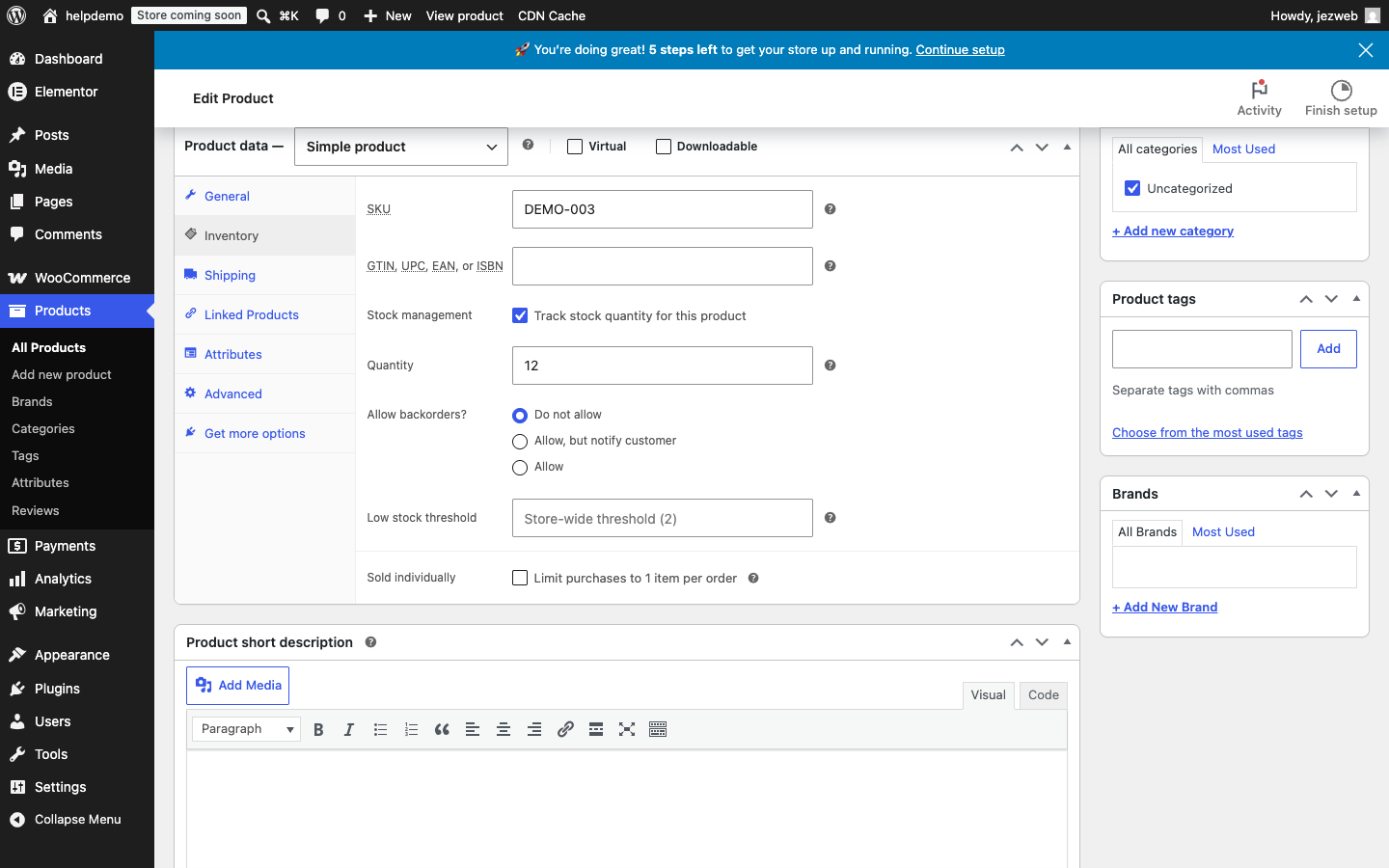
Key fields here:
- SKU — your internal product code
- Stock management — tick this box to have WooCommerce track quantities and automatically mark a product out of stock when it hits zero
- Quantity — current stock level
- Low stock threshold — WooCommerce will flag the product when stock falls to this number
Click the blue Update button (top-right) to save.
What about product variations?
Variable products (e.g. a shirt in multiple sizes) have separate prices and stock levels per variation. Open the product, go to the Variations tab, expand each variation, and edit price and stock there. If you get stuck, contact us.
Didn't work, or not sure?
No worries — that's what we're here for. Tell us what step you got up to and what you saw, and we'll sort it with you.