Change shipping prices in WooCommerce
Shipping in WooCommerce is organised into zones — geographic areas that each have their own set of shipping methods and prices. For most small stores we set this up when we build your site, so you just need to know where to change the cost.
Find your shipping zones
Go to WooCommerce → Settings → Shipping. You’ll see a list of your zones, the regions they cover, and the shipping method attached to each.
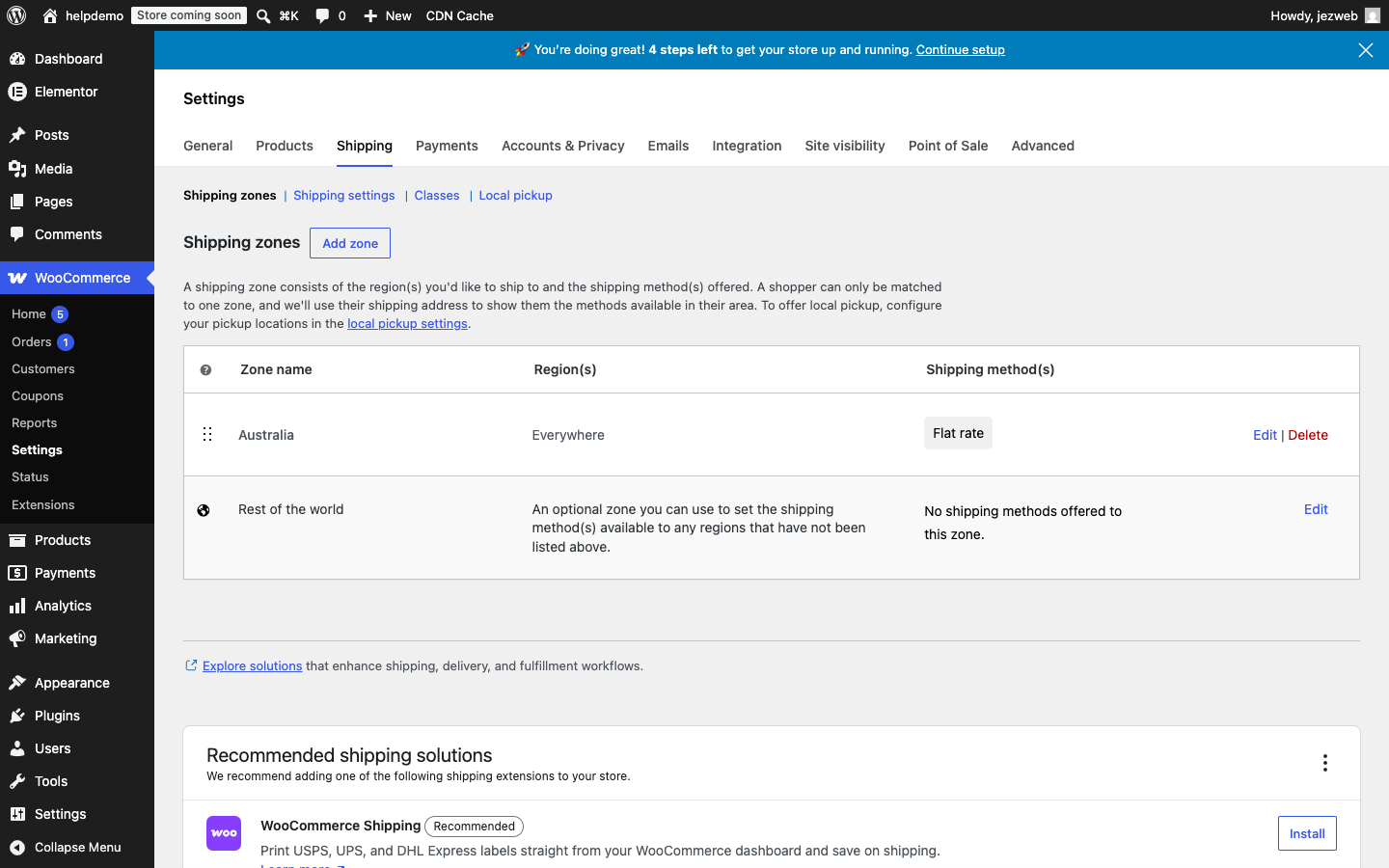
Click Edit next to the zone you want to change.
Edit a flat-rate cost
Inside the zone, you’ll see the list of shipping methods. Click Edit next to the Flat rate method (or whichever method needs updating).
A panel appears with just a few fields:
- Method title — what customers see at checkout (e.g. “Standard shipping”)
- Tax status — whether shipping is taxable
- Cost — the dollar amount to charge
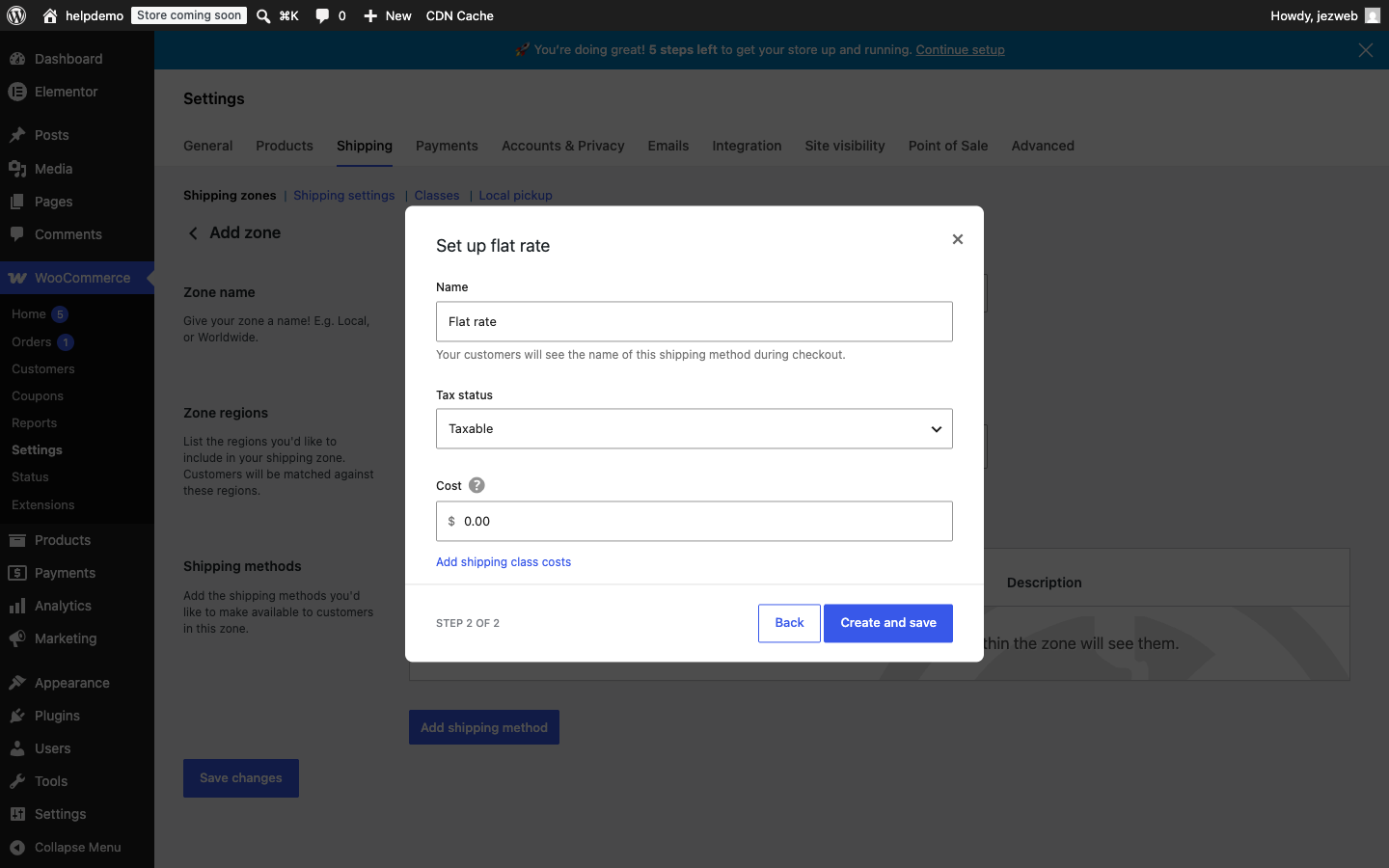
Change the Cost field and click Save changes.
Simple changes here, complex setups — call us
Flat-rate shipping (same price for every order) is straightforward to update yourself. But if you need things like:
- free shipping above a spend threshold
- different rates by product weight or dimensions
- multiple zones for different states
- table-rate or live carrier quotes
these involve more complex configuration. Contact us or call 1300 024 766 and we’ll sort it out for you.
Didn't work, or not sure?
No worries — that's what we're here for. Tell us what step you got up to and what you saw, and we'll sort it with you.