Update your business details site-wide
Business details like your phone number, address, and opening hours can appear in the header, footer, and on multiple pages at once. Where you update them depends on how your site is built.
If your site uses the WordPress Site Editor (block themes)
Most sites built by Jezweb from 2023 onwards use a block theme with a Site Editor.
-
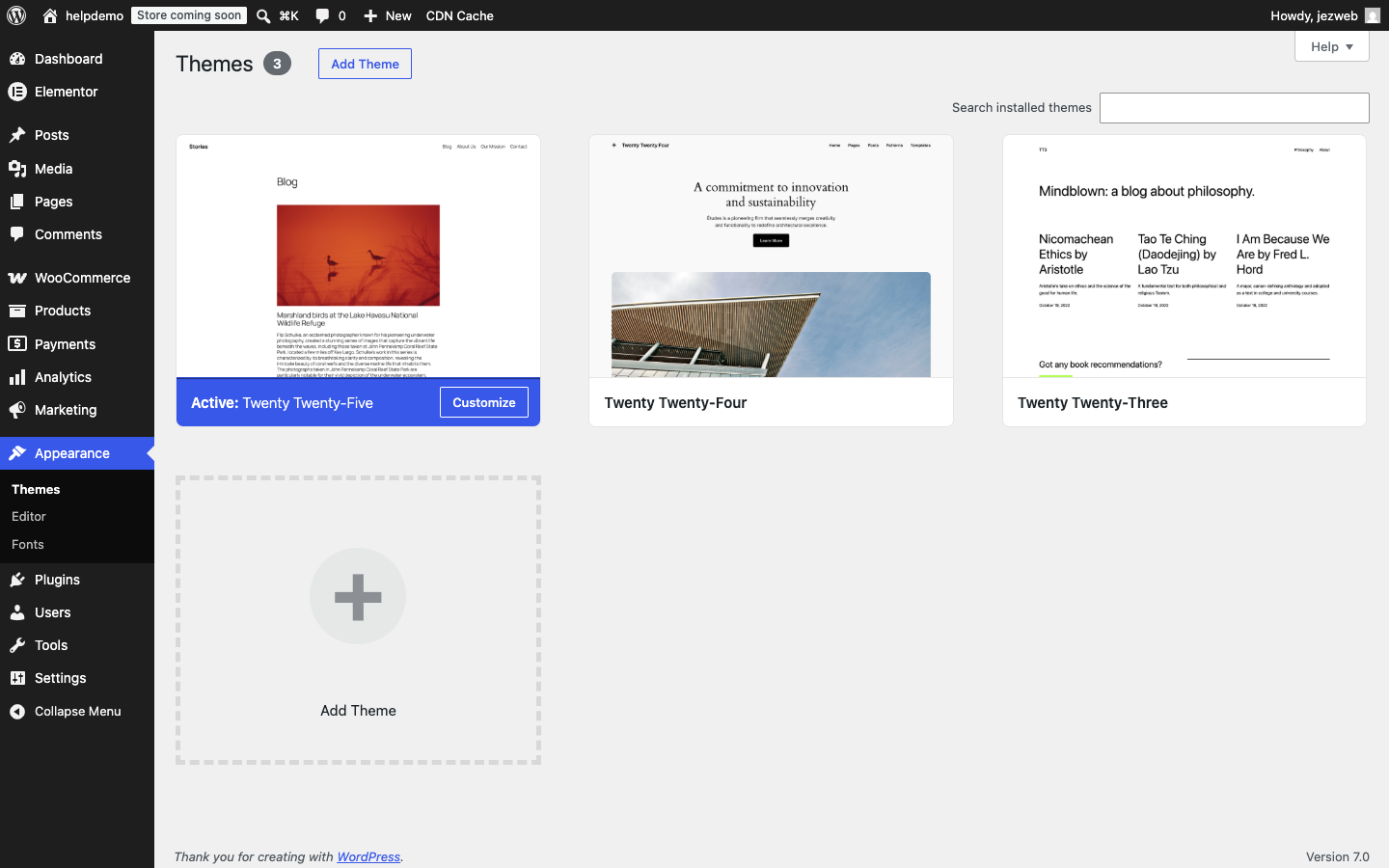
In the admin menu, click Appearance → Editor.
-
The Site Editor opens. Click Patterns in the left panel to find reusable blocks — these often contain your contact details, opening hours, and footer content.
-
Click the pattern that contains the detail you want to change (for example “Footer” or “Header contact bar”), edit the text, and click Save.
Because patterns are shared, a single edit updates every place that pattern appears on the site.
If your site uses a classic theme with a Customizer
Older sites may have a Customizer instead of a Site Editor.
- In the admin menu, click Appearance → Customize.
- Look for sections labelled Header, Footer, Contact Information, or Theme Options.
- Update the relevant fields and click Publish.
Opening hours and contact pages
If your opening hours or contact details live on a specific page (like an About or Contact page), edit that page directly via Pages — see Edit text on a page.
Not sure where your details are stored?
Contact us at help@jezweb.net or call 1300 024 766 and we’ll point you to the right place for your specific site. Making a change in the wrong spot can result in details being out of sync across pages.
Didn't work, or not sure?
No worries — that's what we're here for. Tell us what step you got up to and what you saw, and we'll sort it with you.