Undo mistakes in Elementor
Made a change and want to go back? Elementor has two ways to undo: a quick step-by-step undo for changes made during the current editing session, and a Revisions list to jump back to any previously saved version.
Undo a recent change
The quickest way is the keyboard shortcut: Ctrl+Z (Windows) or Cmd+Z (Mac). Each press steps back one action.
You can also use the History panel for more control:
-
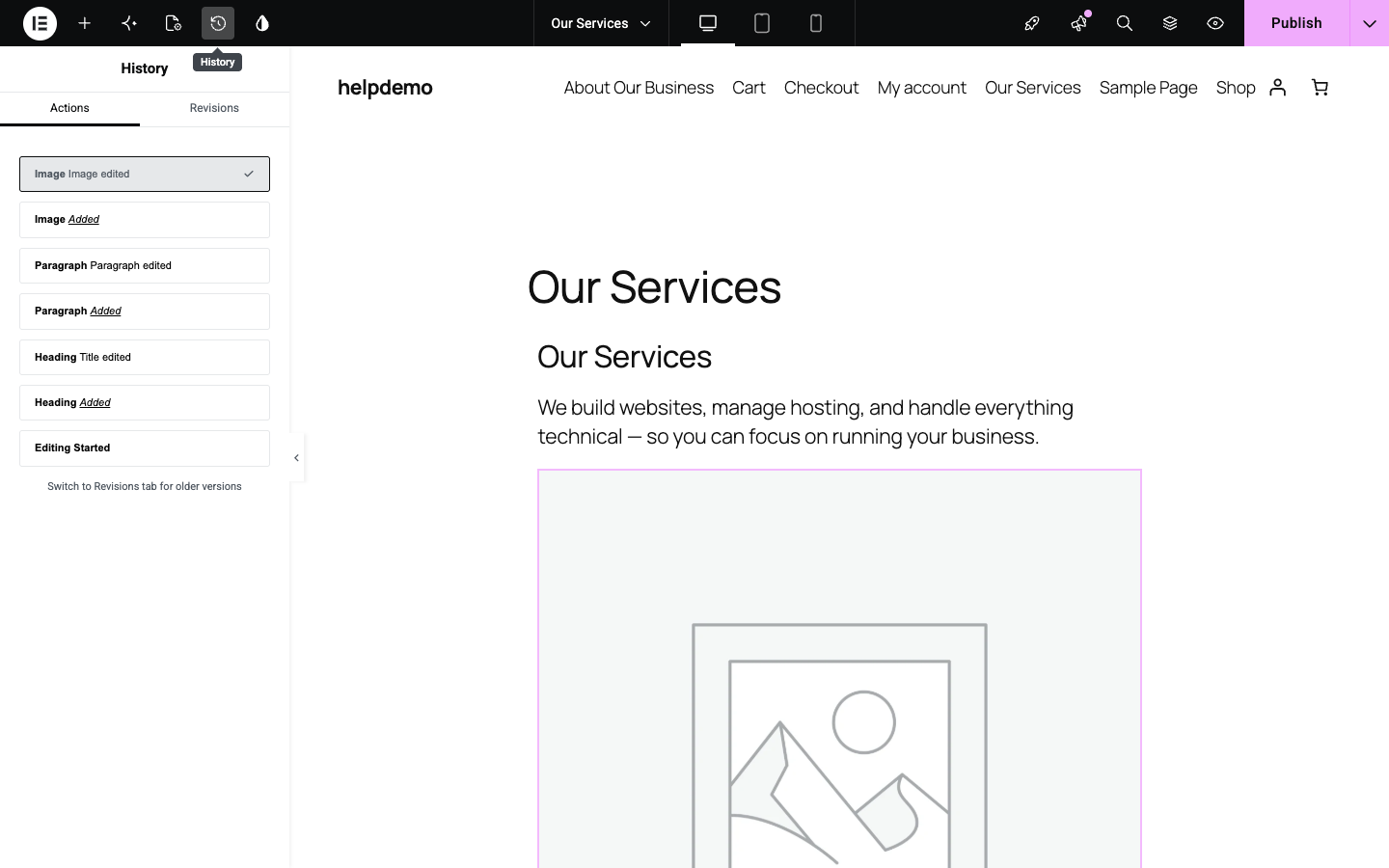
Click the History icon in the top toolbar (the clock icon — it’s the third icon from the left).
-
The History panel opens on the left, showing the Actions tab — a list of every change you’ve made this session, newest first. The current state has a tick (✓) next to it.
-
Click any earlier action in the list to jump back to that point. Your page updates instantly so you can see what it looked like then.
Restore a saved version
If you’ve already published and want to go back to an older save:
-
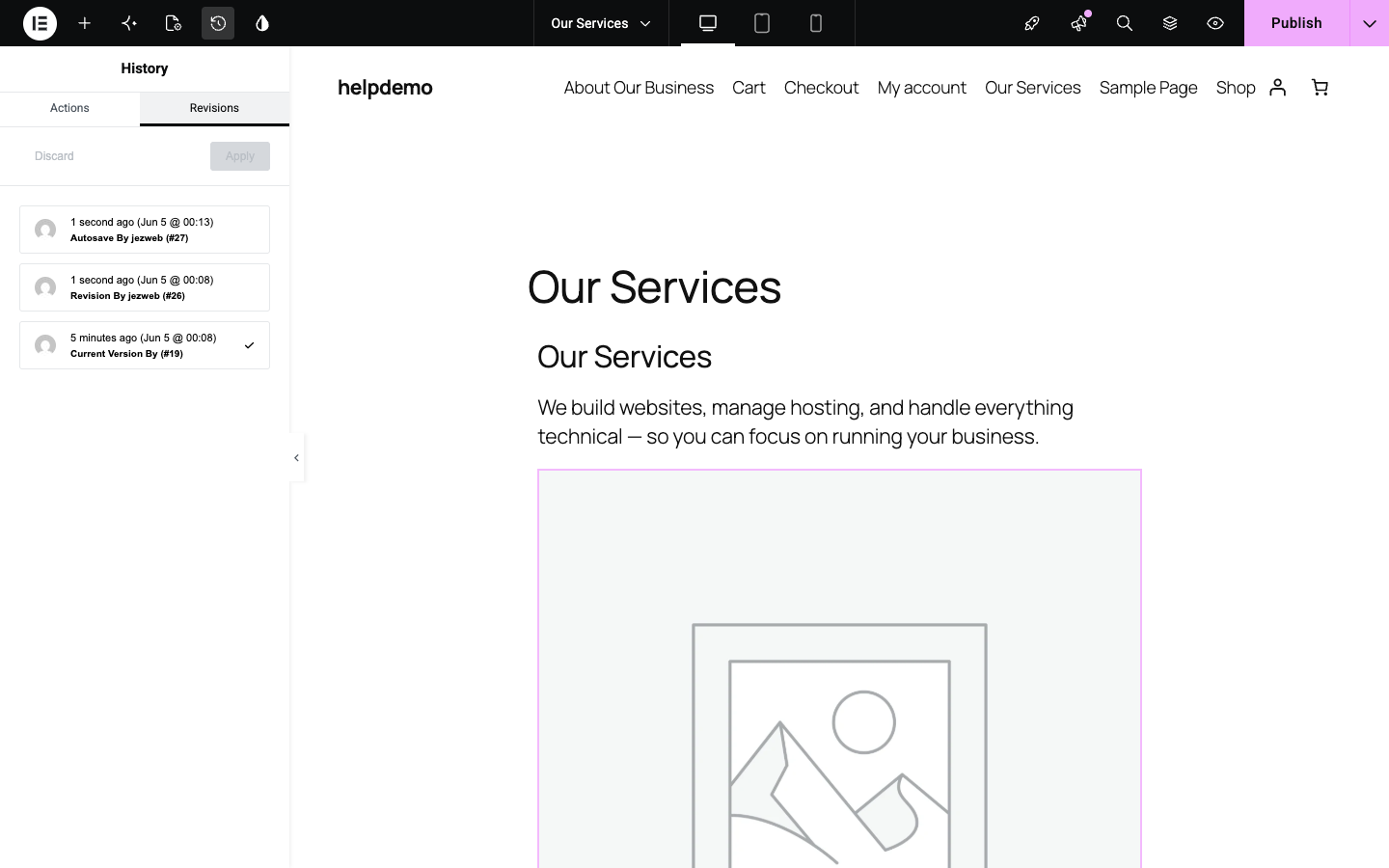
In the History panel, click the Revisions tab.
-
The Revisions tab lists every time the page was saved, including autosaves. Click a revision to preview what the page looked like at that point.
-
If you want to restore it, click Apply. If you change your mind, click Discard to leave the page as it is.
Good to know
- Actions only lasts for the current session — if you close the editor and come back, the Actions list starts fresh.
- Revisions are saved automatically and also every time you click Publish, so you can always roll back to any published version.
- Elementor keeps a good number of revisions, but very old ones may be cleaned up over time. If something important got changed weeks ago, contact us and we can check the server-level backups.
Didn't work, or not sure?
No worries — that's what we're here for. Tell us what step you got up to and what you saw, and we'll sort it with you.