My page looks broken
If your Elementor page suddenly looks wrong — content overlapping, a section missing, or the layout jumbled — here’s where to start.
Check if it’s a recent change
The most common cause is an accidental edit. Open the page in the Elementor editor and check the History panel (the clock icon in the top toolbar). If the Actions list shows recent changes you didn’t mean to make, step back through them or use the Revisions tab to restore a saved version. See Undo mistakes in Elementor for how.
Use the Structure panel to find the problem
The Structure panel (the layers icon, top-right of the editor) shows your page as a tree of containers and widgets. If something looks wrong on screen, the Structure view often makes it obvious — a missing widget, a widget in the wrong container, or an empty section.
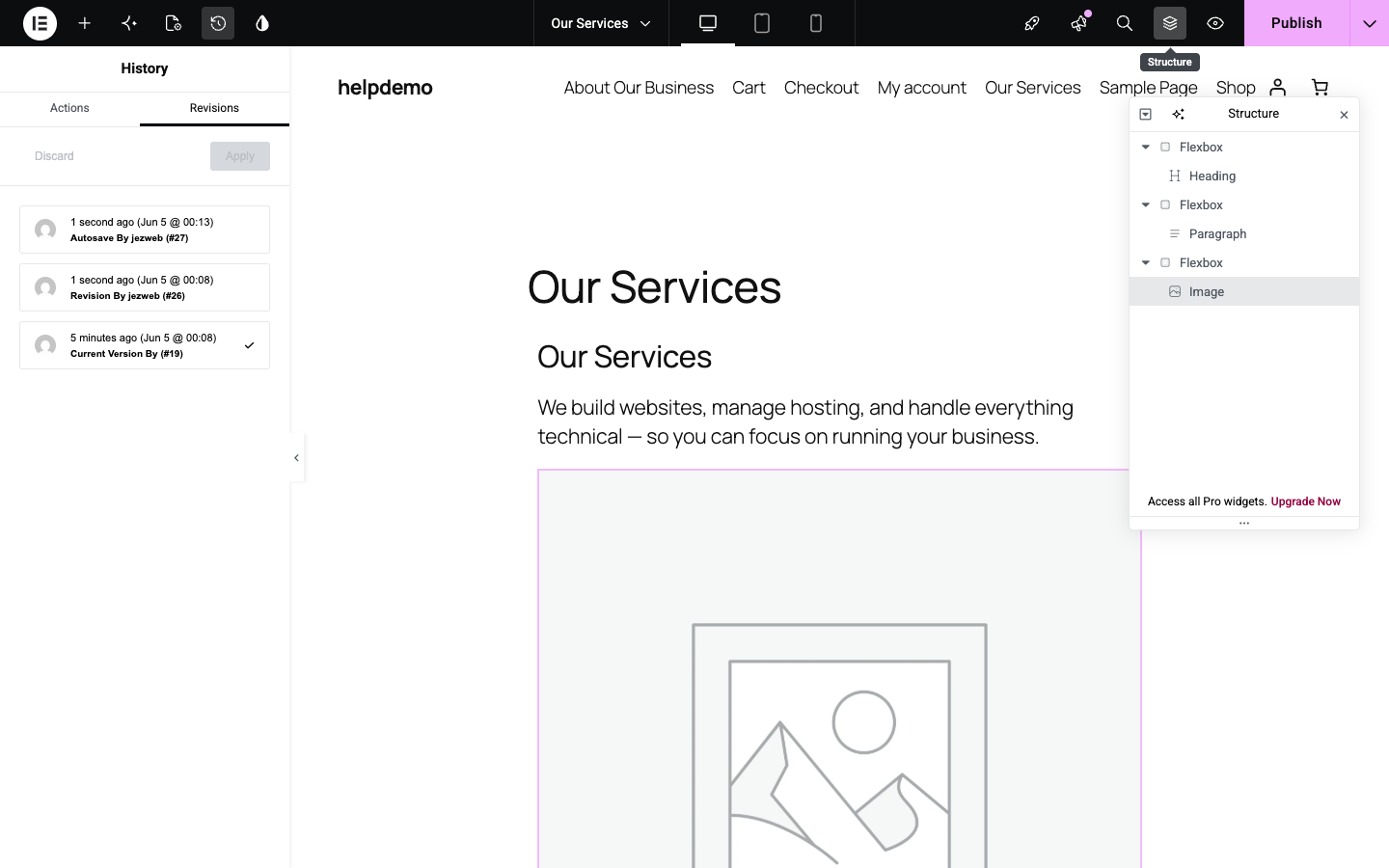
Click any item in the tree to select and highlight it on the canvas.
Things worth checking
Page shows white space or a blank section — click on the blank area and check the left panel. It may be an empty container with no widgets, or a spacer widget that was accidentally made very tall.
Text or images are missing — check the Structure panel to see if the widget is there but hidden. Look for a visibility toggle (eye icon) next to the widget row.
Content looks fine in the editor but wrong on the live site — click Publish to make sure your latest edits are saved, then open the live page in a fresh browser tab (or an incognito window to avoid your browser’s cache).
The layout looks wrong on mobile — click the tablet or phone icon at the top of the editor to switch to that view. Changes you make in mobile view only affect that screen size.
What about popups?
If a popup has stopped appearing (or is appearing when it shouldn’t), that’s an Elementor Pro feature covered separately. The free version of Elementor doesn’t include popups.
Still stuck?
If none of the above helps, email us with a link to the page and a description of what you’re seeing. Screenshots are very helpful — even a photo taken on your phone is fine.
Didn't work, or not sure?
No worries — that's what we're here for. Tell us what step you got up to and what you saw, and we'll sort it with you.