Find your Gravity Forms entries
When a visitor fills in a form on your website, Gravity Forms saves the submission as an entry. You can read every entry at any time from your WordPress dashboard — handy when an email notification goes missing or you need to look up a specific submission.
For a quick overview of all the ways to find enquiries (including Elementor Forms), see Find your website enquiries.
Open the entries list
- Log in to your WordPress dashboard.
- In the left-hand menu, click Forms.
- Click the name of the form you want to check (for example, “Contact Us” or “Quote Request”). The form name appears in the dropdown at the top of the page.
- Click the Entries tab in the form’s menu bar.
Your submissions appear as a list — one row per entry, with the most recent at the top.
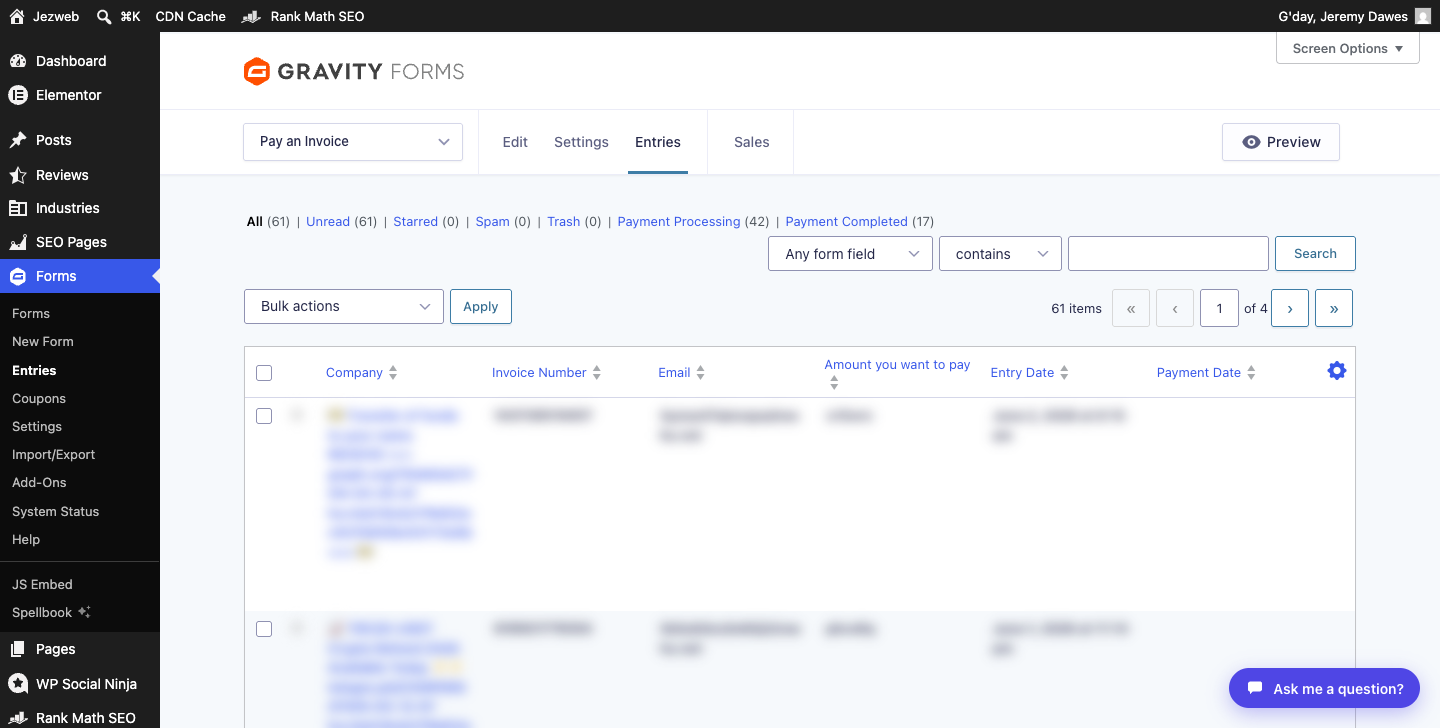
Filter and search entries
At the top of the entries list you’ll find several tools:
- All / Unread / Starred / Spam / Trash — filter by status. New submissions land in “All” and are marked Unread until you open them.
- Search bar — search across any form field. Choose a field from the first dropdown, pick “contains” or “is”, then type your search term and click Search.
- Date filter — appears when you click the search bar area; lets you narrow down by submission date.
Open a single entry
Click anywhere on a row to open that entry in full.
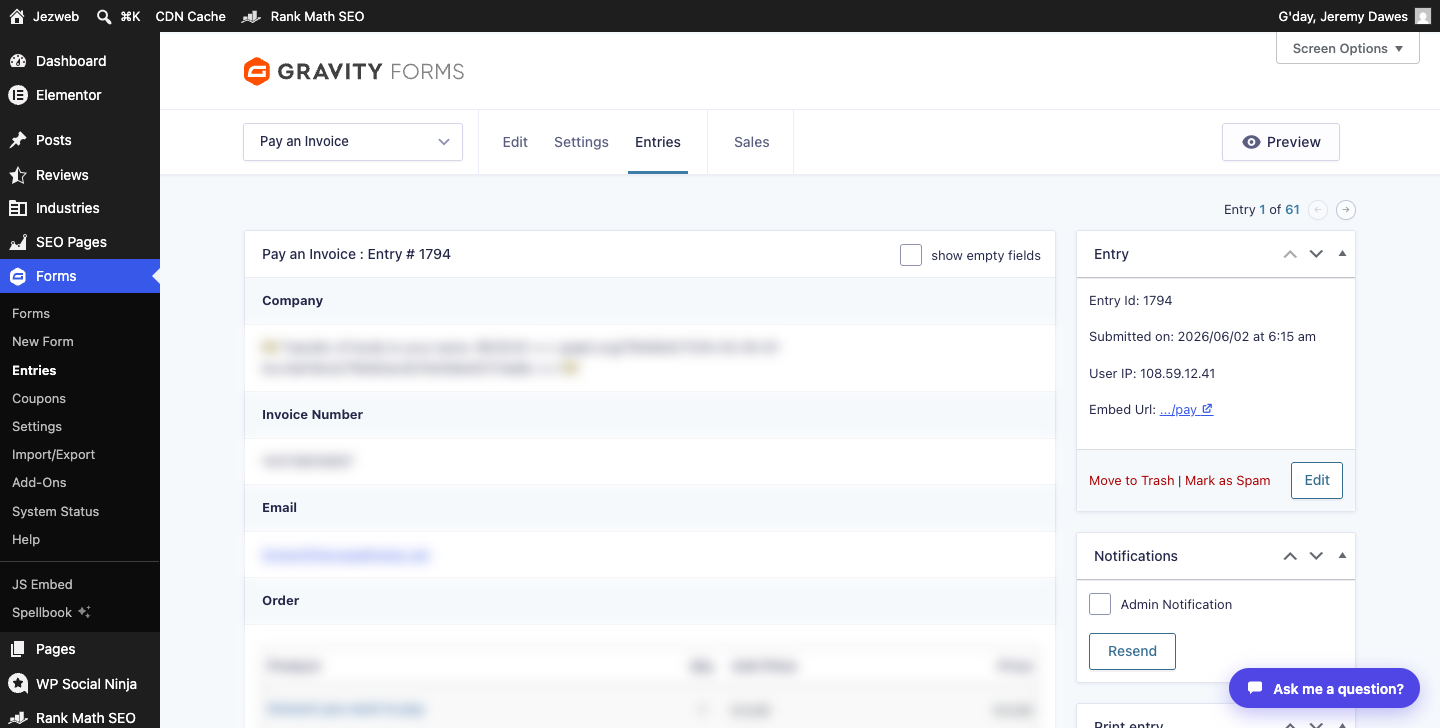
The entry detail shows:
- Every field the visitor filled in, labelled on the left.
- The Entry panel on the right, with the submission date, time, and IP address.
- A Notifications panel where you can resend the email notification if it didn’t arrive.
Mark as read, star, or delete
Inside an entry (or from the list using the checkbox), you can:
- Mark as read — entries are bold (unread) until you open them.
- Star — add a star to flag important submissions.
- Move to Trash — removes the entry from the main list. Trashed entries are kept and can be restored.
Export entries to a spreadsheet
To download all entries as a CSV file, go to Forms → Import/Export → Export Entries. Choose your form, tick the fields you want, set an optional date range, and click Download Export File. See Export your form entries for the full walkthrough.
Not seeing any entries?
If the list is empty, check that you’re looking at the right form — use the dropdown at the top to switch. If submissions were expected but aren’t showing, the form may not be saving entries (an unusual configuration). Contact us and we’ll check the form settings.
Didn't work, or not sure?
No worries — that's what we're here for. Tell us what step you got up to and what you saw, and we'll sort it with you.