Export form entries to a spreadsheet
If you need a copy of your form submissions in a spreadsheet — for a mail-merge, a report, or just a backup — you can export them as a CSV file directly from WordPress.
Get to the export screen
- Log in to your WordPress dashboard.
- In the left-hand menu, click Forms.
- Click Import/Export in the Forms sub-menu.
- Click Export Entries (it should already be selected).
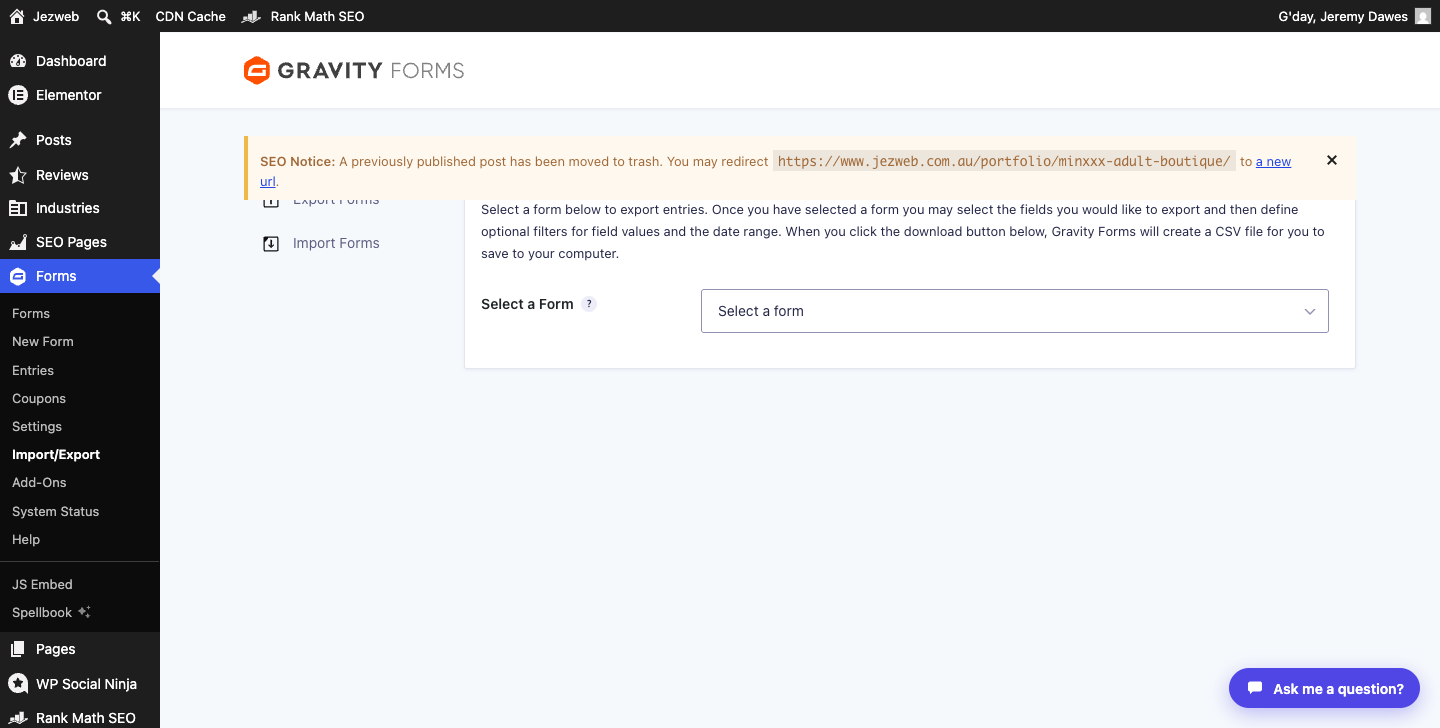
Choose your form and fields
- In the Select a Form dropdown, choose the form you want to export.
- Once you’ve selected a form, a Select Fields list appears with a checkbox for each field.
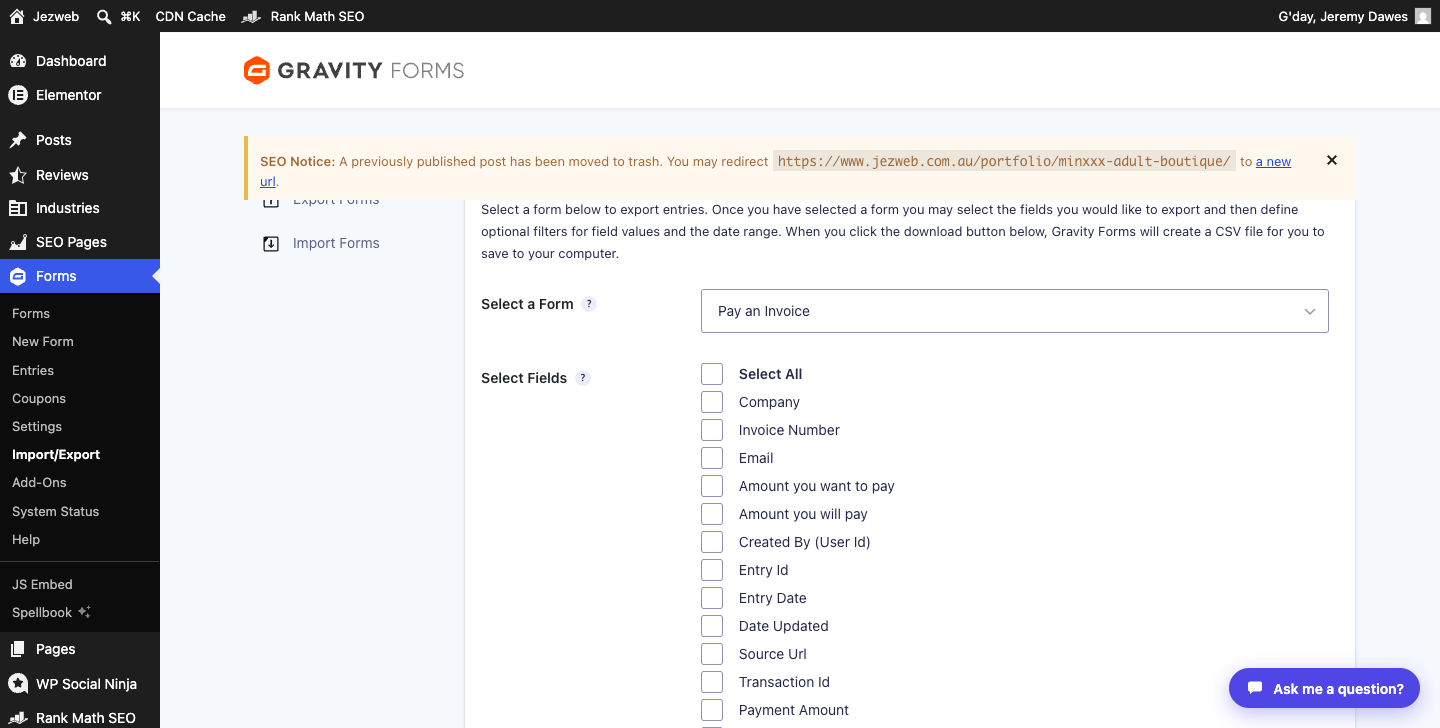
- Tick the fields you want in your spreadsheet — or tick Select All at the top to include everything.
- The list includes metadata fields like Entry Date, Entry Id, and Source Url in addition to the form fields themselves. These are optional.
Set a date range (optional)
Scroll down below the field list to find the Date Range filter. Enter a start and end date if you only want entries from a particular period. Leave it blank to export all entries.
Download the file
Click Download Export File. Your browser will download a .csv file. Open it in Excel, Google Sheets, or Numbers.
Opening the CSV in Excel
If names or addresses look garbled (odd characters where accents should be), the file is encoded as UTF-8. In Excel, use Data → From Text/CSV and choose UTF-8 as the file origin when prompted, rather than double-clicking the file directly.
Need the entries in a different format?
CSV is the only export format available from the standard Gravity Forms interface. If you need the data in another format or need to set up a recurring export, contact us and we can discuss the options.
Didn't work, or not sure?
No worries — that's what we're here for. Tell us what step you got up to and what you saw, and we'll sort it with you.