Edit text on a page
Changing text on a page takes about a minute once you know where everything is.
The steps
-
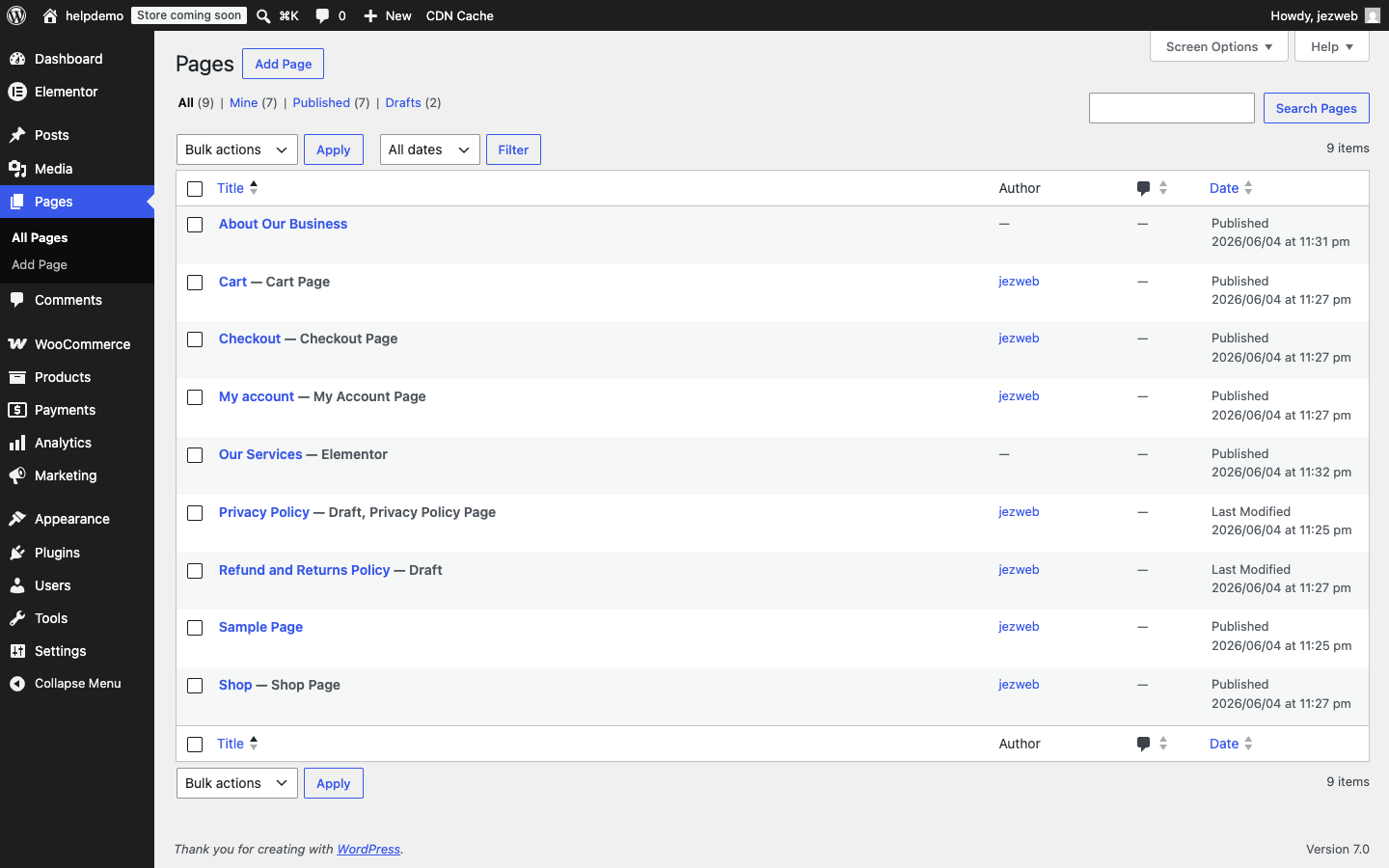
In the admin menu, click Pages.
-
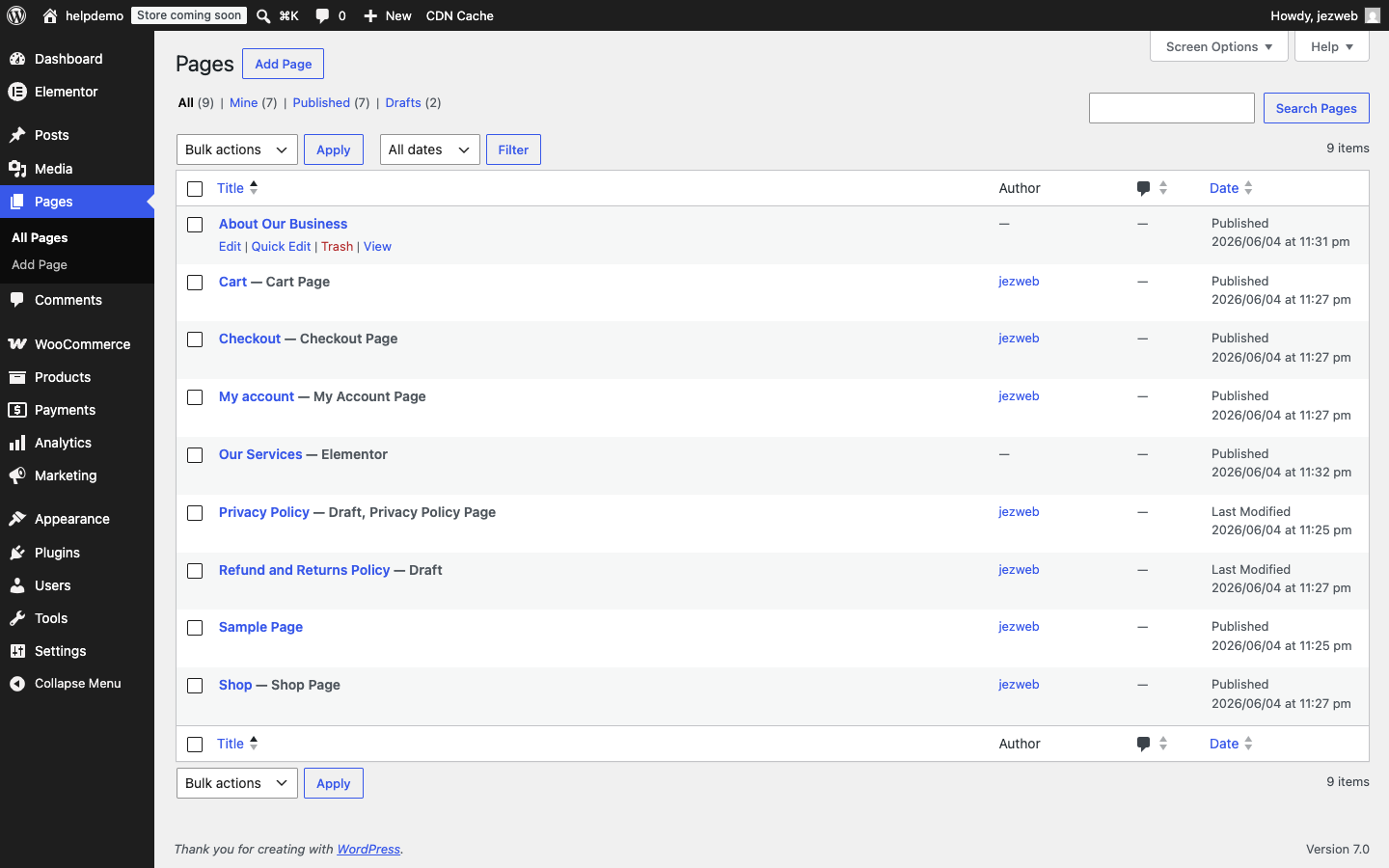
Find the page you want to edit. Hover over its title — a row of links appears underneath. Click Edit.
-
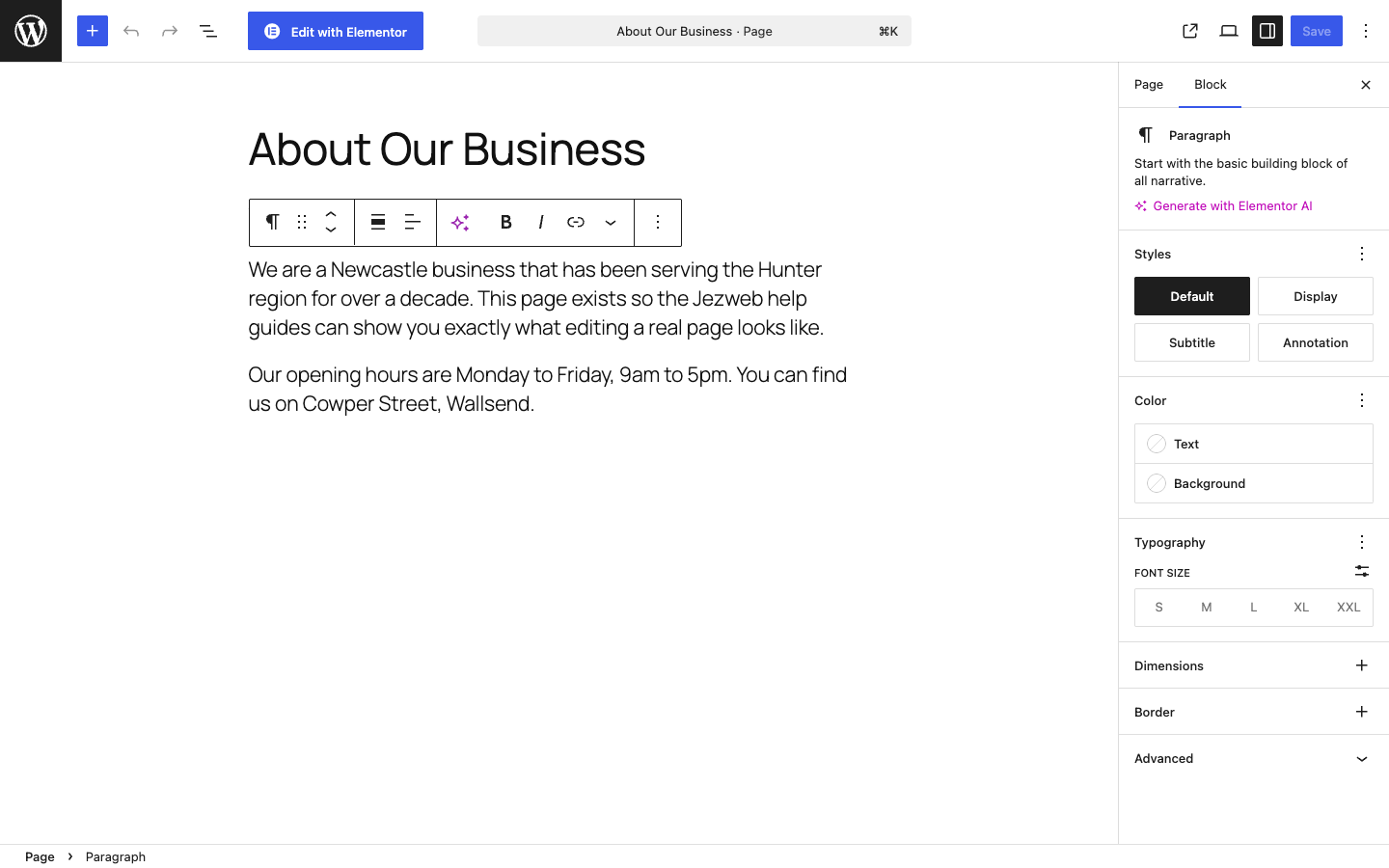
The block editor opens. Click on the paragraph or heading you want to change — a toolbar pops up above it. Make your edits directly in the text.
-
When you’re happy with the changes, click Save in the top-right corner.
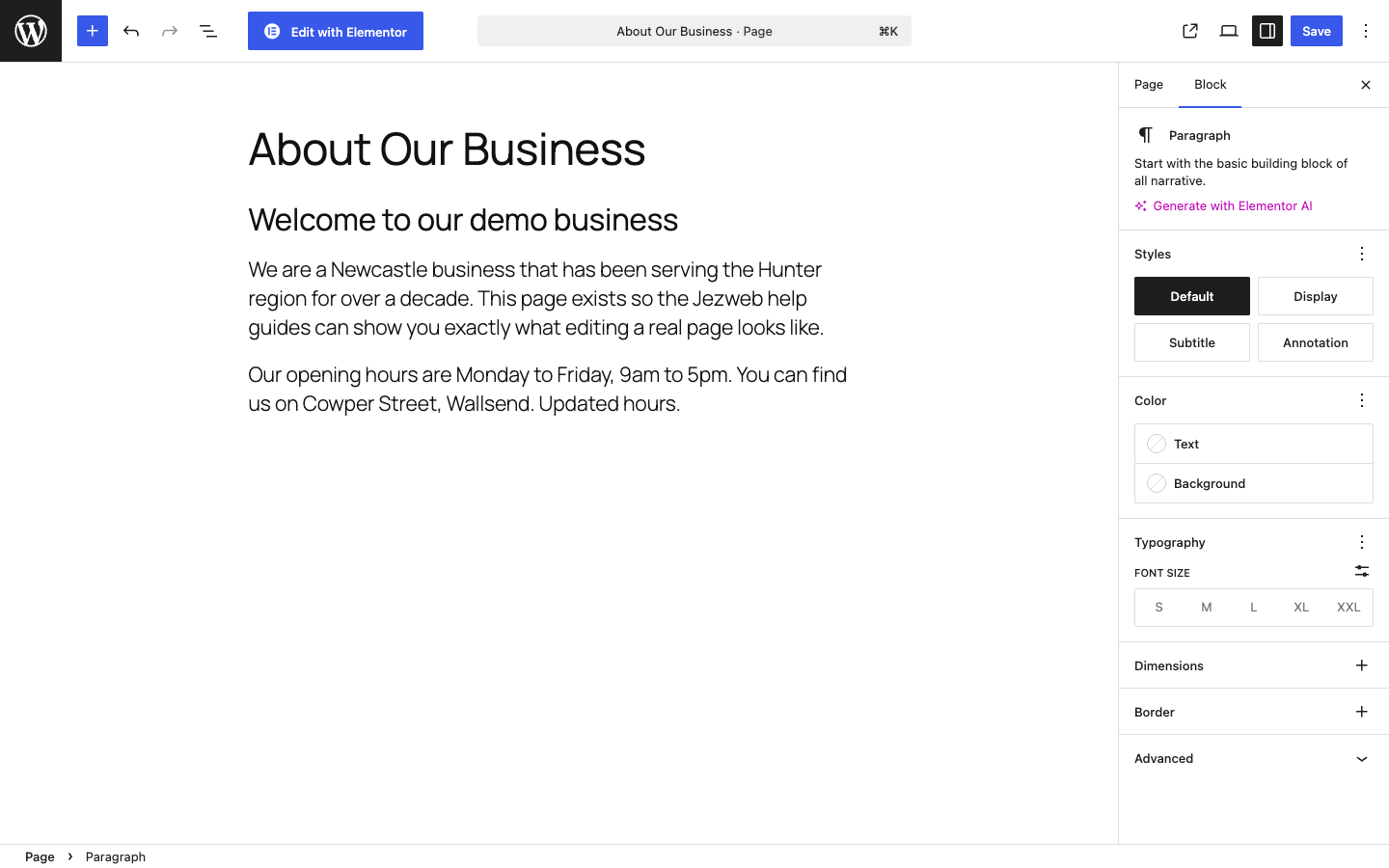
The button label changes from Save to Saved once WordPress has stored your changes. The live page updates immediately.
Tips
- To undo a change before saving, press Ctrl+Z (Windows) or Cmd+Z (Mac).
- If you accidentally save something wrong, see Undo mistakes with revisions to restore an earlier version.
- Quick Edit (from the hover menu) lets you change the title and other settings without opening the full editor — handy for small label fixes.
Didn’t save correctly?
If the Save button spins but never finishes, try refreshing the page and checking whether your change appeared. If it looks like the page reverted, let us know and we’ll investigate.
Didn't work, or not sure?
No worries — that's what we're here for. Tell us what step you got up to and what you saw, and we'll sort it with you.