Edit a page with the block editor
The WordPress block editor (also called Gutenberg) is what opens when you edit most pages and posts. Every piece of content — a paragraph, heading, image, button — is its own “block” that you can move, style, and delete independently.
Opening the editor
Go to Pages, hover over the page you want, and click Edit. The block editor loads with your page content ready to change.
The editor layout
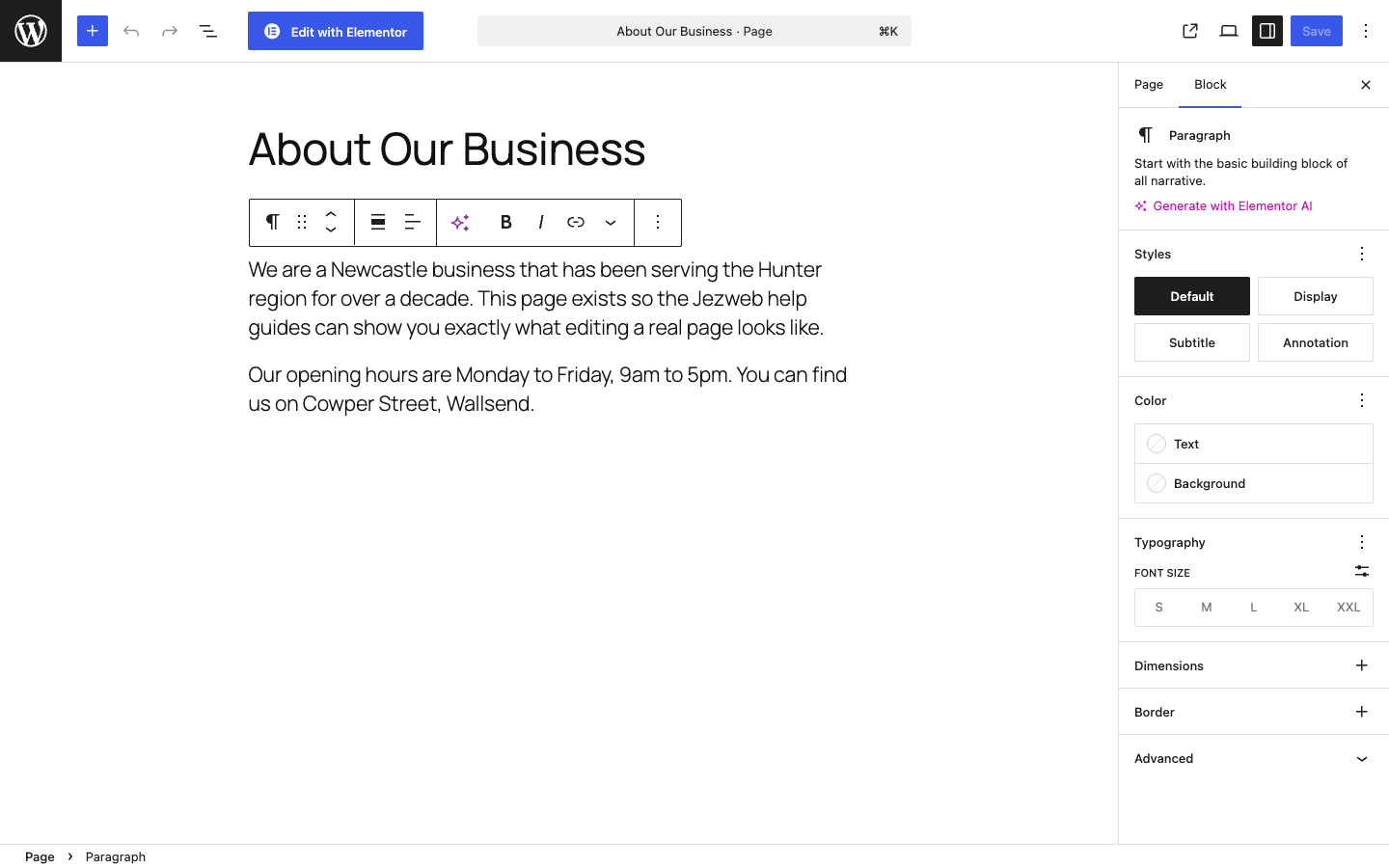
- Top bar — the Save button (top-right), Undo/Redo arrows, and the + button to insert new blocks.
- Content area — your page. Click any element to select and edit it.
- Right sidebar — switches between Block settings (for the selected block) and Page settings (for the whole page).
Working with blocks
Select a block — click on any paragraph, image, or heading. A toolbar appears above it with formatting options (bold, italic, alignment, links) and a move handle on the left.
Add a new block — click the + button in the top bar or press Enter at the end of
a paragraph. Type / to search for a specific block type (e.g. /image or /heading).
Move a block — use the six-dot drag handle on the left of any selected block to drag it up or down.
Delete a block — select it, click the three-dot menu (⋮) in the toolbar, and choose Delete.
Page settings in the sidebar
Click the Page tab in the right sidebar to see settings for the whole page.
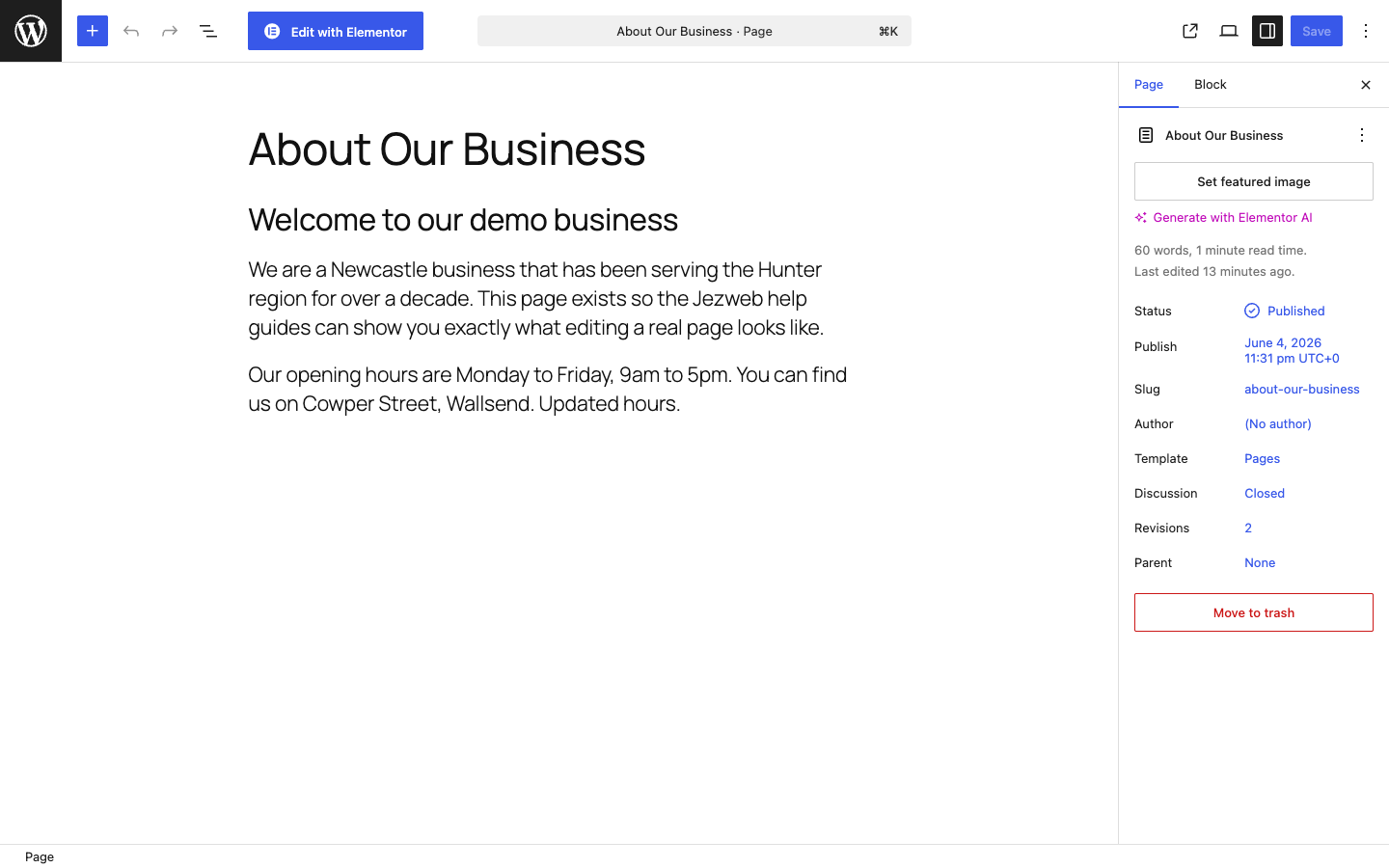
| Setting | What it does |
|---|---|
| Status | Published, Draft, or Pending Review |
| Slug | The URL of the page — only change this if Jezweb tells you to |
| Template | The page layout — leave this as-is |
| Revisions | How many saved versions exist — click to browse and restore |
Saving your work
Click Save (top-right) when you’re done. The button shows Saving… briefly and then returns to Save once stored. Your changes appear on the live page immediately.
Dismissed the block editor welcome tour?
Good — it doesn’t affect anything. If you want to see it again, click the three-dot menu (⋮) in the top-right corner of the editor and choose Welcome Guide.
Keyboard shortcuts
| Action | Windows | Mac |
|---|---|---|
| Undo | Ctrl+Z | Cmd+Z |
| Redo | Ctrl+Y | Cmd+Shift+Z |
| Save | Ctrl+S | Cmd+S |
| Bold | Ctrl+B | Cmd+B |
Editor looks blank or won’t load?
Try a hard refresh (Ctrl+Shift+R / Cmd+Shift+R). If the editor still won’t open, contact help@jezweb.net — it’s usually a plugin conflict we can fix quickly.
Didn't work, or not sure?
No worries — that's what we're here for. Tell us what step you got up to and what you saw, and we'll sort it with you.