Change who receives form notification emails
When someone submits a form on your website, Gravity Forms sends a notification email to the address (or addresses) listed in the form’s settings. If a new staff member needs to receive those enquiries — or an old address needs to come off — you can update it here.
Open the notifications list
- Log in to your WordPress dashboard.
- In the left-hand menu, click Forms.
- Click the name of the form you want to update.
- Click Settings in the form’s menu bar.
- Click Notifications in the left sub-menu.
The notifications list shows every notification rule for this form. Most forms have one — called Admin Notification — which is the one that sends to your team.
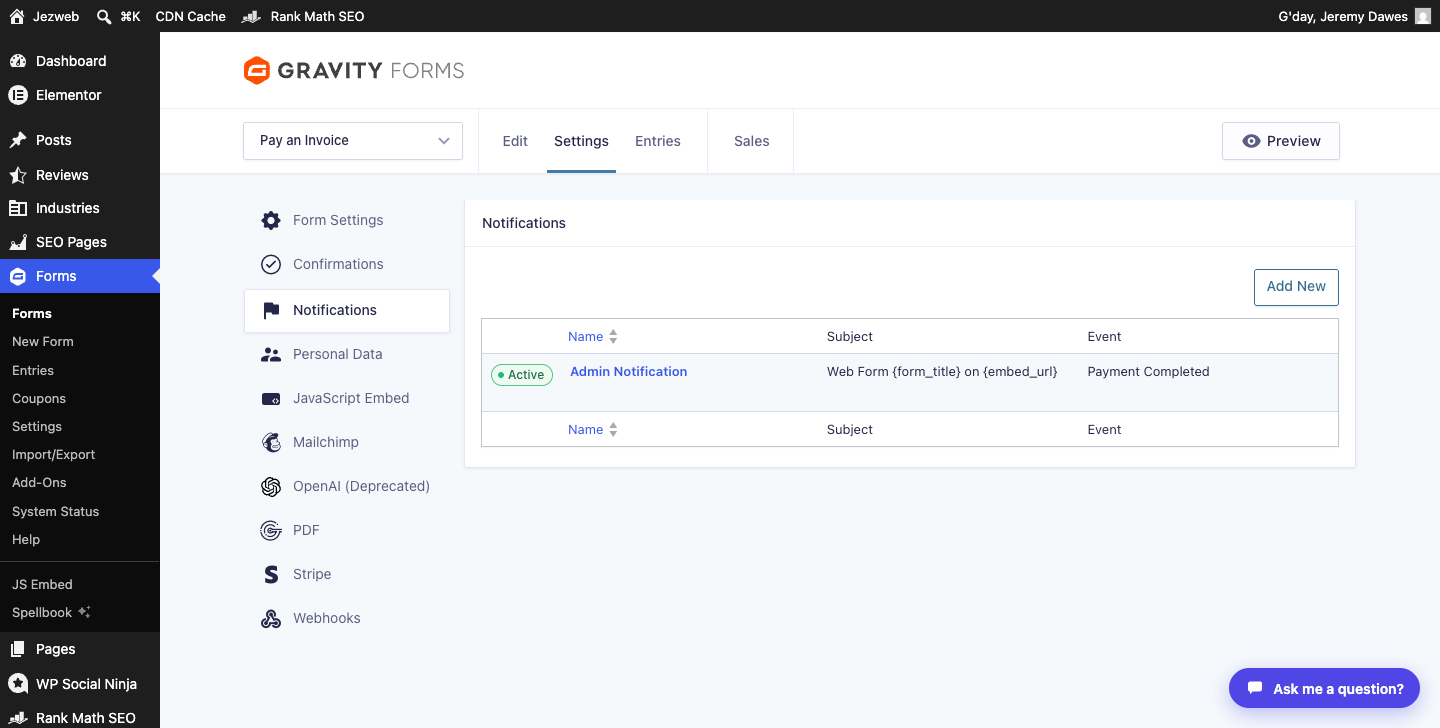
Edit a notification
Click the notification name (for example, Admin Notification) to open it.
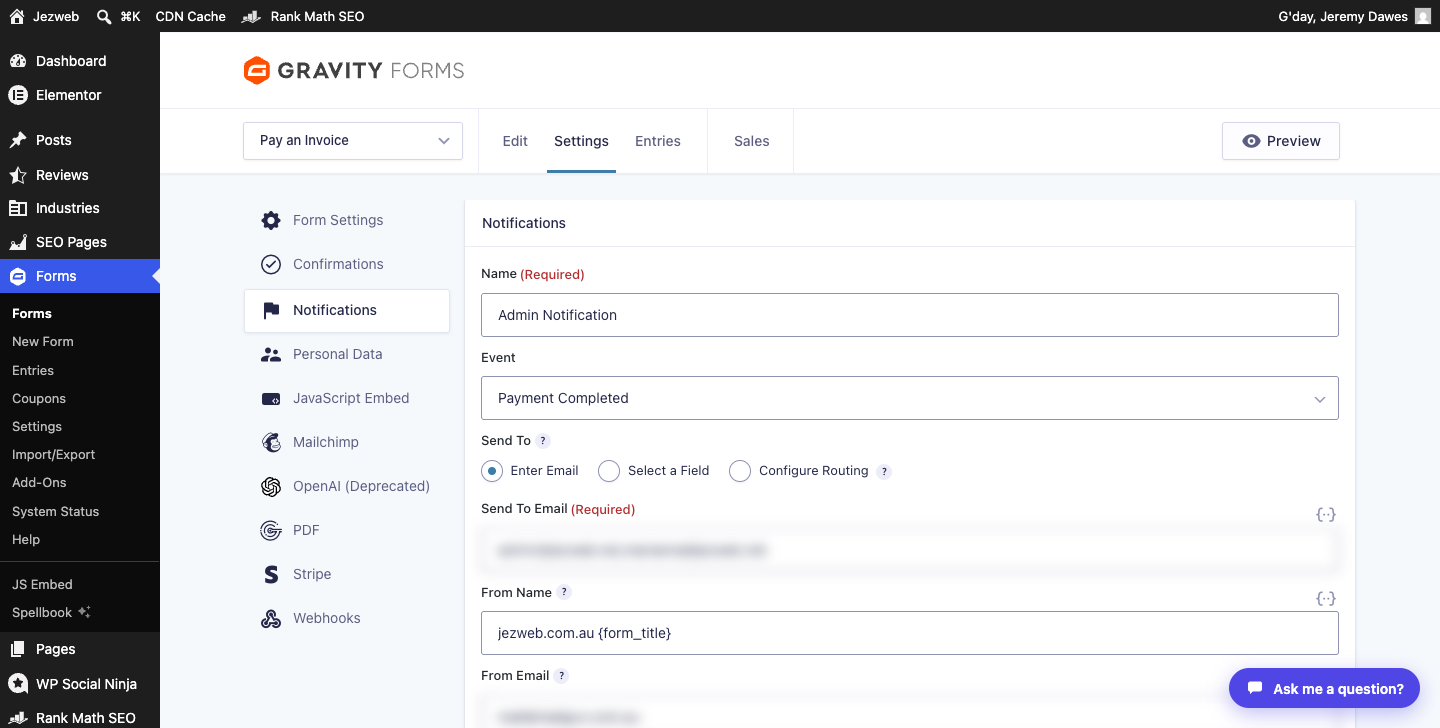
Find the Send To Email field. This is where the recipient addresses live.
- To add an address, type a comma after the existing address and then type the new one — for example:
existing@example.com, newstaff@example.com - To remove an address, highlight it (including its comma) and delete it.
- To replace an address, select the old one and type the new one.
When you’re done, scroll down and click Update Notification to save.
Add a new notification for a different recipient
If different people need to receive the form in different circumstances (for example, sales enquiries go to the sales team, job applications go to HR), you can add a separate notification:
- Click Add New at the top right of the notifications list.
- Give it a name, set the event (usually “Form is Submitted”), and enter the recipient’s address in Send To Email.
- Set a subject line, then scroll down and click Save Notification.
Not sure which form to update?
If you’re not sure which form is sending the notifications you want to change, check your inbox for a past notification email — the subject line usually includes the form name. Then go back to Forms and look for a form with that name.
If you’d prefer us to make the change, contact us or call 1300 024 766 and let us know the form name and the new email address.
Didn't work, or not sure?
No worries — that's what we're here for. Tell us what step you got up to and what you saw, and we'll sort it with you.