Add a new user
You can give staff members their own login so they can edit the site without sharing your password. Each person gets a role that controls what they can and can’t do.
The steps
-
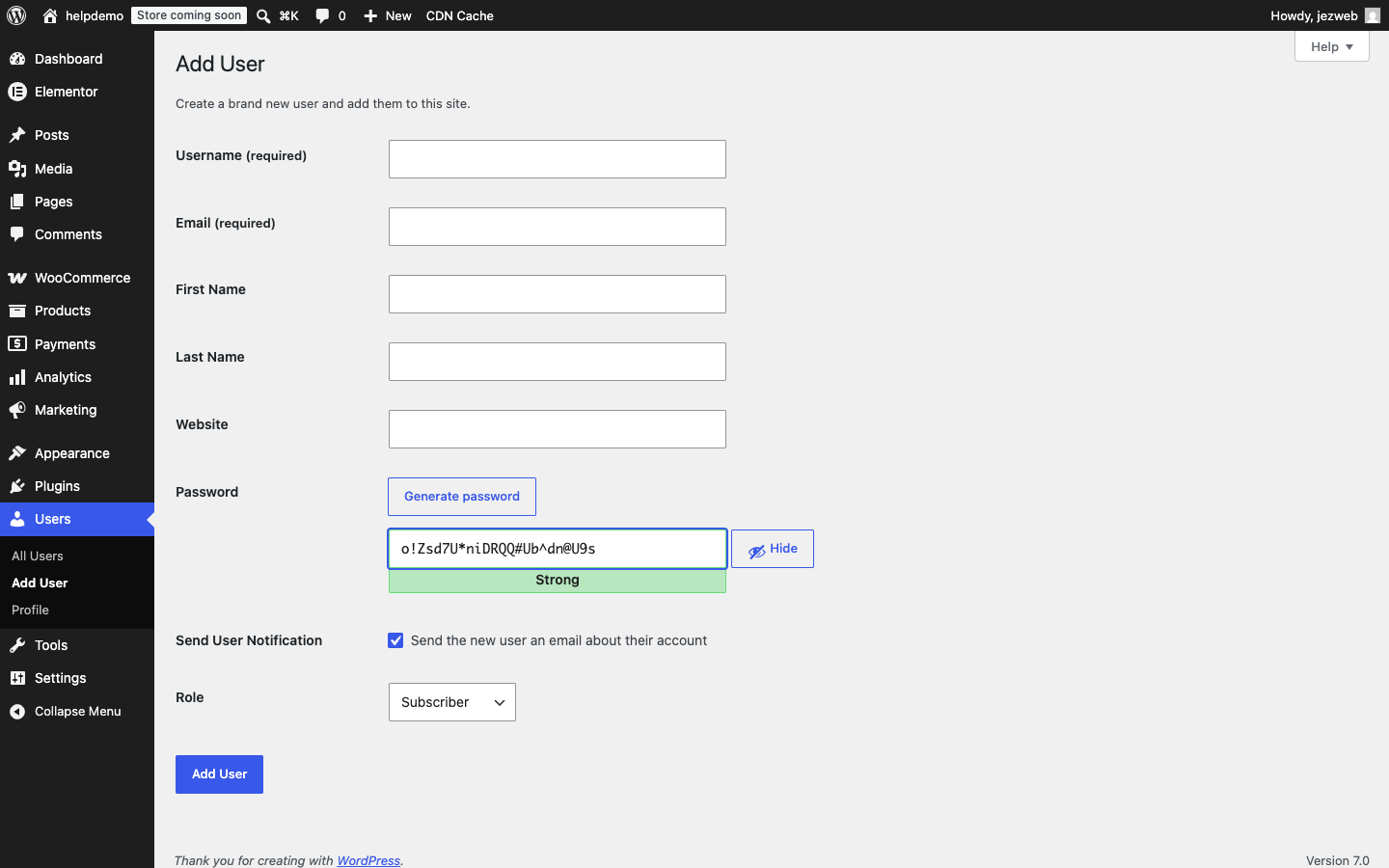
In the admin menu, click Users → Add New User.
-
Fill in:
- Username — something simple like their first name or
firstname.lastname. It can’t be changed later, so choose carefully. - Email — their work email address. WordPress will send their login details here.
- First Name / Last Name — optional, but helpful.
- Password — click Generate Password for a strong one. WordPress emails it to them automatically.
- Username — something simple like their first name or
-
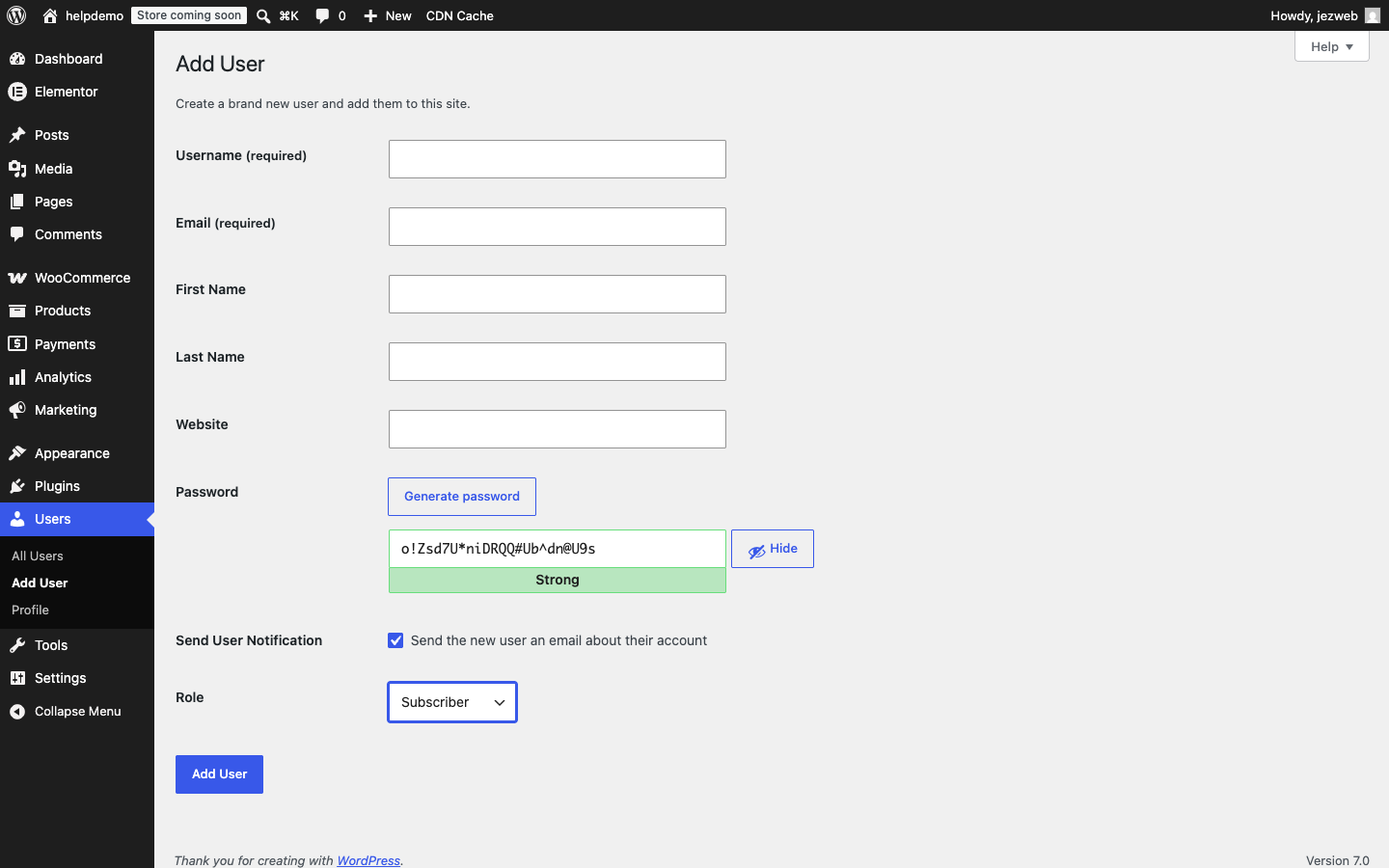
Set the Role (see the role guide below).
-
Make sure Send the new user an email about their account is ticked.
-
Click Add New User. They’ll receive a welcome email with a link to set their password.
Choosing the right role
| Role | What they can do |
|---|---|
| Editor | Write, edit, and publish any post or page — including other people’s |
| Author | Write and publish their own posts only |
| Contributor | Write posts but can’t publish — needs an Editor to review and publish |
| Subscriber | Log in and read content only — no editing |
For most staff who need to update pages and add blog posts, Editor is the right choice. Avoid giving anyone the Administrator role unless they need full control over plugins and settings — that’s the same level of access as the site owner.
Need to remove someone’s access?
Go to Users, hover over their name, and click Delete. WordPress will ask what to do with any posts they authored — usually you’ll want to reassign those to another user.
Didn't work, or not sure?
No worries — that's what we're here for. Tell us what step you got up to and what you saw, and we'll sort it with you.