Add a form to a page
A form does nothing until it’s on a page. Gravity Forms gives you a couple of easy ways to place one; pick the path that matches how your page is built.
The quick way: the Embed button
-
Open your form in the form editor (Forms, then click the form name).
-
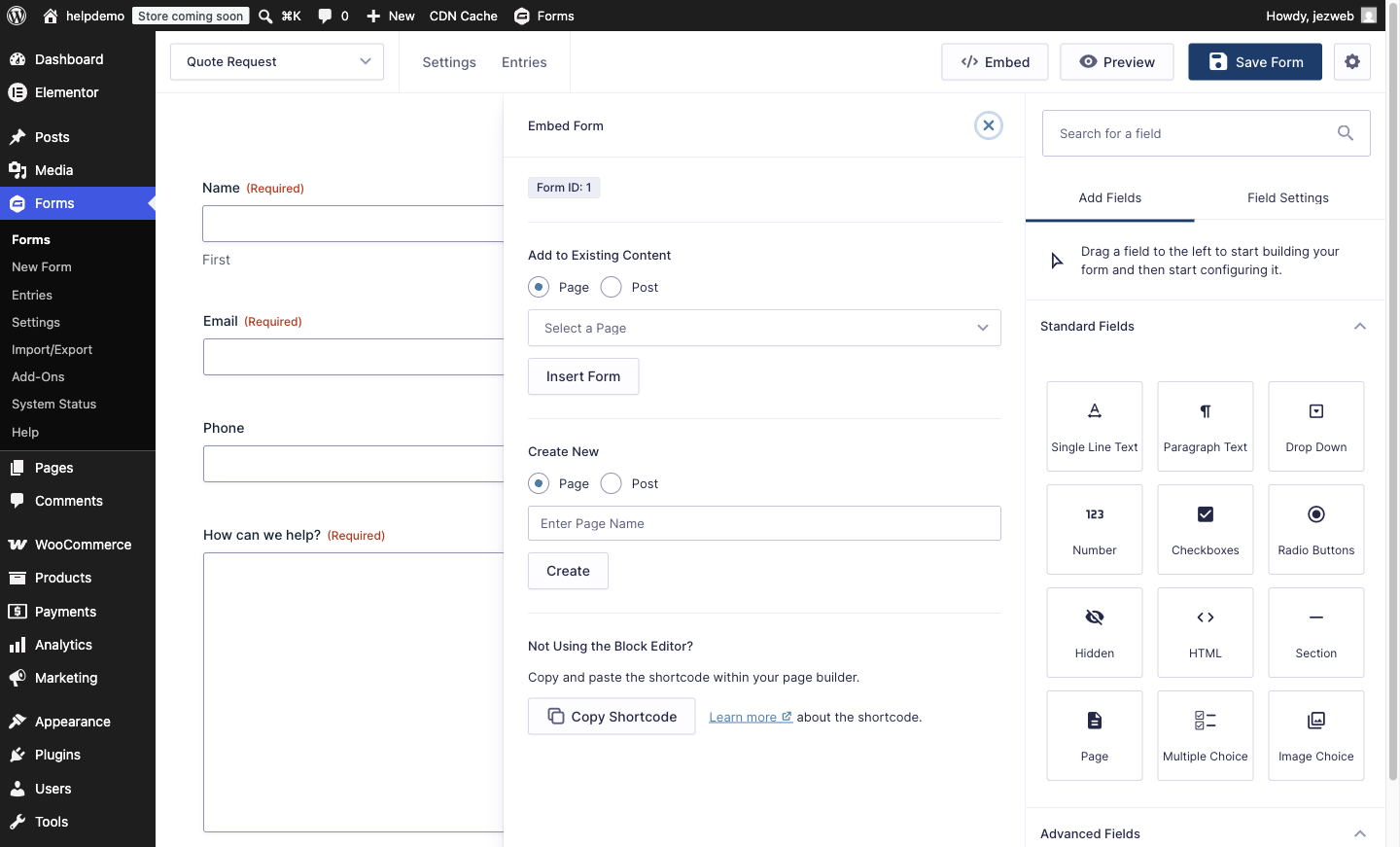
Click Embed in the top-right, next to Save Form.
-
A panel opens asking where the form should go. Choose an existing page from the list (or create a new one), and Gravity Forms adds the form to it and takes you straight there. Click Update on the page and you’re done.
In the block editor
If you’re already editing the page:
-
Click the + to add a block where you want the form.
-
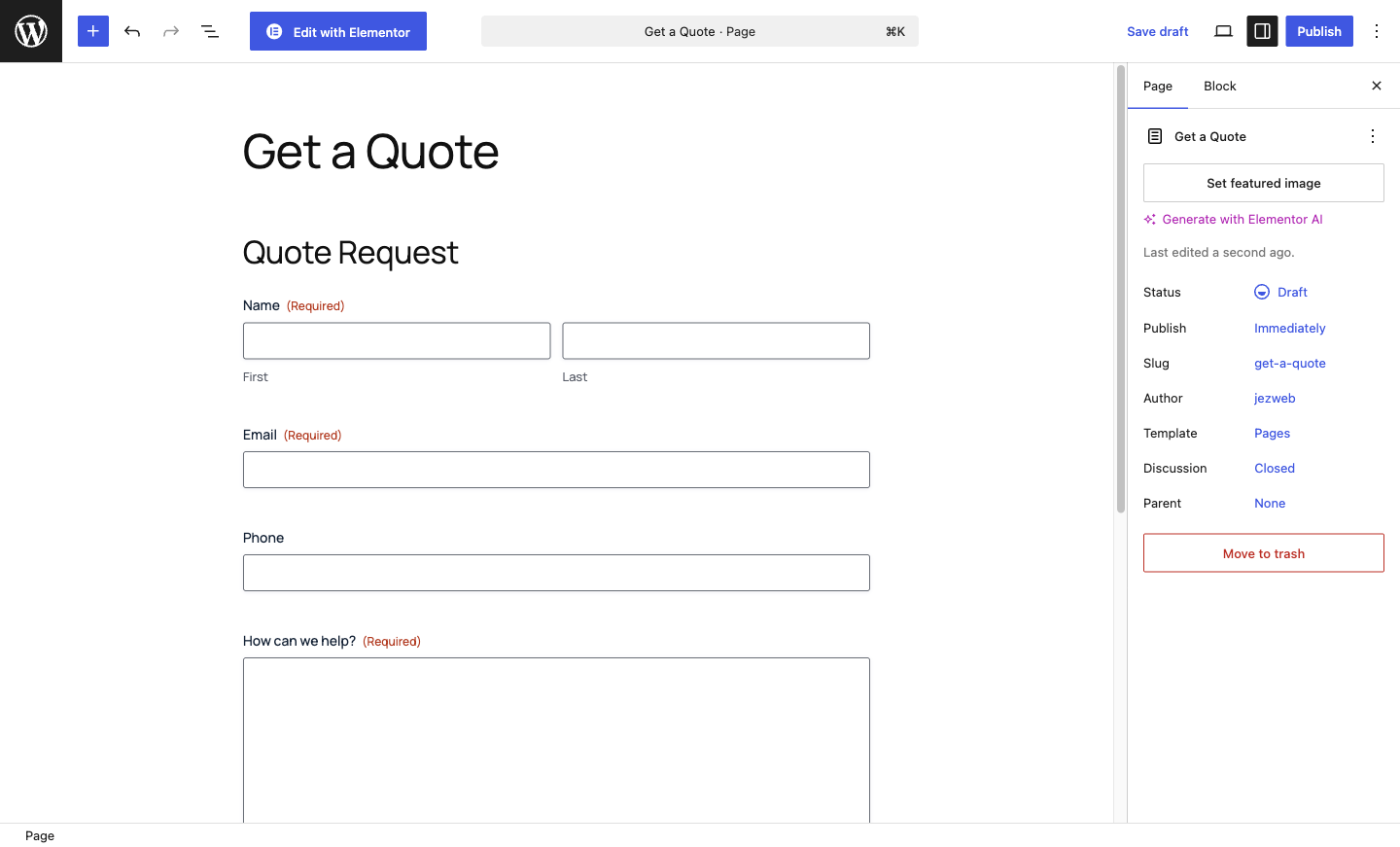
Search for Gravity Forms and choose the Form block.
-
Pick your form from the dropdown. The form appears right in the editor. Click Update.
In Elementor
There’s no dedicated Gravity Forms widget in Elementor; the Shortcode widget does the job:
-
Open the page with Edit with Elementor.
-
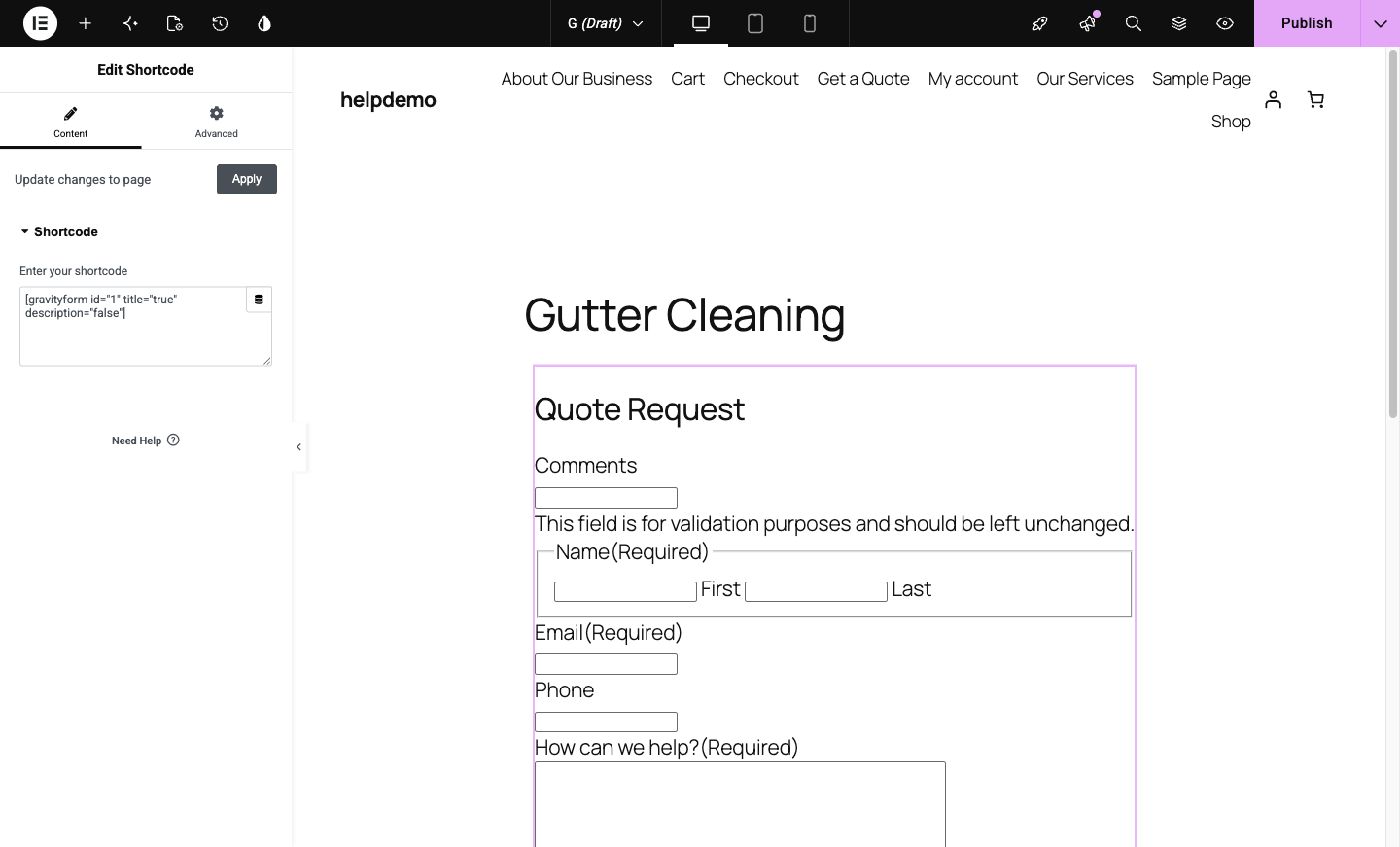
In the widget panel, search for Shortcode and drag the Shortcode widget where you want the form.
-
Paste the form’s shortcode (see below) into the widget’s text box. The form appears in the editor; it looks unstyled there, but picks up your site’s design on the live page. Click Publish.
The fallback that works anywhere: the shortcode
Every Gravity form can be placed with a shortcode. In the form list, each form shows its ID. Add this to any page, swapping in your form’s ID:
[gravityform id="1" title="false" description="false"]It’s the least pretty method, but it works in any editor, widget area or theme block.
Check it on the live page
Visit the page as a normal visitor and submit a test entry, then confirm it arrives (Forms, then Entries). If the email notification doesn’t show up, see Change who gets form notification emails.
Didn't work, or not sure?
No worries — that's what we're here for. Tell us what step you got up to and what you saw, and we'll sort it with you.