Edit buttons and links in Elementor
The most common small edit after text: a button that says the wrong thing or points to the wrong place. Both are quick fixes.
Change a button’s text
-
Open the page with Edit with Elementor.
-
Click the button on the page. The left panel switches to Edit Button.
-
Change the Text field. The button updates as you type.
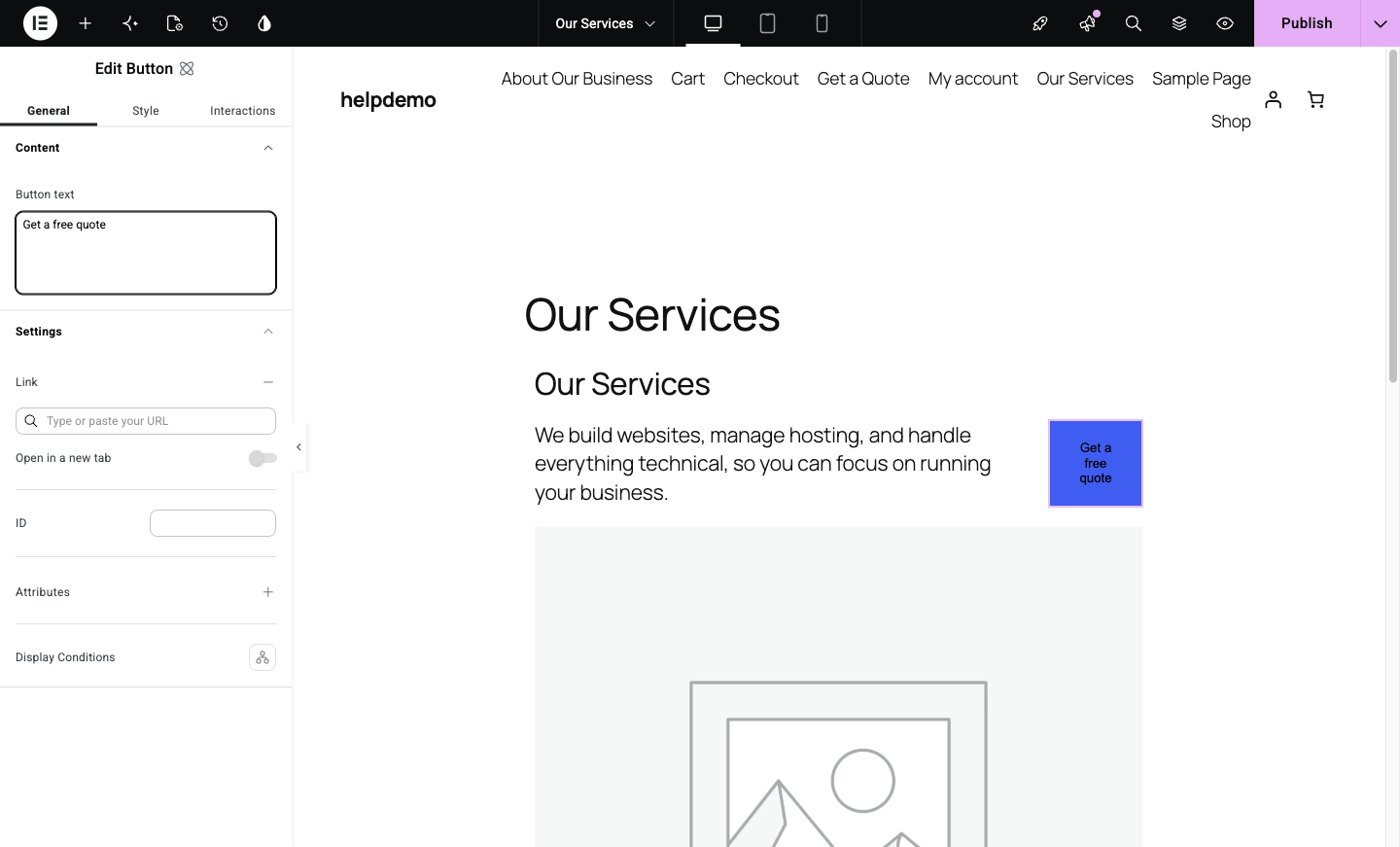
Change where a button goes
-
In the same panel, find the Link field and paste the destination.
- Another page on your site: start typing the page name and pick it from the suggestions, or paste the address (e.g.
/contact). - Another website: paste the full address including
https://. Switch on Open in a new tab so visitors don’t lose your site. - An email: use
mailto:you@yourbusiness.com.au - A phone number: use
tel:+61400000000(international format, no spaces). On phones this starts a call with one tap.
- Another page on your site: start typing the page name and pick it from the suggestions, or paste the address (e.g.
-
Click Publish to save.
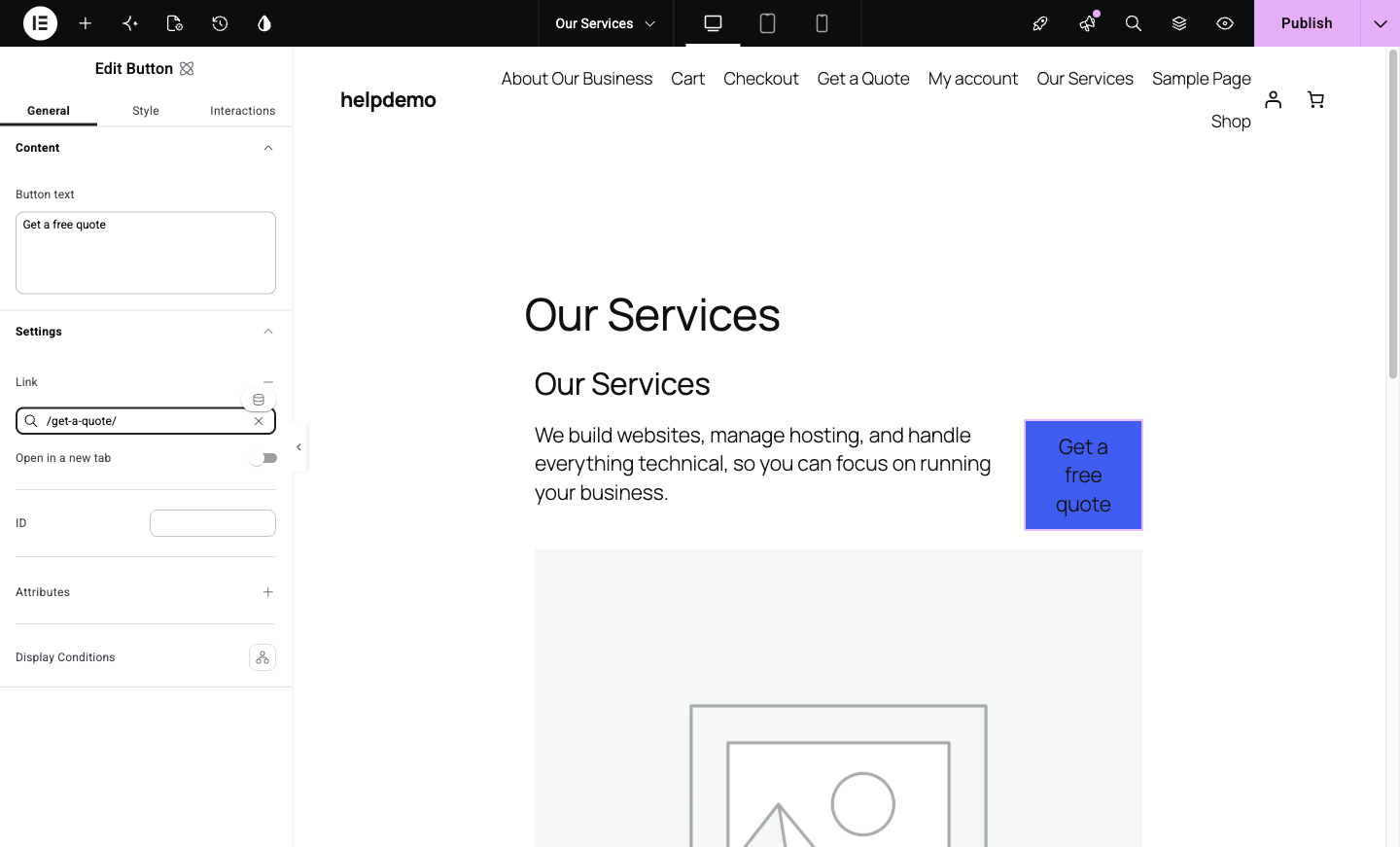
Edit a link inside a paragraph
Links in the middle of text work a little differently:
-
Click the paragraph to edit it, then select the linked text on the canvas.
-
Use the small toolbar that appears to edit or remove the link, or paste a new address over it.
Test the link
After publishing, view the live page and actually click the button. Thirty seconds of checking beats a month of a broken “Get a quote” button. Check it on your phone too if you’ve used a tel: link.
When the button won’t behave
If clicking a button in the editor selects a bigger box around it instead, you’ve selected its container. Click once on the empty area to deselect, then click directly on the button text. Still stuck? We’ll sort it.
Didn't work, or not sure?
No worries — that's what we're here for. Tell us what step you got up to and what you saw, and we'll sort it with you.