Undo mistakes and restore earlier versions
WordPress saves a copy of your page every time you click Save. If you’ve made a change you regret, you can step back through those saved versions and restore an earlier one.
Quick undo (before saving)
If you haven’t saved yet, press Ctrl+Z (Windows) or Cmd+Z (Mac) to undo your last change, one step at a time. This works for as many steps as you need while the editor is open.
Once you click Save, those in-editor undo steps are gone — but revisions take over.
Restore with revisions
-
Open the page in the block editor.
-
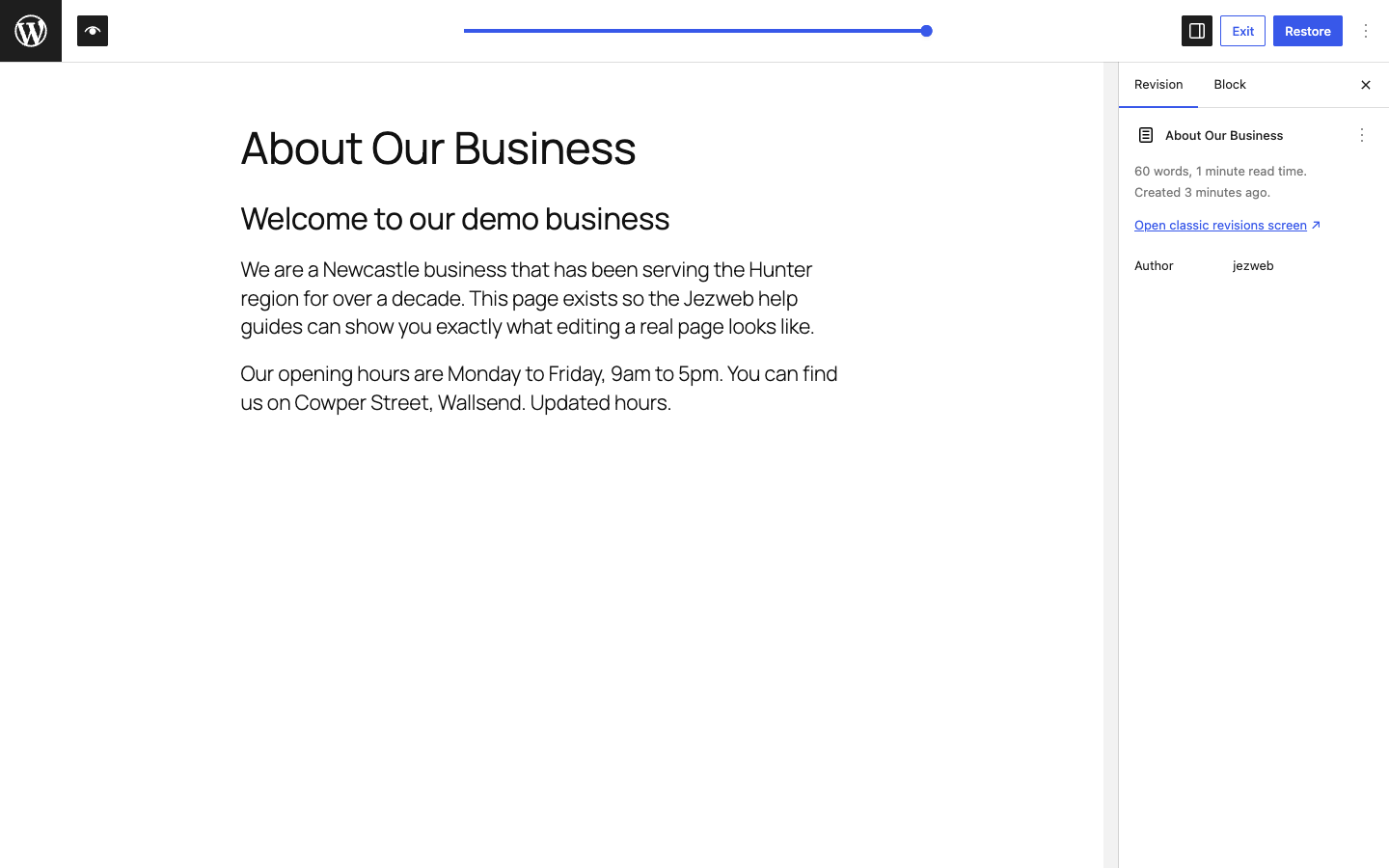
In the right-hand sidebar, click the Page tab, then click Revisions (shows a count like “2” or “5”).
-
A panel opens with a timeline slider at the top. Drag the slider left to step through older versions. The content preview updates as you drag.
-
When you find the version you want, click Restore This Revision.
-
Click Save to make the restored version live.
Side-by-side comparison (classic revisions screen)
For a colour-coded view of exactly what changed between two versions, click Open classic revisions screen at the bottom of the revisions panel.
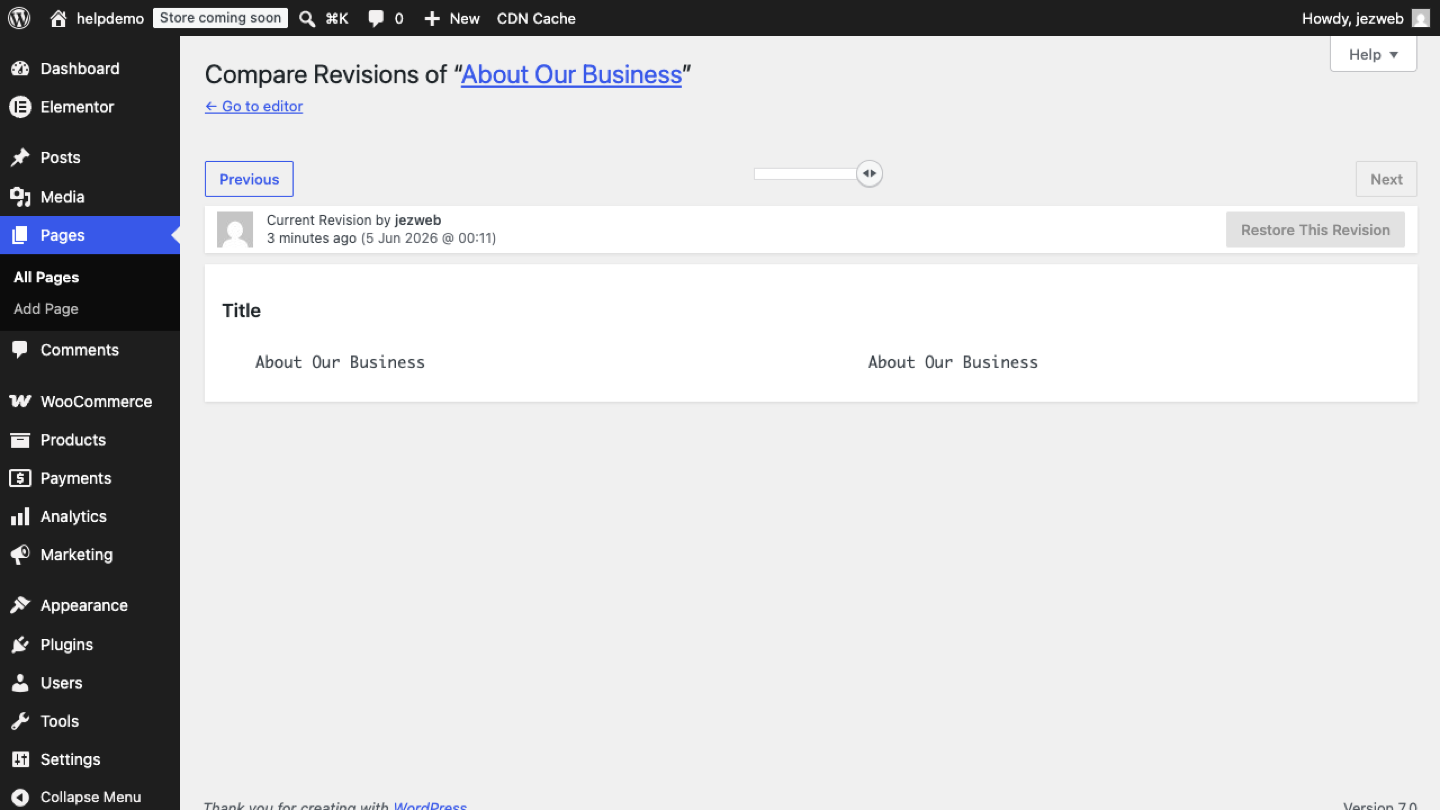
- Green text was added; red text was removed.
- Use the Previous / Next buttons or drag the slider to move between revisions.
- Click Restore This Revision on the version you want, then save the page.
How many revisions are kept?
WordPress keeps every revision by default. On busy sites we sometimes limit this to the last 20–30 to keep the database tidy. If you can’t find an old version, contact us — we may have a server-level backup that goes further back.
Didn't work, or not sure?
No worries — that's what we're here for. Tell us what step you got up to and what you saw, and we'll sort it with you.